Android tip · Joplin
Joplin on Android 16: set up a local backup folder and see where your notes live
Android's own backup leaves Joplin out, so we pointed Joplin's File system sync at a folder in Documents, synced 28 items with airplane mode on and opened the folder to see what it holds. Plus the Trash and note history as a second safety net.
Test record
- App
- Joplin 3.7.12 (official APK, same file as the GitHub release)
- Device
- Pixel 7 emulator, Android 16 (API 36)
- Tested
- APK source
- official release page (external site)
- Conditions
- No account. Five Welcome notes plus six notes of our own, one with a PNG and a PDF attached. Airplane mode on during the sync. We read the folder from a computer over USB debugging (adb) to count and open the files.
Why Android's backup will not save your notes
Android can back up app data to the cloud or move it to a new phone, but each app can opt out with a manifest setting called allowBackup. On our install, Android listed Joplin's package flags as HAS_CODE and ALLOW_CLEAR_USER_DATA, without ALLOW_BACKUP. The Android documentation (external site) says an app with allowBackup set to false is left out of cloud backups and device-to-device transfers.
The app's folder in shared storage, Android/data/net.cozic.joplin, held only an empty cache and an empty files folder after our test. So the notes are not in shared storage, where a file manager could copy them. The copy has to come from Joplin itself.
How do I make a copy that stays on the phone?
Besides the JEX export, the Android app can sync to a folder on the phone. That folder is a full copy that Joplin can sync back from. Here is the path we used.
Step 1 Choose File system as the sync target
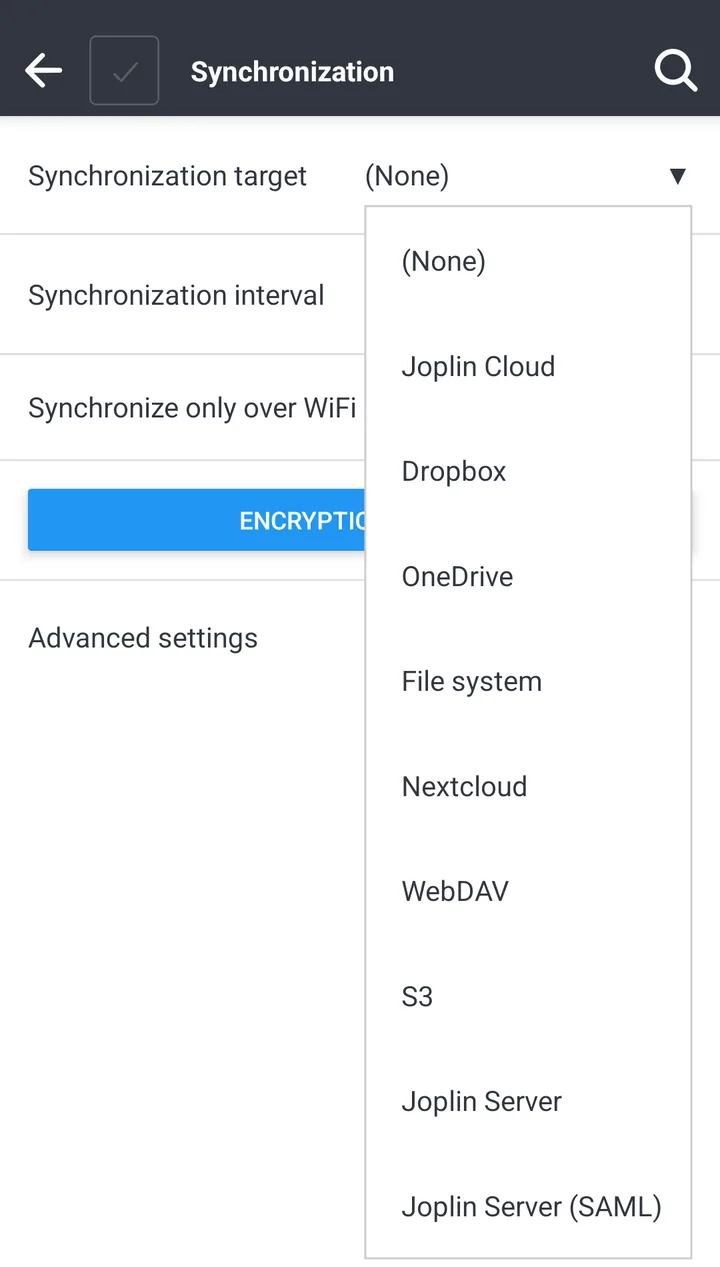
Open Configuration, then Synchronization, and tap the target list. It offered (None), Joplin Cloud, Dropbox, OneDrive, File system, Nextcloud, WebDAV, S3, Joplin Server and Joplin Server (SAML).
Step 2 Tap the directory field
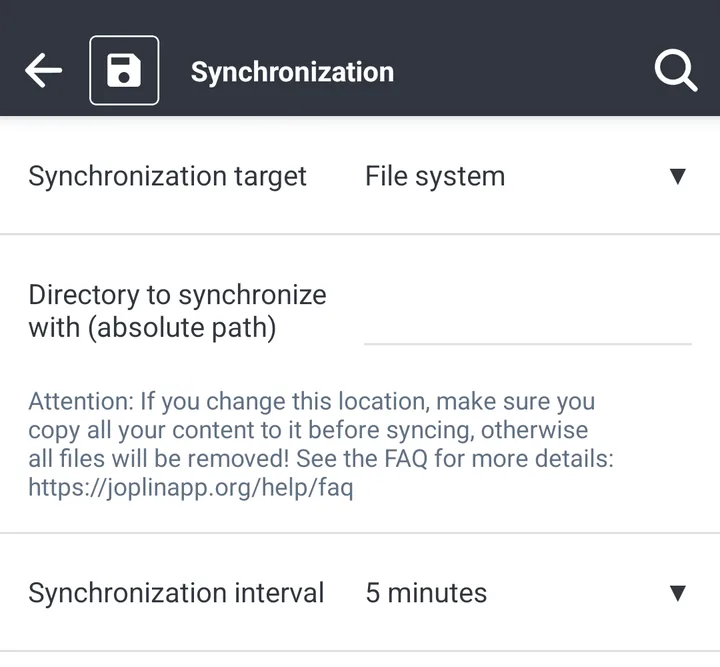
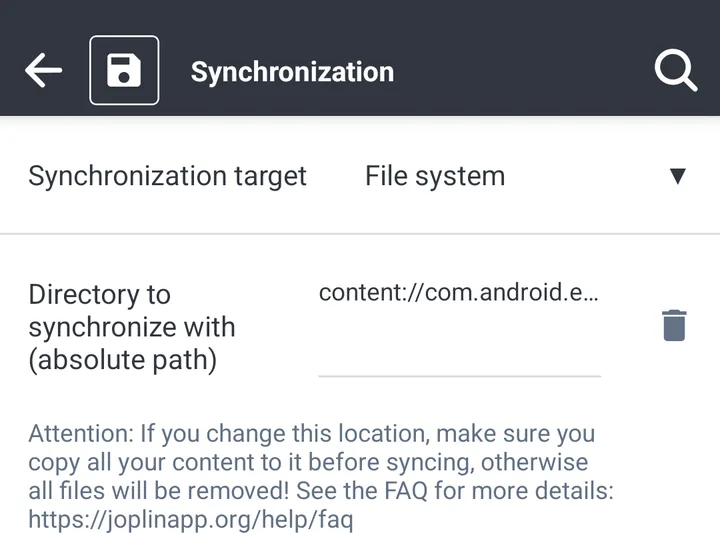
The field is labelled Directory to synchronize with (absolute path), but tapping it opens the Android folder picker, not a text field. Under it, a warning says that if you change the location, you must copy your content there first or all files will be removed.
Step 3 Create a folder, because the root is refused
At the top level, the picker said Can't use this folder to protect your privacy. We opened Documents, created
JoplinSyncwith the new folder icon and tapped USE THIS FOLDER.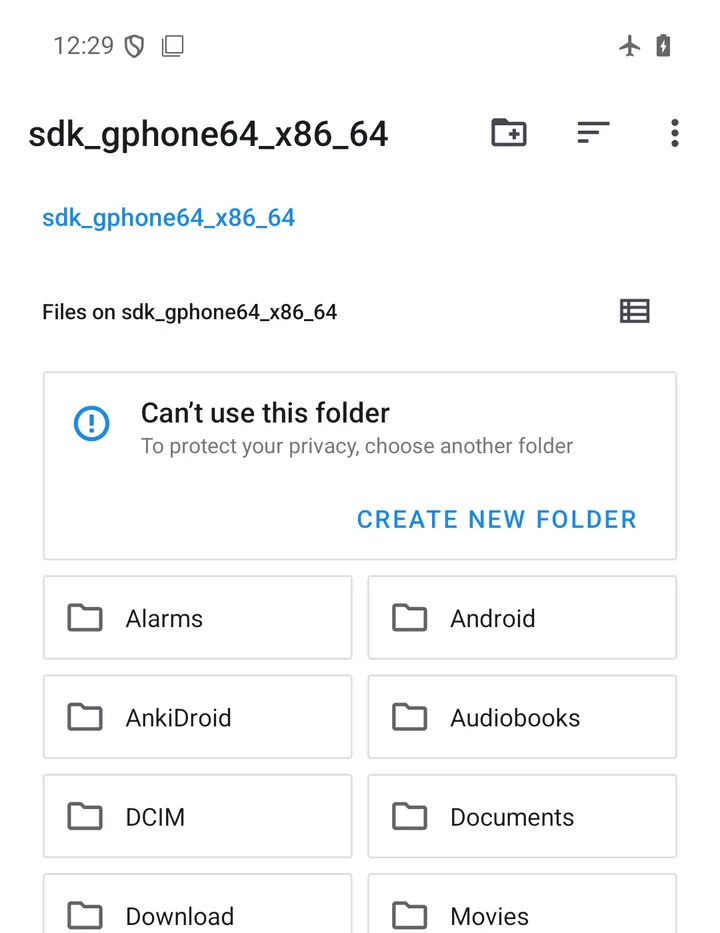
Step 4 Allow access to that folder only
Android asked Allow Joplin to access files in JoplinSync? After ALLOW, the field showed
content://com.android.externalstorage.documents/tree/primary:Documents/JoplinSync. Joplin gets this one folder, not your whole storage.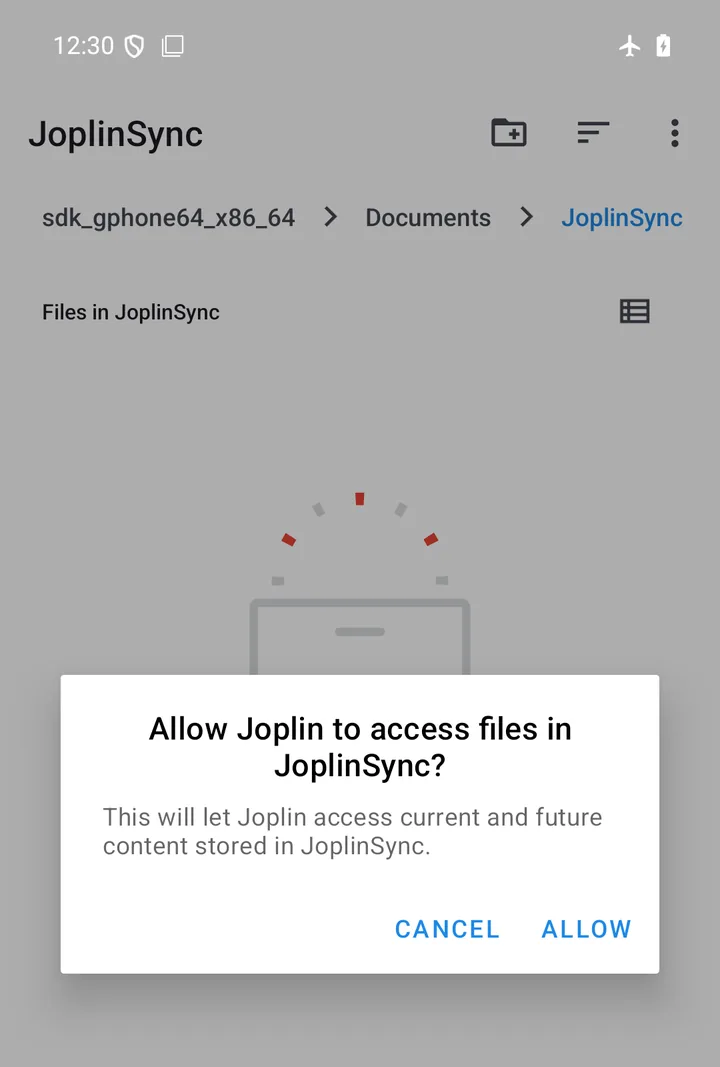
Step 5 Save and synchronize
Tap the save icon, go back to the note list, open the sidebar and tap Synchronize. With airplane mode on, the sidebar reported Created remote items: 28, Fetched items: 28/28 and Completed after 18 seconds. Synchronize only over WiFi connection was off by default.
What is inside the folder?
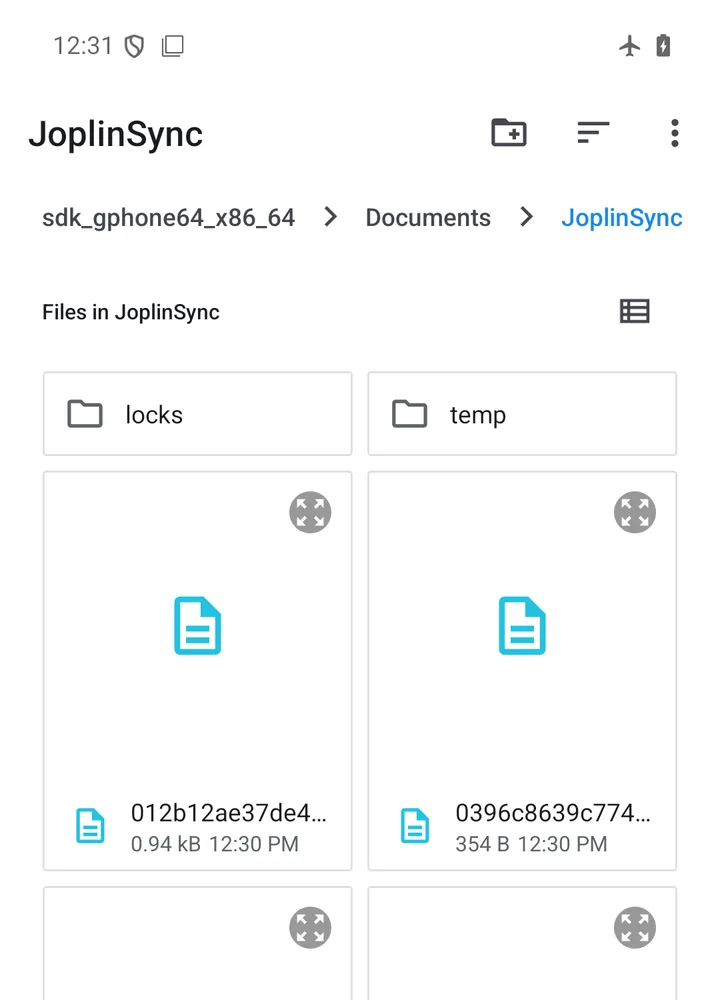
Do not expect your notebook names. The folder held 28 Markdown files with 32 character names, an info.json file and the folders .resource, .sync, .lock, locks and temp. The whole folder used 924 KB.
| What we found | Count | Readable? |
|---|---|---|
| Notes: title and Markdown body, then metadata lines | 11 files | Yes, as plain text, because we had not set up encryption |
Note history entries with title_diff and body_diff | 6 files | Partly |
| Notebooks, the tag, its link to the note, attachment records | 11 files | Metadata only |
Attachment files in .resource | 5 files | Our PDF and PNG had their original sizes, 85,873 and 48,090 bytes |
The Joplin FAQ (external site) is clear that real file and folder names are not possible in a sync target and calls the folder basically a database. Treat it as a copy for Joplin to read, not as notes to edit by hand. The same FAQ says mobile has no background sync, so the folder only updates while Joplin is open.
Undo inside the app: Trash and note history
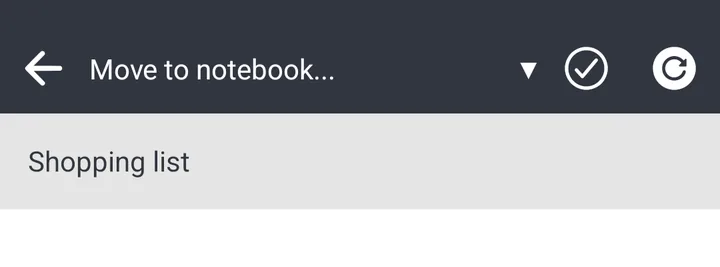
For a deleted note, you may not need the folder at all. Delete in the note menu removed Shopping list at once, with no confirmation, and put it in Trash in the sidebar. A long press on it showed a bar with Move to notebook..., a select-all button and Restore. Restore put the note back in Kitchen.
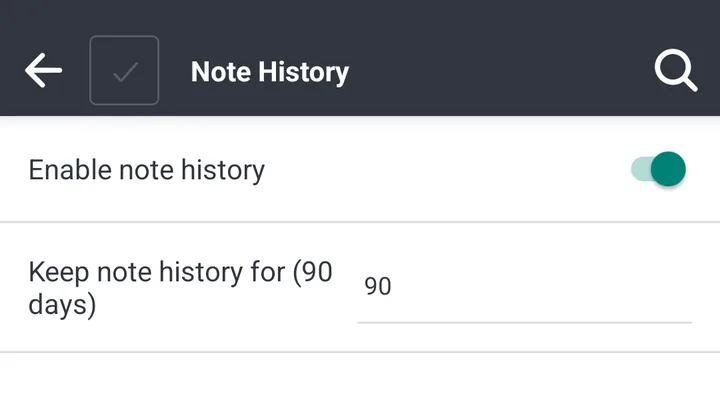
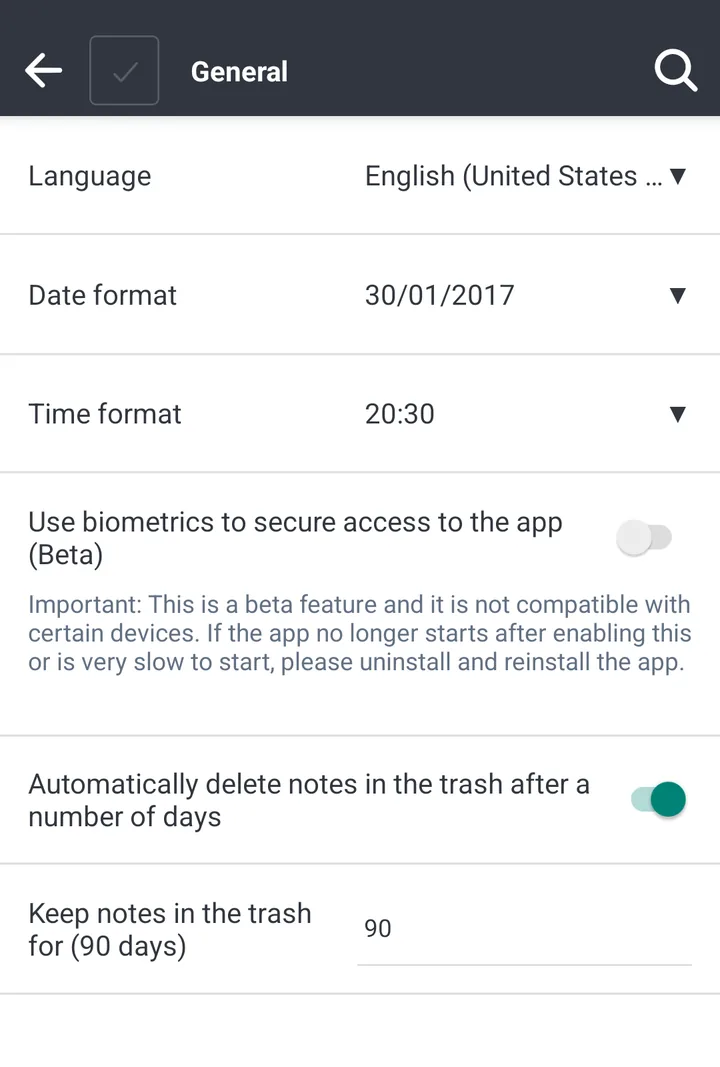
Two settings decide how long this net holds. Note History was on, with history kept for 90 days. In General, the Trash was set to delete notes automatically after 90 days. The same page has Use biometrics to secure access to the app (Beta), off by default.
Quick checklist
- Sync target set to File system, folder inside Documents, access allowed.
- Run Synchronize after a big change, with the app open.
- Copy JoplinSync, hidden folders included, to another device now and then.
- Keep Trash and note history at 90 days or more.
- For a single portable file, use the JEX export described in our attachments and export guide.
Common errors and how we fixed them
ProblemThe folder picker said Can't use this folder.
FixAndroid refuses the top level of storage. Open Documents, create a folder with the new folder icon and choose that one.
ProblemThe sync folder has no notebook or note names.
FixThat is by design, per the Joplin FAQ. Each note file starts with the note title, so a text search over the folder on a computer still finds a note.
ProblemA deleted note vanished without a question.
FixOpen Trash in the sidebar, long press the note and tap Restore.
ProblemThe sidebar did not open from a settings page.
FixSettings pages show a Back arrow instead. Go back to the note list first, then open the sidebar to reach Synchronize or Trash.
Sources
We checked these sources on the test date.