Tutorial · Joplin
Attach images and PDFs in Joplin, open them offline and export every note as JEX
We attached a PNG and a PDF to a Joplin note, switched on airplane mode, opened both and then exported the whole collection as a JEX file. Joplin 3.7.12, no account, no cloud.
Test record
- App
- Joplin 3.7.12 (official APK, same file as the GitHub release)
- Device
- Pixel 7 emulator, Android 16 (API 36)
- Tested
- APK source
- official release page (external site)
- Conditions
- No sync target and no account. A 48 KB PNG and an 86 KB PDF of our own were placed in the Downloads folder before the test. Airplane mode was on from the offline check to the end of the export.
What worked, in one paragraph
That last point decides how you use the export. Read the end of this guide before you rely on JEX as your only copy.
Attach a file to a note
Step 1 Open the note in edit mode and tap the paperclip
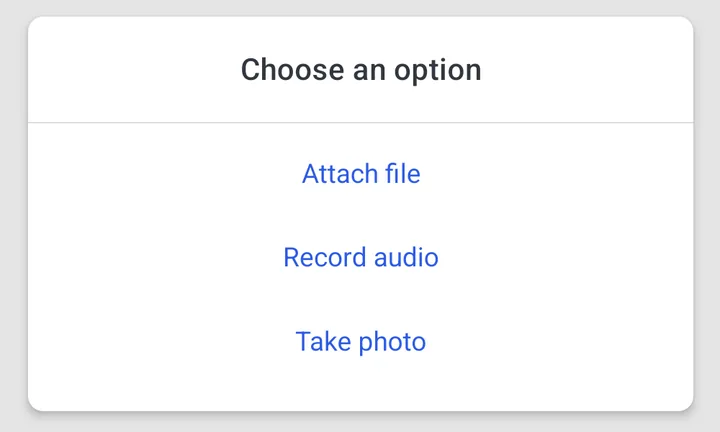
We created a note called Bed layout in the Garden notebook and typed one line. The paperclip is the first button of the toolbar under the editor. It opened Choose an option with Attach file, Record audio and Take photo.
Step 2 Pick the file in the Android picker
Attach file opened the system picker in Downloads. We tapped the thumbnail of
garden-plan.png. Joplin never asked for a storage or media permission: the picker hands over only the file you choose.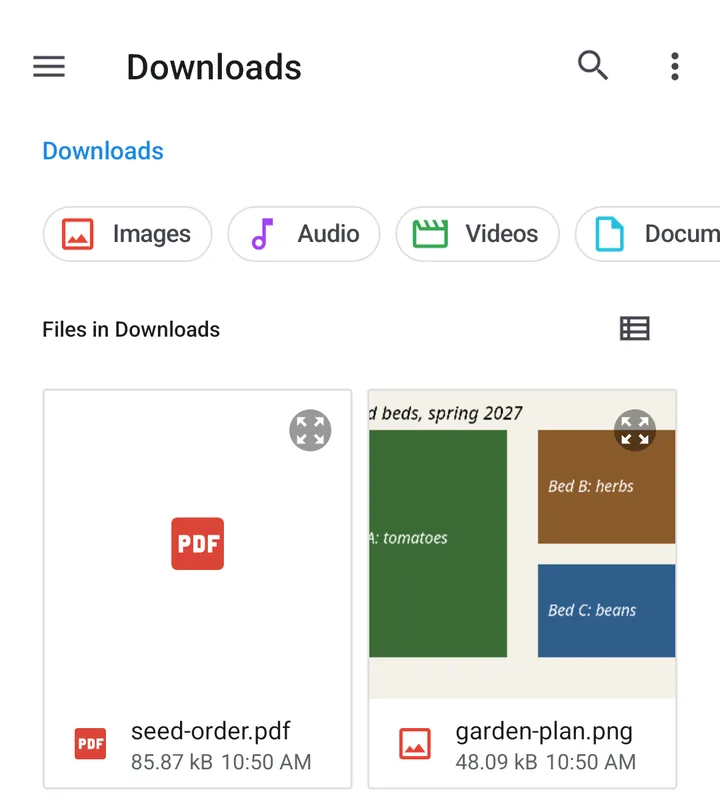
Step 3 Repeat for the PDF
We attached
seed-order.pdfthe same way. In the editor, the image became a Markdown line,, with a preview under it. The PDF became a link with its file name.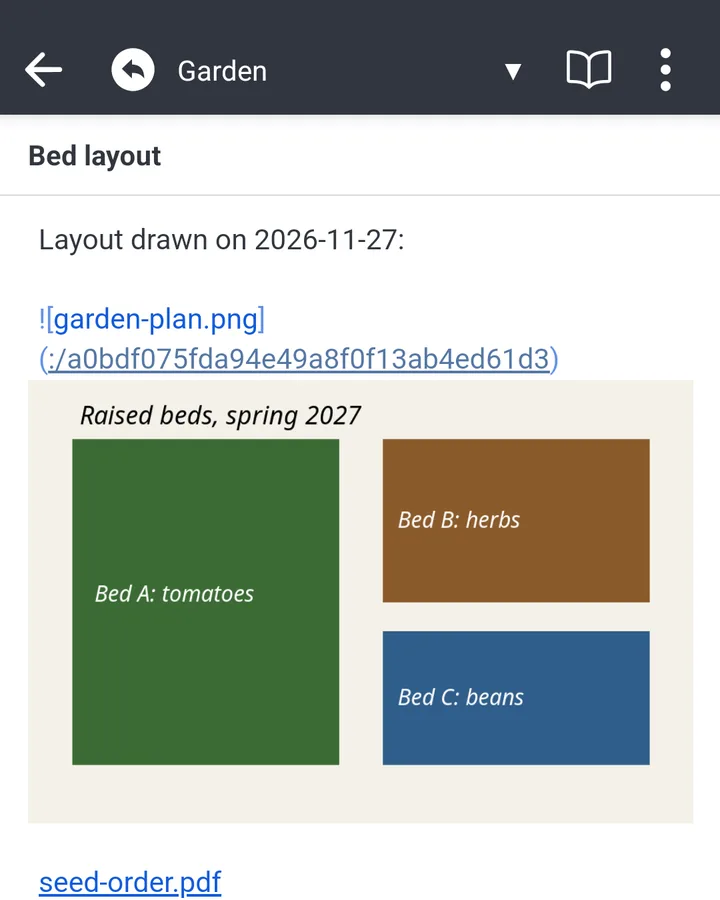
The part after :/ is the ID of the attachment. Joplin stores the file under that ID, so do not edit it. The text in square brackets is only a label.
Check it offline
Step 4 Turn on airplane mode and reopen the note
With airplane mode on, we tapped the book icon to leave edit mode. The viewer showed the garden plan image and a PDF icon in front of the
seed-order.pdflink.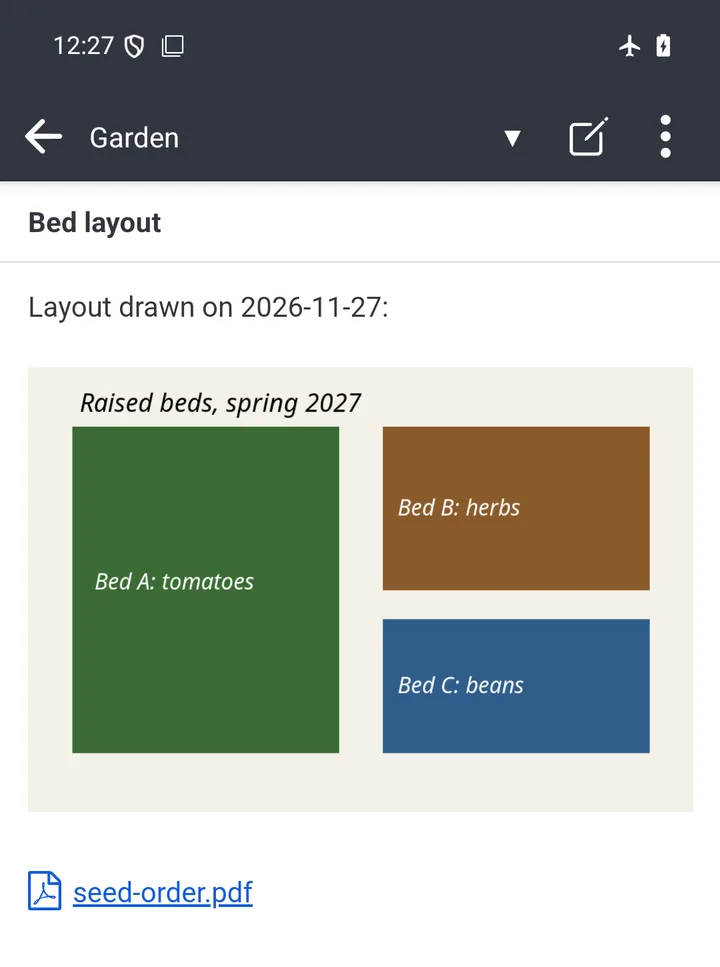
Step 5 Tap the PDF link
The PDF opened in a separate PDF viewer, still offline. Its title bar showed
12639c4981c444b6a6106d6ccc1a79ef.pdf, the attachment ID, not the original file name. The text of the PDF was readable.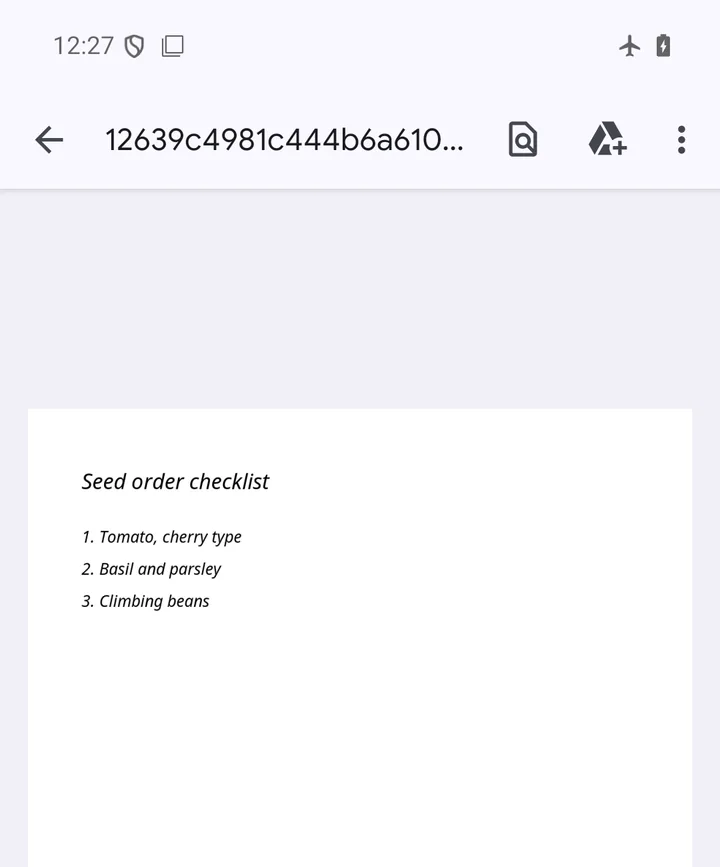
The Attachments help page (external site) says PDF files are shown inside the note. On the phone in 3.7.12, the PDF stayed a link. The same page warns that attachments larger than 10 MB are not supported on mobile and can crash the app during sync. Our files were far smaller, so we did not hit that limit.
Export all notes as JEX
Step 6 Open Import and Export
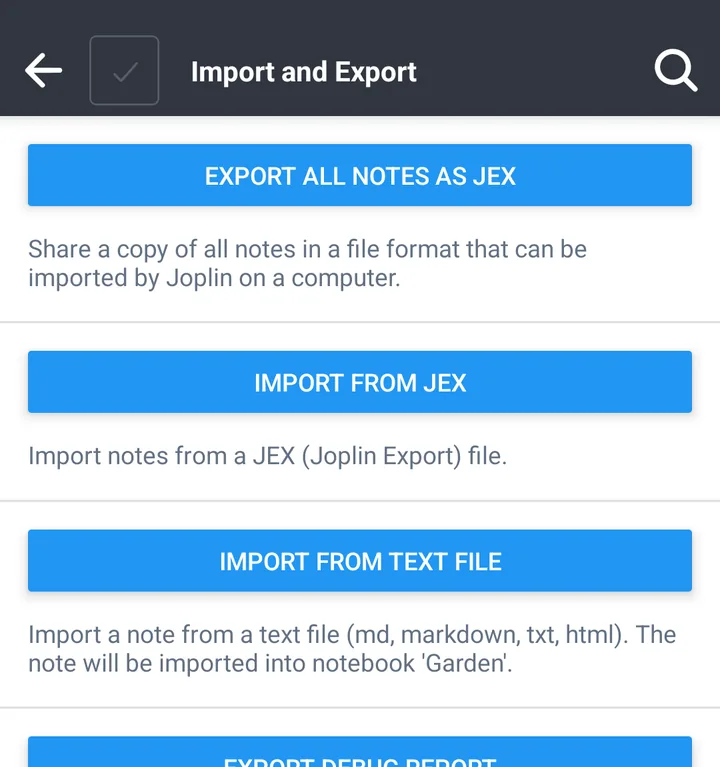
Leave the note, open the sidebar and tap Configuration, then Import and Export. The first button, EXPORT ALL NOTES AS JEX, says it shares a copy of all notes in a format Joplin on a computer can import.
Step 7 Tap the export button
The screen said Exported successfully! and the Android share sheet opened with one file,
jex-export.jex. The targets were Quick Share, Joplin, Drive and Gmail. Nothing in the list saved the file to the phone, and we did not send it anywhere.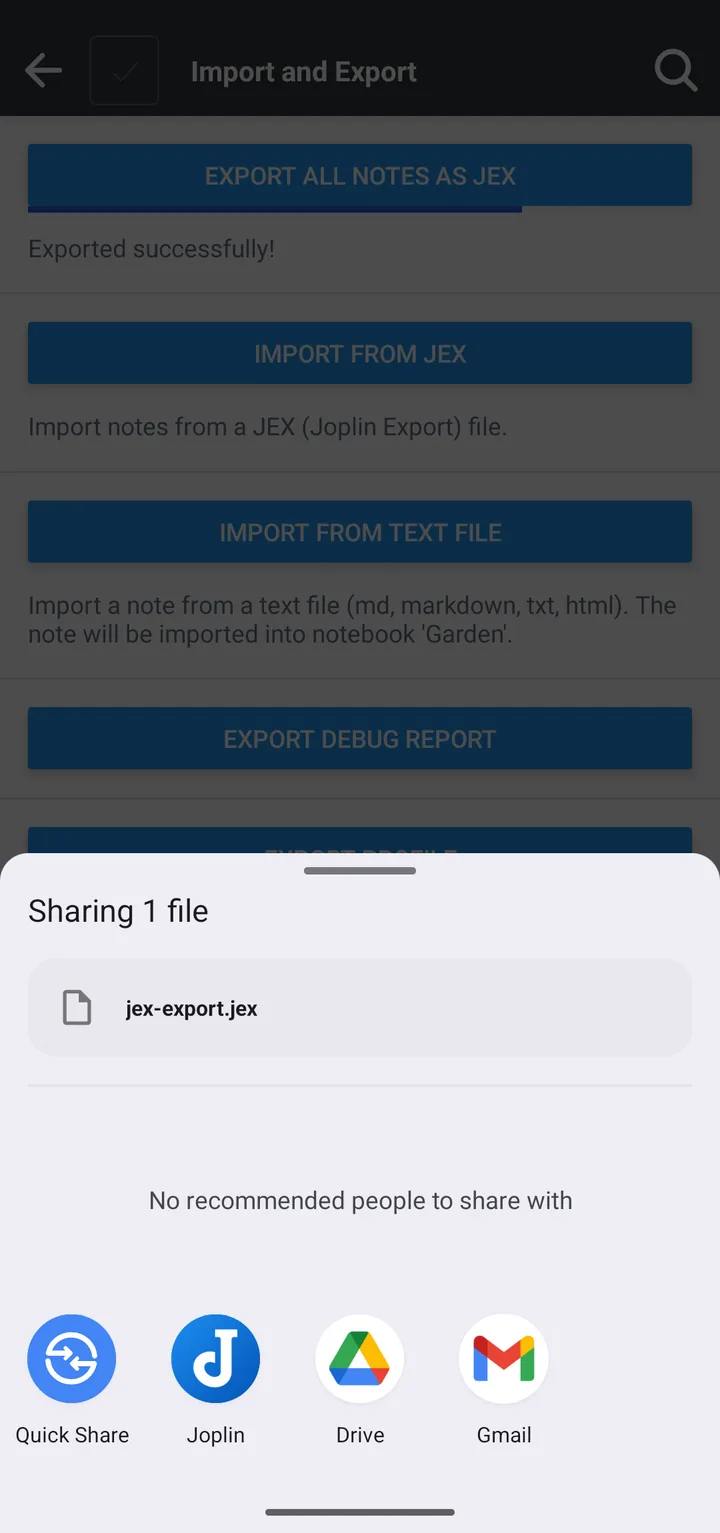
The import and export help page (external site) describes JEX as a tar file that keeps notes, notebooks, tags and metadata, convenient for backups and re-importable into Joplin. That makes it the right format for a copy on a computer. The catch on Android is the delivery: you need an app in the share sheet that can store or send the file.
Choosing a route for your copy
| Route | Needs | What you get |
|---|---|---|
| Share the JEX with Quick Share | A second device nearby | One .jex file that Joplin on a computer can import |
| Share the JEX by email or to a cloud drive | An account in that app and a connection | The same file, stored with that service |
| File system sync to a folder on the phone | Nothing beyond Joplin | A folder of item files that Joplin can sync back, but not one readable archive |
We tested only the last route to the end. It is covered in where Joplin keeps its data on Android 16. If your phone has a file manager that appears in the share sheet, it may also save the JEX locally; ours did not show one.
Common errors and how we fixed them
ProblemThe image line in the note shows a long code instead of the file name.
FixThat code is the attachment ID that Joplin uses to find the file. Leave it as it is; change only the label in square brackets if you want another name.
ProblemThe PDF did not appear inside the note.
FixIn 3.7.12 on Android it shows as a link. Tap it to open the file in your PDF viewer. It worked with airplane mode on.
ProblemThe JEX export offered no way to save the file on the phone.
FixSend it to a device or service you trust through the share sheet, or set up a File system sync folder as a local copy.
ProblemThe PDF viewer showed a file name made of letters and numbers.
FixThat is the attachment ID. The original name is still the link label in the note, and the file content was the same.
Sources
We checked these sources on the test date.