Tutorial · Joplin
How to organize Joplin notebooks in Markdown and find any note with search
We built a small notebook tree in Joplin 3.7.12, wrote notes in Markdown, tagged one and ran ten searches to learn what the search box finds and what it misses. No account and no sync.
Test record
- App
- Joplin 3.7.12 (official APK, same file as the GitHub release)
- Device
- Pixel 7 emulator, Android 16 (API 36)
- Tested
- APK source
- official release page (external site)
- Conditions
- Fresh install with the five Welcome notes. No sync target and no account. Three notebooks and five notes of our own, typed in English. Geolocation declined at the first note.
The tree we built
Joplin keeps every note in a notebook, and notebooks can sit inside other notebooks. Tags cut across that tree. For this test we used a small garden and kitchen collection, so that each search had a clear right answer.
| Notebook | Notes | Extra |
|---|---|---|
| Garden | Spring planting plan, Watering schedule | Tag spring on the planting plan |
| Garden > Seeds | Seeds suppliers | Sub-notebook |
| Kitchen | Tomato sauce, Shopping list |
The words matter for the search test later. tomatoes and basil sit in the planting plan, tomato seeds in Seeds suppliers, and garlic and jars in Tomato sauce, while Shopping list only has jars.
Step 1: create notebooks and a sub-notebook
Step 1 Open the sidebar and tap New Notebook
Tap the menu icon at the top left. New Notebook sits near the bottom of the sidebar, above Tags and Configuration. The form has a title field and a Select parent notebook list.
Step 2 Pick a parent to nest it
For a top-level notebook, leave the parent empty and tap the save icon at the top. For Seeds we chose Garden as the parent before saving.

Step 3 Check the tree
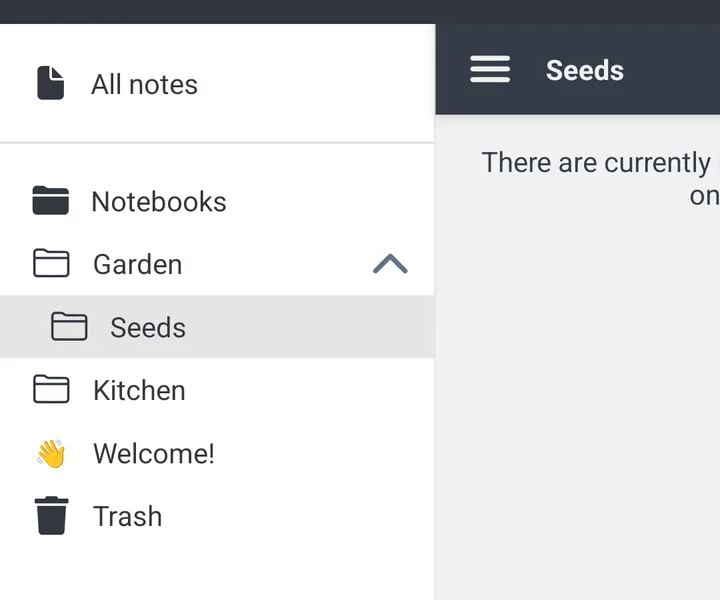
The sidebar now showed Garden with an arrow to collapse it, Seeds indented one level below, then Kitchen, Welcome! and Trash.
The sub-notebooks help page (external site) still says only the desktop app can organise notebooks. In 3.7.12 the parent list did the job on the phone. We did not test moving an existing notebook to a new parent.
Step 2: write a note in Markdown
Step 4 Use the + button, then New note
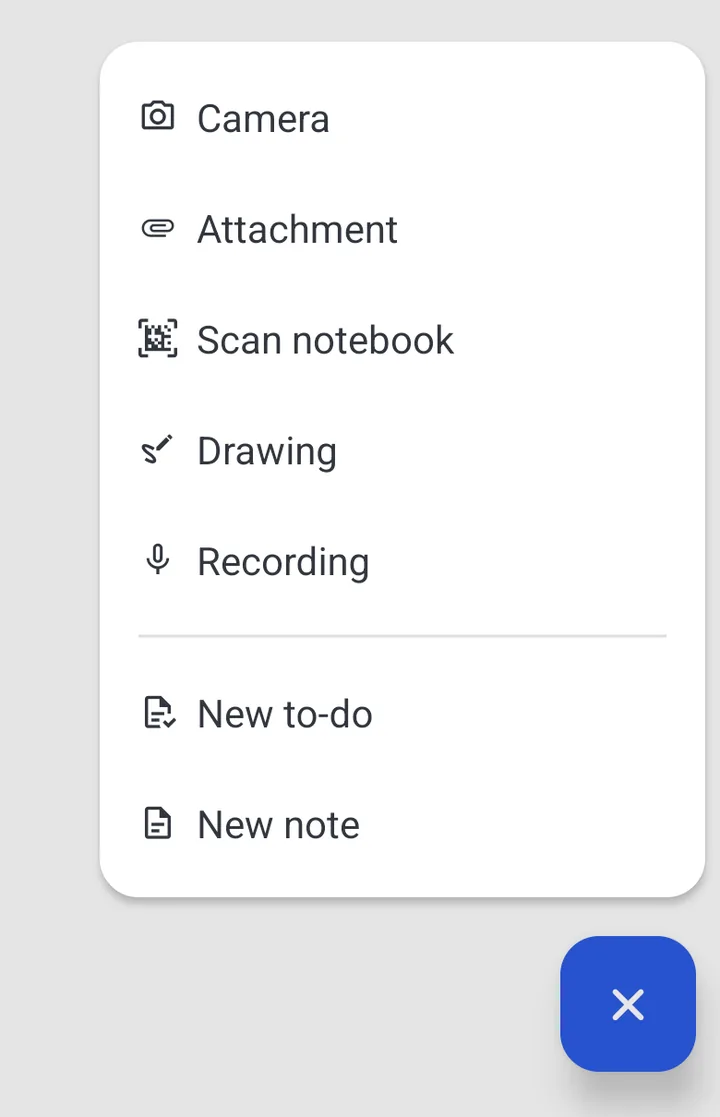
Open the notebook first, so the note lands in it. The round + button opens a menu with Camera, Attachment, Scan notebook, Drawing, Recording, New to-do and New note.
Step 5 Type the title, then the body
We typed
## Raised beds, two list lines starting with-, a word between**and two lines starting with- [ ]. After each list line, Enter started the next line with the same marker, so we only typed the text.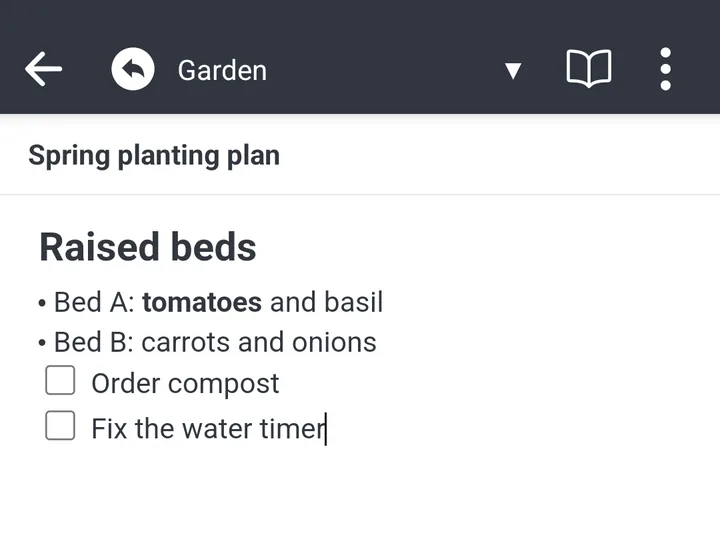
The heading, bold word and checkboxes appeared formatted while we typed. A banner under the editor said this rendering is now the default and offered Keep it enabled or Disable it. The Markdown is still there: the note kept the plain ##, ** and - [ ] text, which we confirmed when we read the synced copy later.
Step 3: tag the note
Step 6 Open Tags from the note menu
In the note, tap the three-dot menu and then Tags. The dialog has Associated tags at the top and a search field under Add tags.
Step 7 Type the tag and tap Add new
We typed
spring. A line called Add new appeared under the field. Tap it first: the tag moves up to Associated tags. Then tap Apply.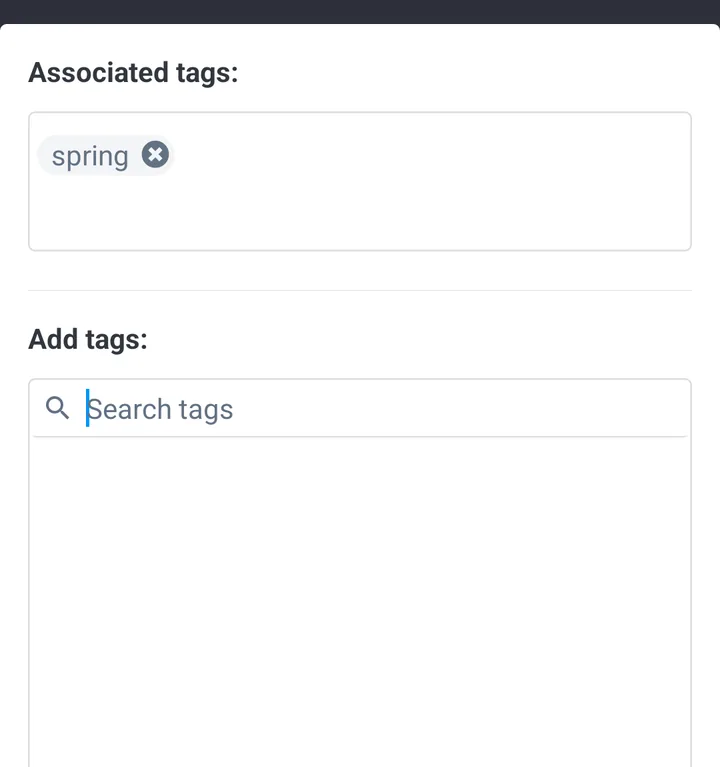
Step 4: search, and read the results correctly
The magnifier at the top of the note list opens a search field for all notebooks. We ran each query from the All notes view. The table lists every result Joplin returned.
| Query | Results | What it shows |
|---|---|---|
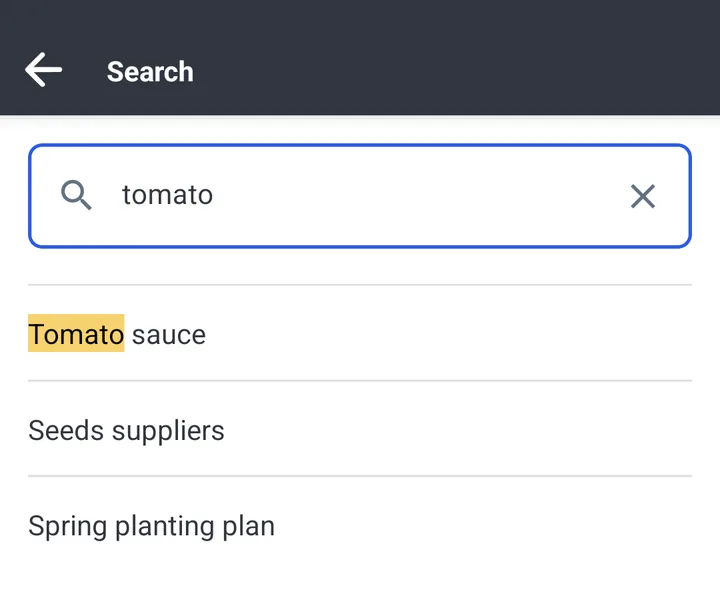
tomato | Tomato sauce, Seeds suppliers, Spring planting plan | The planting plan only has tomatoes, so the word matched as a prefix |
omat | None | No match inside a word |
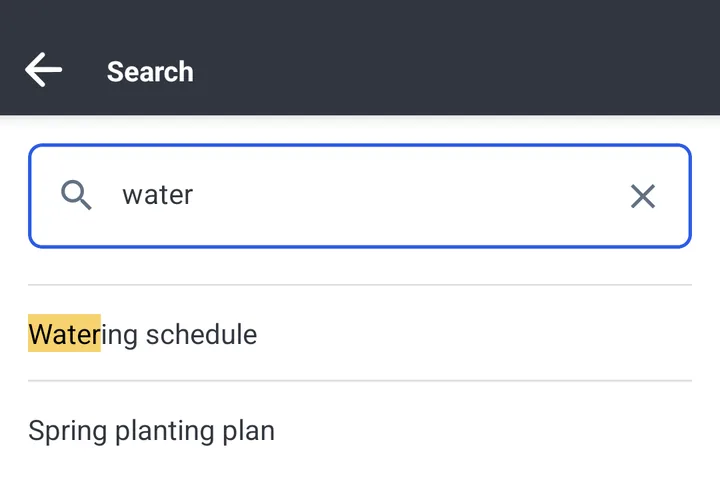
water | Watering schedule, Spring planting plan | Watering and water timer both matched |
water* | Watering schedule, Spring planting plan | Same result as without the asterisk |
carrot | Spring planting plan | Found carrots |
garlic jars | Tomato sauce | Both words required; Shopping list has only jars |
"shopping list" | Shopping list | Exact phrase |
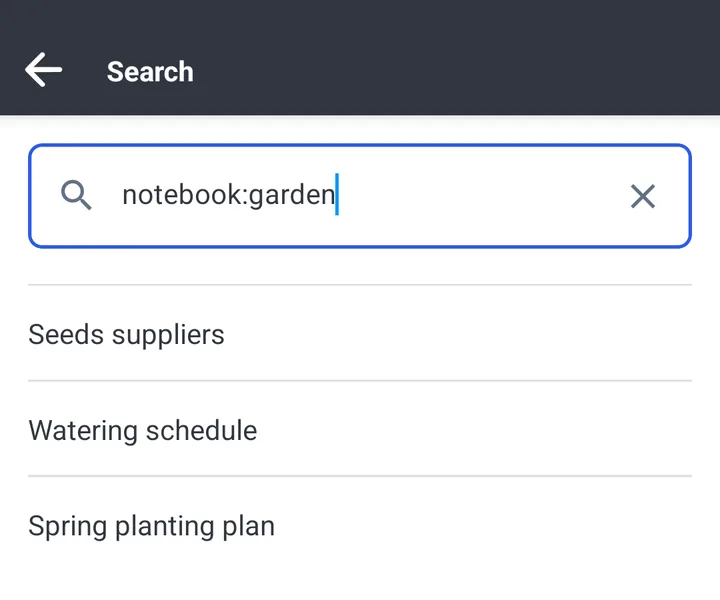
notebook:garden | Seeds suppliers, Watering schedule, Spring planting plan | Includes the Seeds sub-notebook |
tag:spring | Spring planting plan | Tag filter |
basil -tag:spring | Shopping list | Minus sign excluded the tagged note |
The Searching help page (external site) explains the rest of the syntax: title: and body:, any:1 for OR, date filters such as created:day-2, type:todo and resource:application/pdf. We did not test those on the phone.
A filing habit that suits this search
- Put the word you will search for at the start of a title. Search finds word starts, not fragments.
- Use notebooks for where a note belongs and tags for what it is about.
notebook:andtag:combine with words. - Keep tag names short and single words, so
tag:filters stay easy to type on a phone keyboard. - When a word returns too much, add a second word or a
-tag:exclusion before you scroll.
Next in this test: attach files and export the collection, and where Joplin keeps its data on Android 16.
Common errors and how we fixed them
ProblemWe tapped Apply in the tag dialog and the note still had no tag.
FixAfter you type a new tag name, tap the Add new line under the field. Check that the tag shows under Associated tags, then tap Apply.
ProblemA search for part of a word, omat, returned nothing.
FixType the start of the word instead: water found Watering in our test. The help page says an asterisk is read only at the end of a word, so
*omatwill not help either.ProblemA plain word returned more notes than expected.
FixIn 3.7.12, water also found Watering. Add a second word, use quotes for a phrase, or add
notebook:ortag:to narrow the list.ProblemMarkdown signs vanished while typing, which made us think the note had lost them.
FixThat is the new rendered editor. The text keeps the Markdown. Tap Disable it in the banner if you prefer to see the raw signs; the banner says the setting is in the Editor section.
Sources
We checked these sources on the test date.