Tutorial · Tasks.org
Back up Tasks.org to a JSON file and restore it, without a sync account
We made a manual backup in Tasks.org 15.14.1, looked inside the JSON file, deleted one task and renamed another, then imported the backup. The deleted task came back and the renamed one kept its new name. We also moved backups out of the folder Android deletes on uninstall.
Test record
- App
- Tasks.org 15.14.1 (GitHub release, F-Droid variant)
- Device
- Pixel 7 emulator, Android 16 (API 36)
- Tested
- APK source
- official release page (external site)
- Conditions
- Fresh install, Continue without sync, no account. Six tasks, two tags and one custom filter. The first backup file was copied to the Downloads folder from a computer with adb for the import. Google Drive backup left off.
Start with the warning on the Backups screen
Step 1 Open Settings and then Backups
From the gear icon, open App settings and scroll to Backups. The first thing on the screen is the default Backup folder,
/storage/emulated/0/Android/data/org.tasks/files/backups, with a warning that files there are deleted if Tasks is uninstalled. Automatic backups was already on.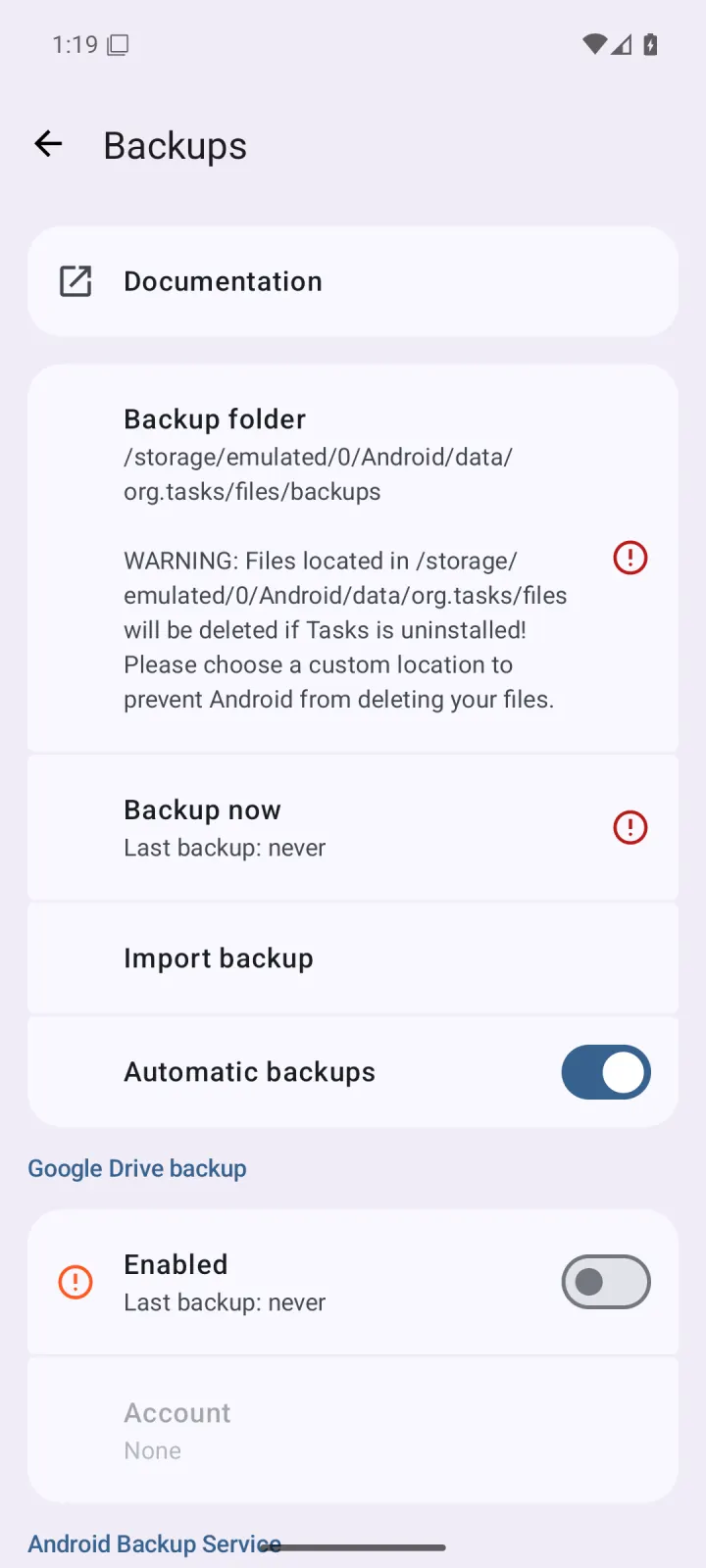
The backup documentation (external site) adds the schedule: automatic backups run every day at midnight and the app keeps the latest seven. Manual backups are never pruned. File attachments are not included.
Make a backup and look inside it
Step 2 Tap Backup now
A message said Backed up 6 tasks to user.YYYYMMDDTHHMM.json and the row changed to Last backup: November 27 at 1:19 PM. The file name holds the date and time of the backup.
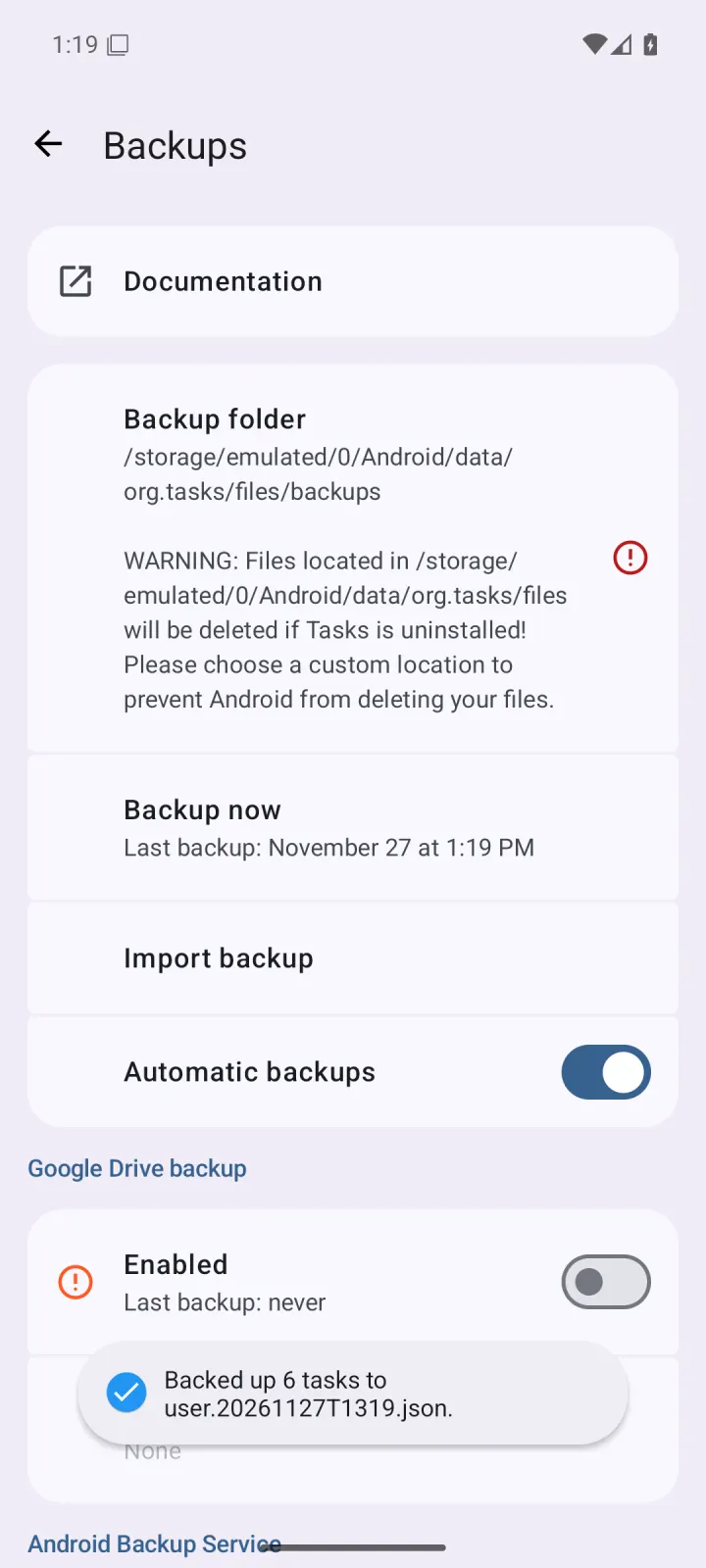
We pulled the file to a computer. It was 6,187 bytes of plain JSON, readable in any text editor. Besides the tasks, it held the settings and the structure around them:
| Part of the file | In our backup |
|---|---|
| Tasks | 6, with title, priority, dates and tags |
| Tags | 2, home and work |
| Filters | 1, the Urgent work filter |
| Lists | 1 local list |
| Places and attachments | 0 |
| App preferences | 35 values |
Recurring tasks keep their rule as text, such as FREQ=WEEKLY;INTERVAL=4 for our haircut task, so the repeat settings travel with the backup.
Restore test: one task deleted, one task renamed
Step 3 Make two changes after the backup
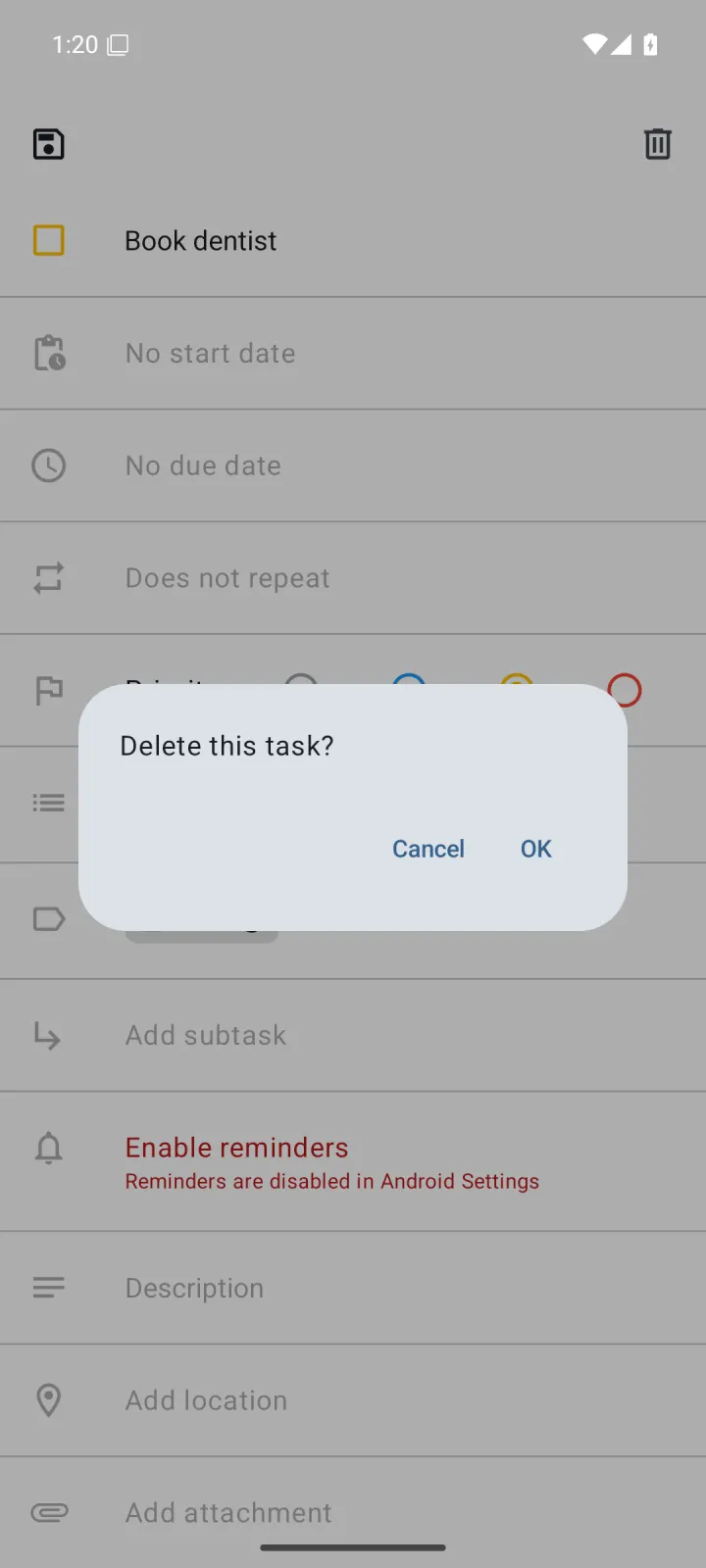
We opened Book dentist, tapped the bin icon and confirmed Delete this task?. Then we renamed Update CV to Update CV and portfolio.
Step 4 Import the backup
In Backups, tap Import backup. Android's file picker opens on Recent files. Open its side menu, choose the folder that holds the file, Downloads in our case, and tap the .json file.
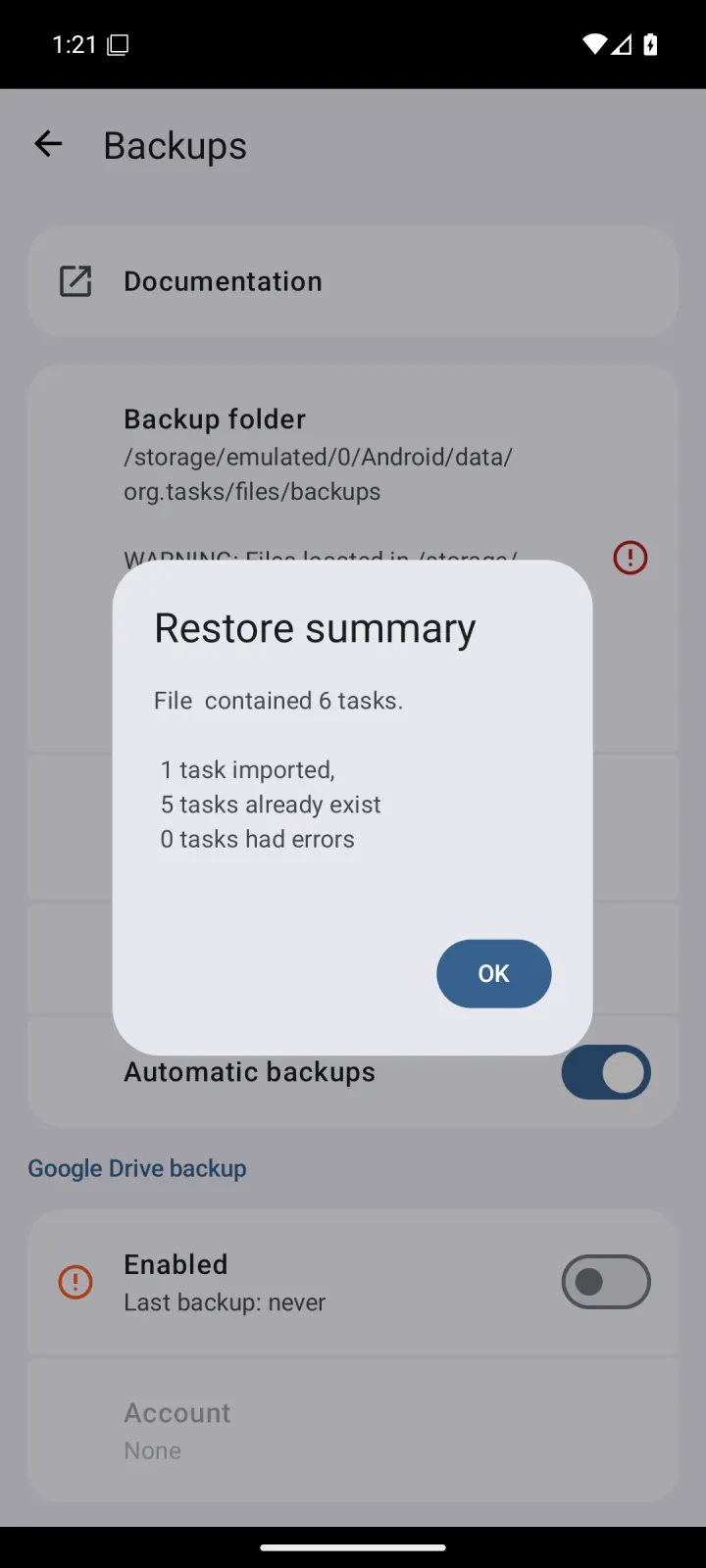
A Restore summary appeared: 6 tasks in the file, 1 imported, 5 already existing, 0 errors.
Step 5 Check the list
Book dentist was back, with its tag. The renamed task still read Update CV and portfolio.
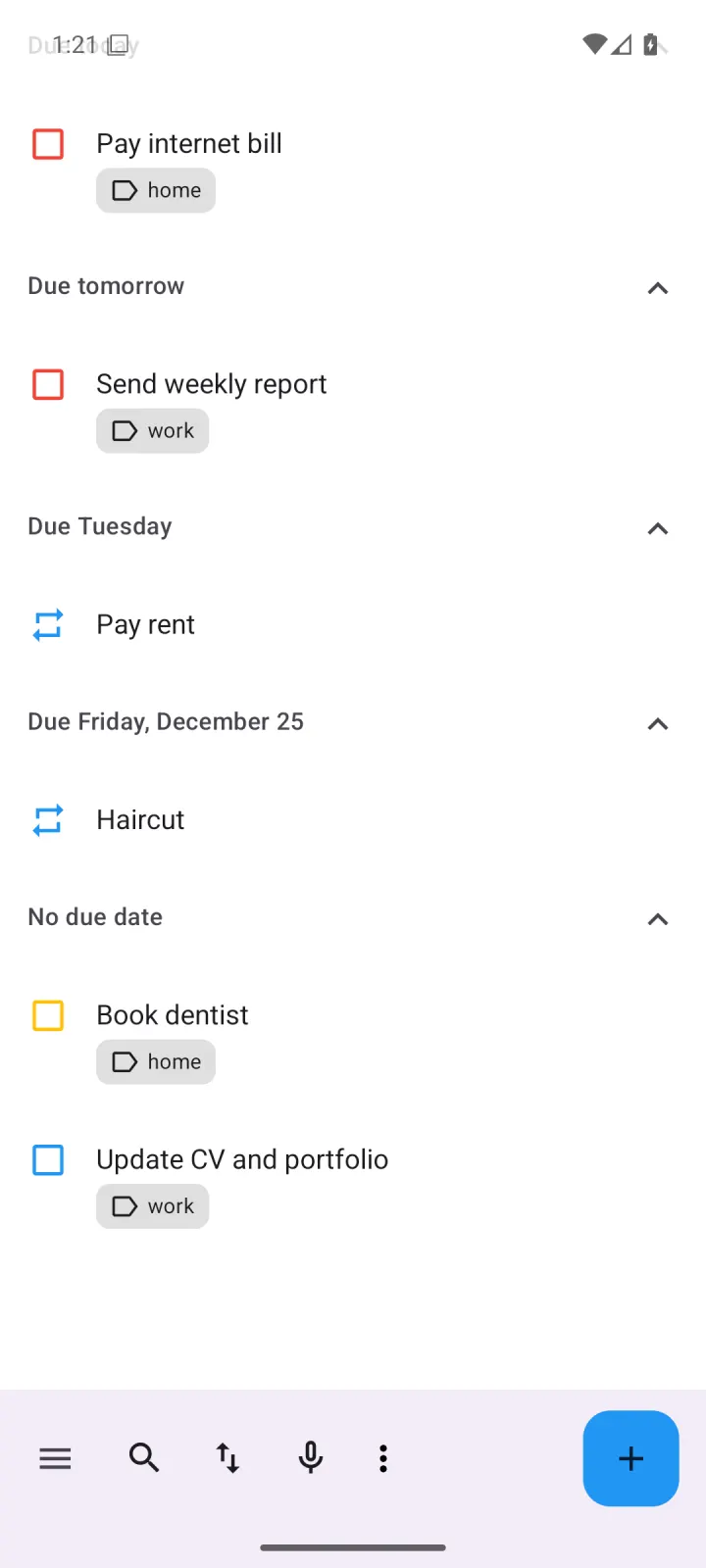
The importer in the 15.14.1 source, TasksJsonImporter.kt (external site), skips any task whose internal ID already exists. A restore fills gaps. It does not roll the list back to the day of the backup.
Move backups out of the app folder
Step 6 Tap Backup folder
Android's folder chooser opened at the top of the storage, with the message Can't use this folder and To protect your privacy, choose another folder. The top level is not allowed, but its subfolders are.
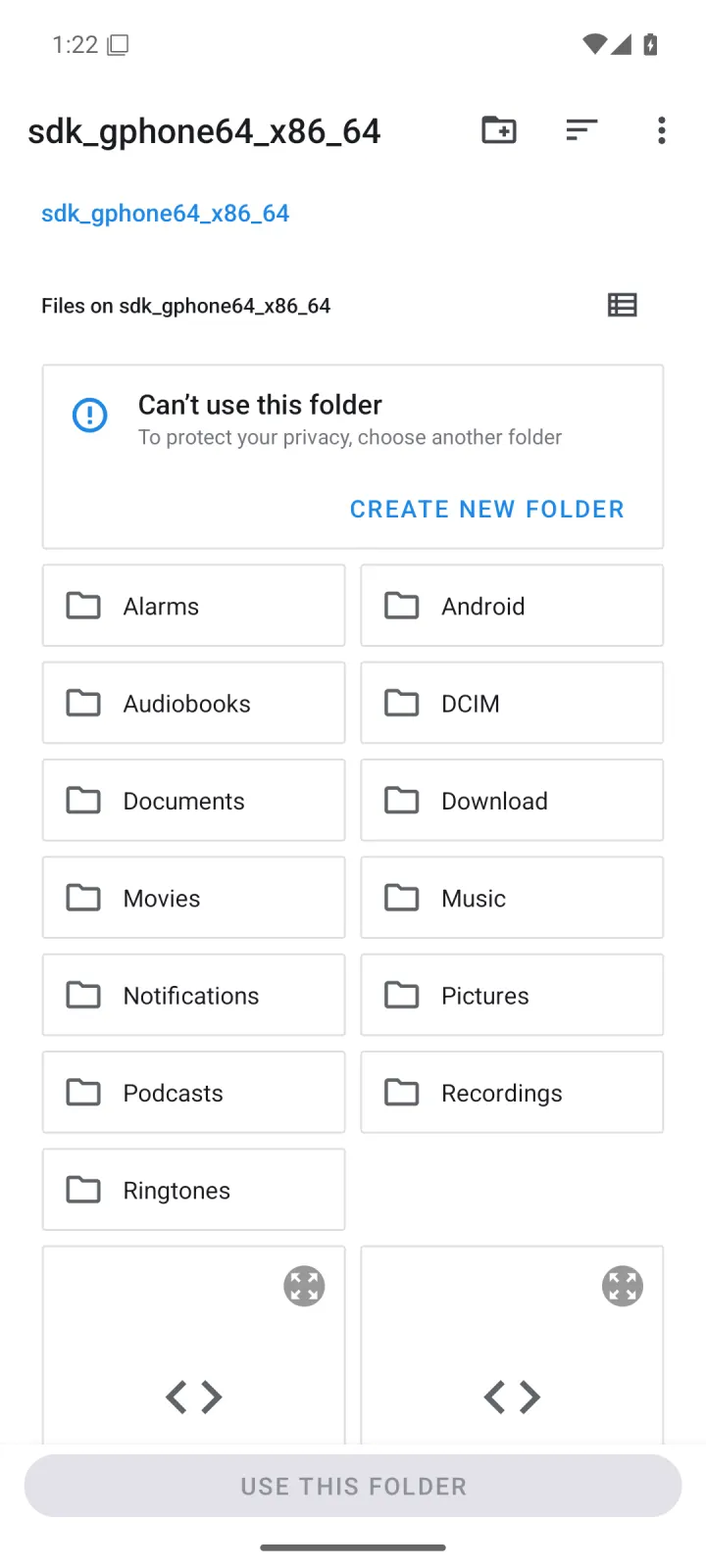
Step 7 Pick Documents and allow access
We opened Documents, tapped Use this folder and confirmed Allow Tasks to access files in Documents?. The dialog says Tasks can then read current and future content stored there.
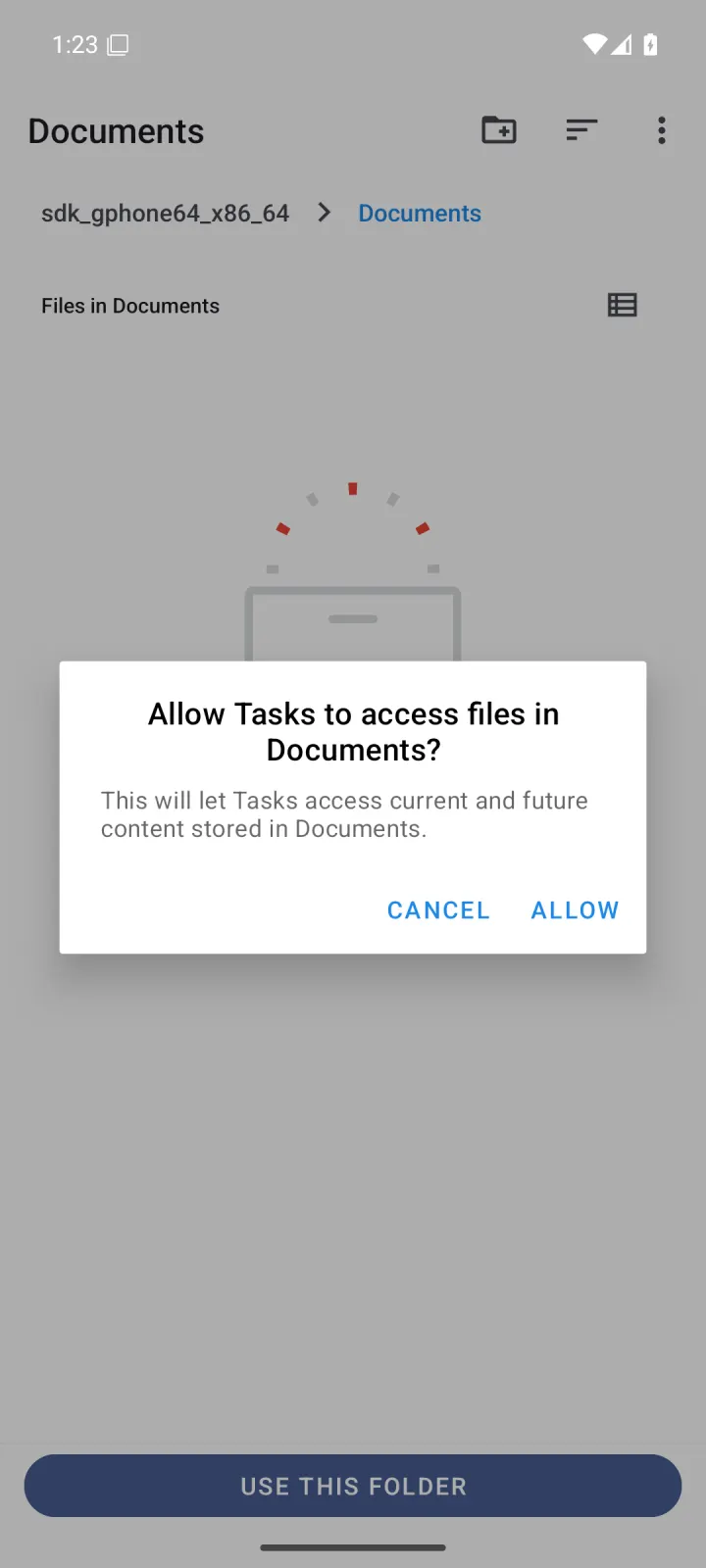
Step 8 Back up again
The folder row now showed a
content://address for Documents, and Last backup had gone back to never. Backup now createduser.20261127T1323.json, which we found in the phone's Documents folder.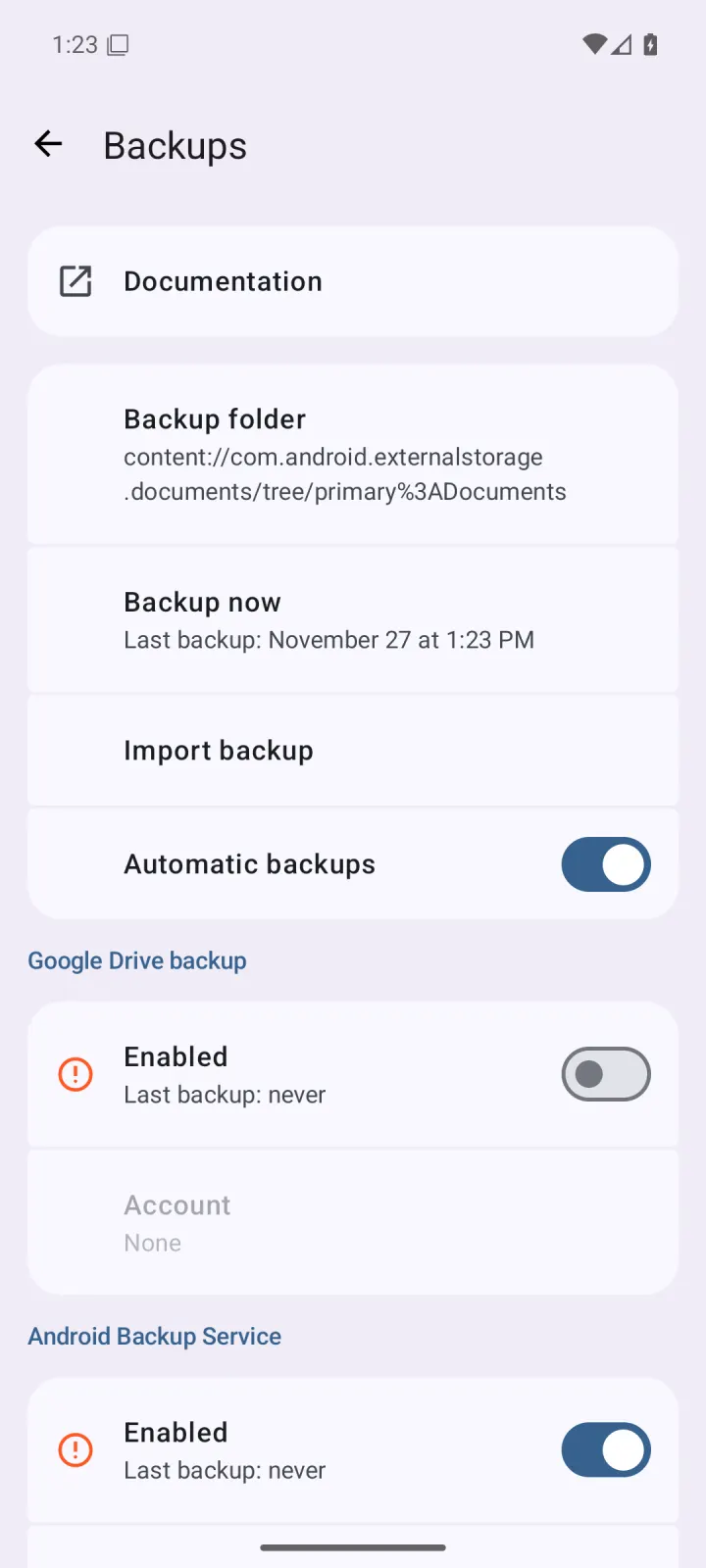
Documents sits outside the app's own Android/data folder, the folder the warning was about, and a file manager or a computer over USB can reach it.
Common errors and how we fixed them
ProblemOn a new phone, you do not know where to start.
FixThe first screen of a fresh install offers Import Tasks.org backup next to Continue without sync. Copy the JSON file to the phone first, then pick it there. We saw that option on our first launch but ran our import from Settings.
ProblemImport backup opened Recent files without our backup.
FixOpen the side menu of the file picker and choose the folder where the .json file is.
ProblemThe folder chooser said Can't use this folder.
FixAndroid blocks the top level of the storage. Open a subfolder such as Documents, or create a new one, then tap Use this folder.
ProblemThe restore did not undo an edit made after the backup.
FixThat is how the importer works: it only adds tasks that are missing. Fix edited tasks by hand.
Sources
We checked these sources on the test date.