Tutorial · Tasks.org
How to build a custom filter in Tasks.org with AND, OR and NOT
We built a filter called Urgent work in Tasks.org 15.14.1 from three criteria: high priority, the work tag, and due today joined with OR. It showed two tasks, and one of them was tagged home. Here is how to build a filter, and how to read OR so it does what you expect.
Test record
- App
- Tasks.org 15.14.1 (GitHub release, F-Droid variant)
- Device
- Pixel 7 emulator, Android 16 (API 36)
- Tested
- APK source
- official release page (external site)
- Conditions
- Fresh install, Continue without sync, no account. Six tasks in the default local list with different priorities, due dates and the tags home and work. The filter was saved and opened from the side menu.
The task list we filtered
A filter is a saved search that sits in the side menu like a list. It is worth building one when a question repeats every day, such as what is urgent at work?. To check the result by eye, we started from six tasks we knew well.
| Task | Priority | Due | Tag |
|---|---|---|---|
| Pay internet bill | High | Today (test day) | home |
| Send weekly report | High | 28 November (tomorrow) | work |
| Book dentist | Medium | None | home |
| Update CV | Low | None | work |
| Haircut | Low | Repeating, 25 December | None |
| Pay rent | Low | Repeating, 1 December | None |
Our goal: high priority work tasks, plus anything due today. We expected Send weekly report and Pay internet bill.
Build the filter
Step 1 Open the side menu and tap + next to Filters
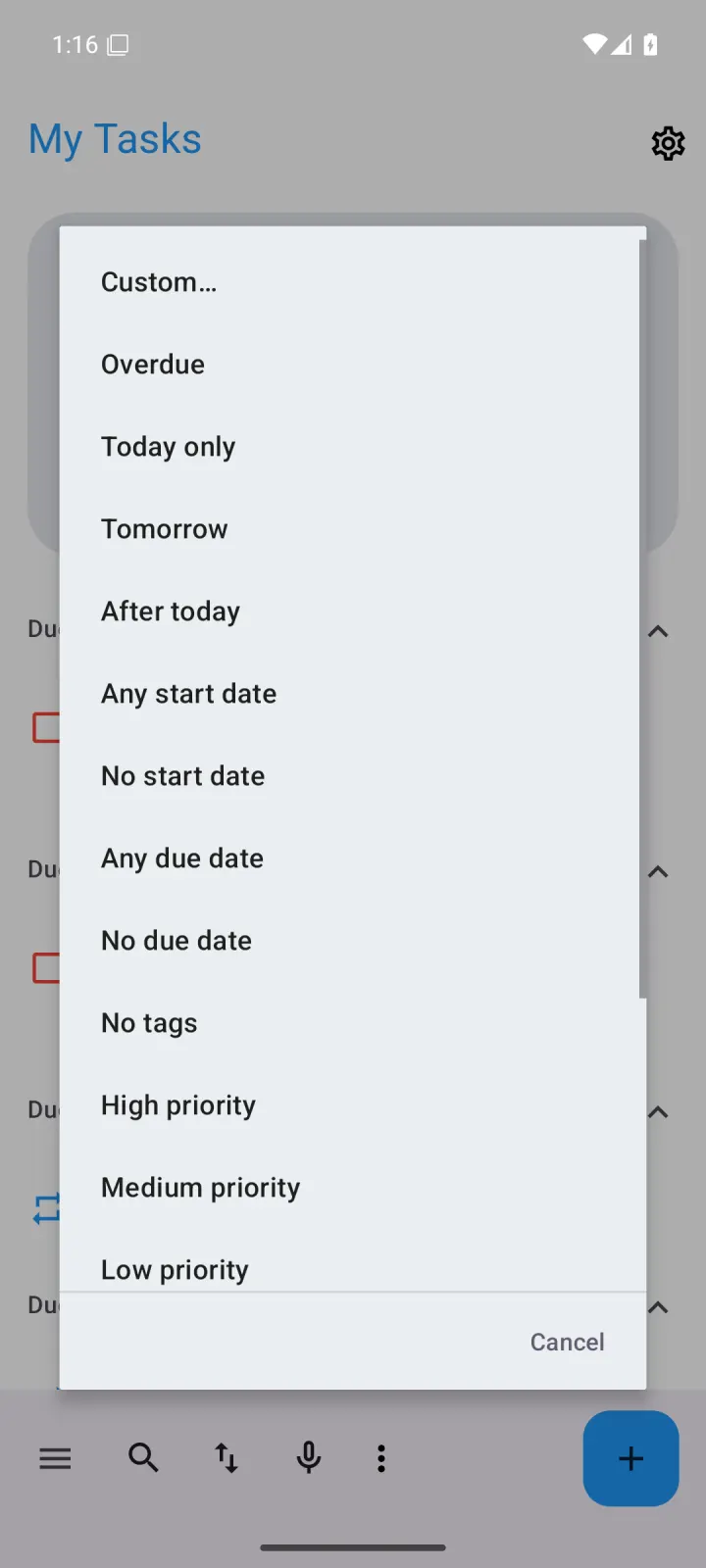
Tasks.org first offers ready-made filters: Overdue, Today only, Tomorrow, After today, several start and due date options, No tags, and High, Medium and Low priority. If one of them fits, you are done. For our goal we tapped Custom… at the top.
Step 2 Name it and look at the first line
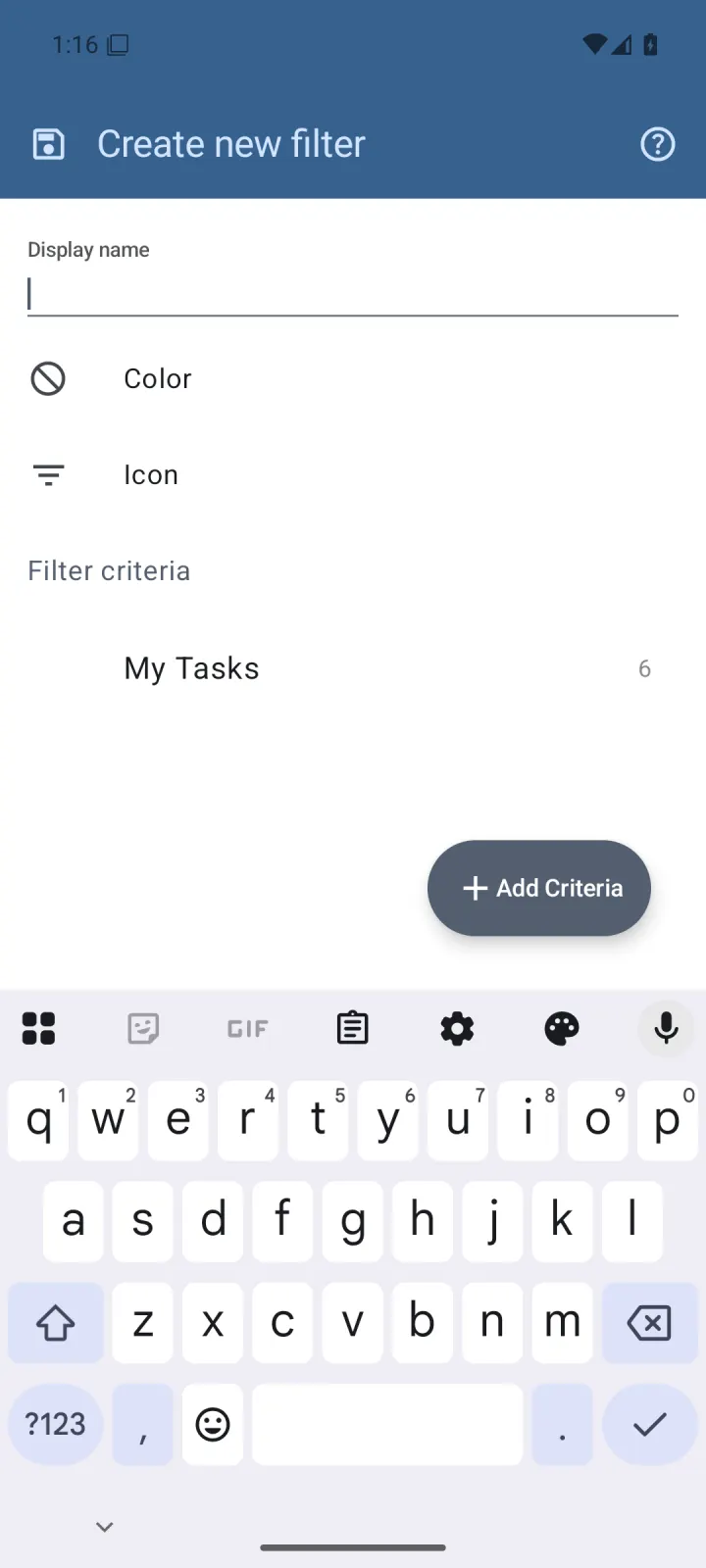
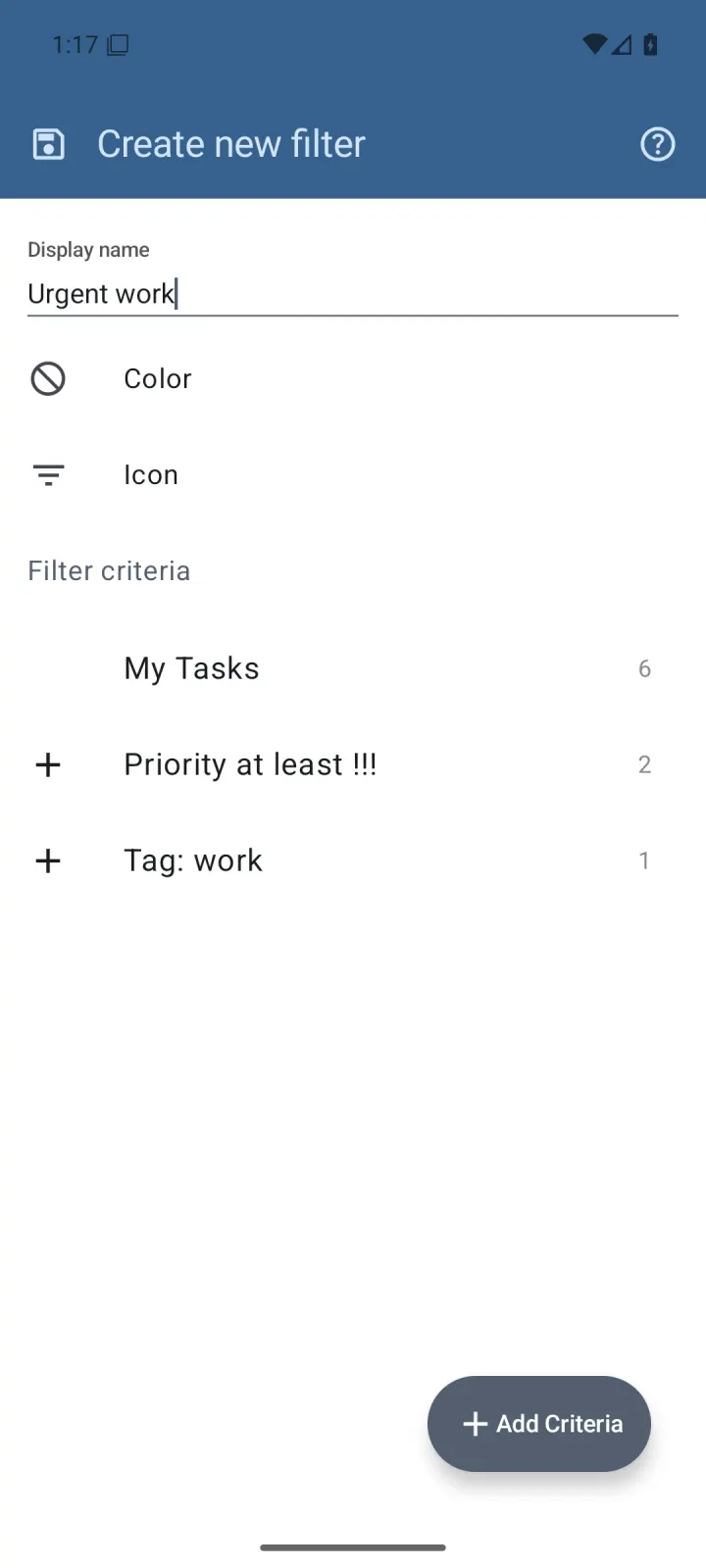
The editor has Display name, Color, Icon and Filter criteria. The criteria already hold one line, My Tasks, with the number 6: the filter starts from every task and narrows from there. We typed Urgent work as the name.
Step 3 Tap Add Criteria
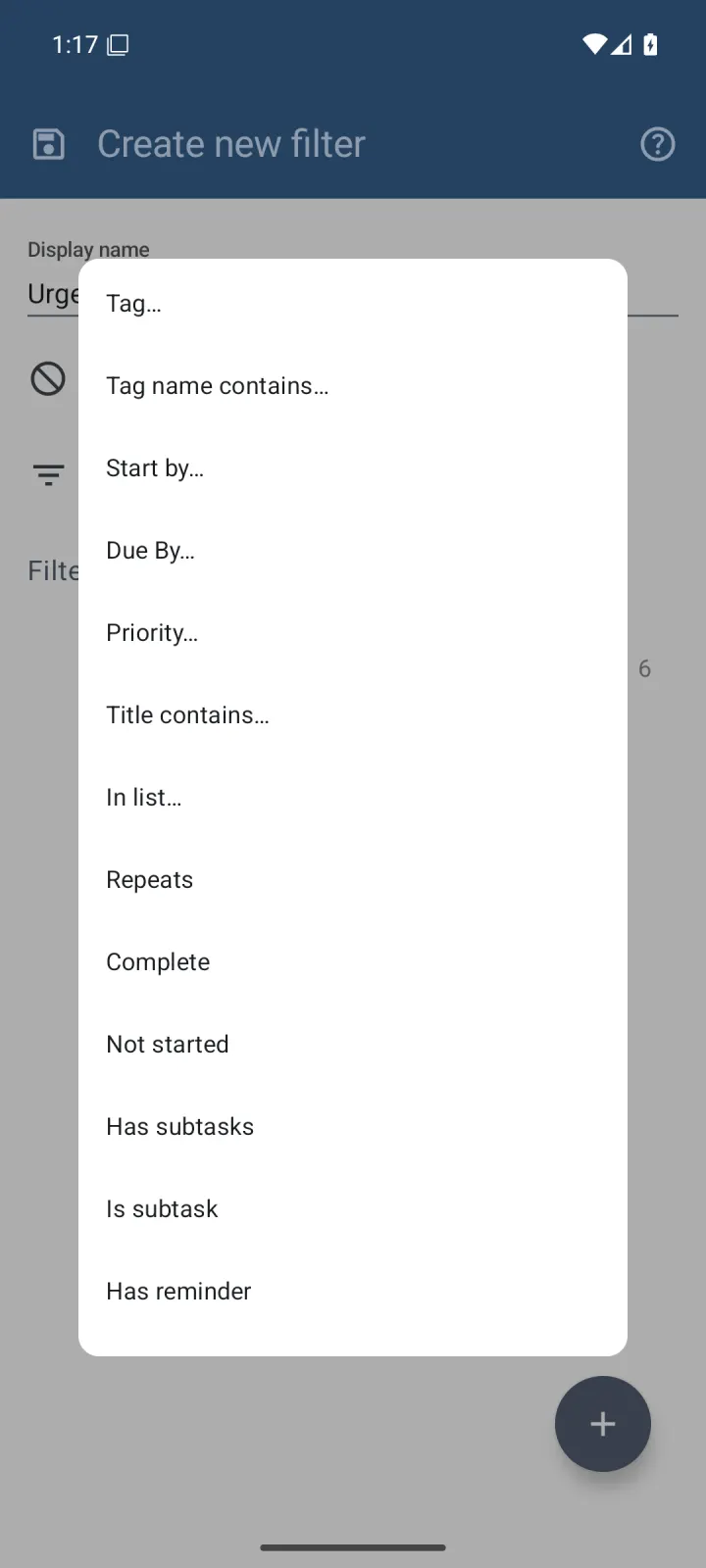
The list has 13 types of criteria: Tag, Tag name contains, Start by, Due By, Priority, Title contains, In list, Repeats, Complete, Not started, Has subtasks, Is subtask and Has reminder.
Step 4 Add the priority
Priority… shows four levels written as marks:
!!!,!!,!ando. We chose!!!. The new line read Priority at least !!! with a count of 2, our two red tasks.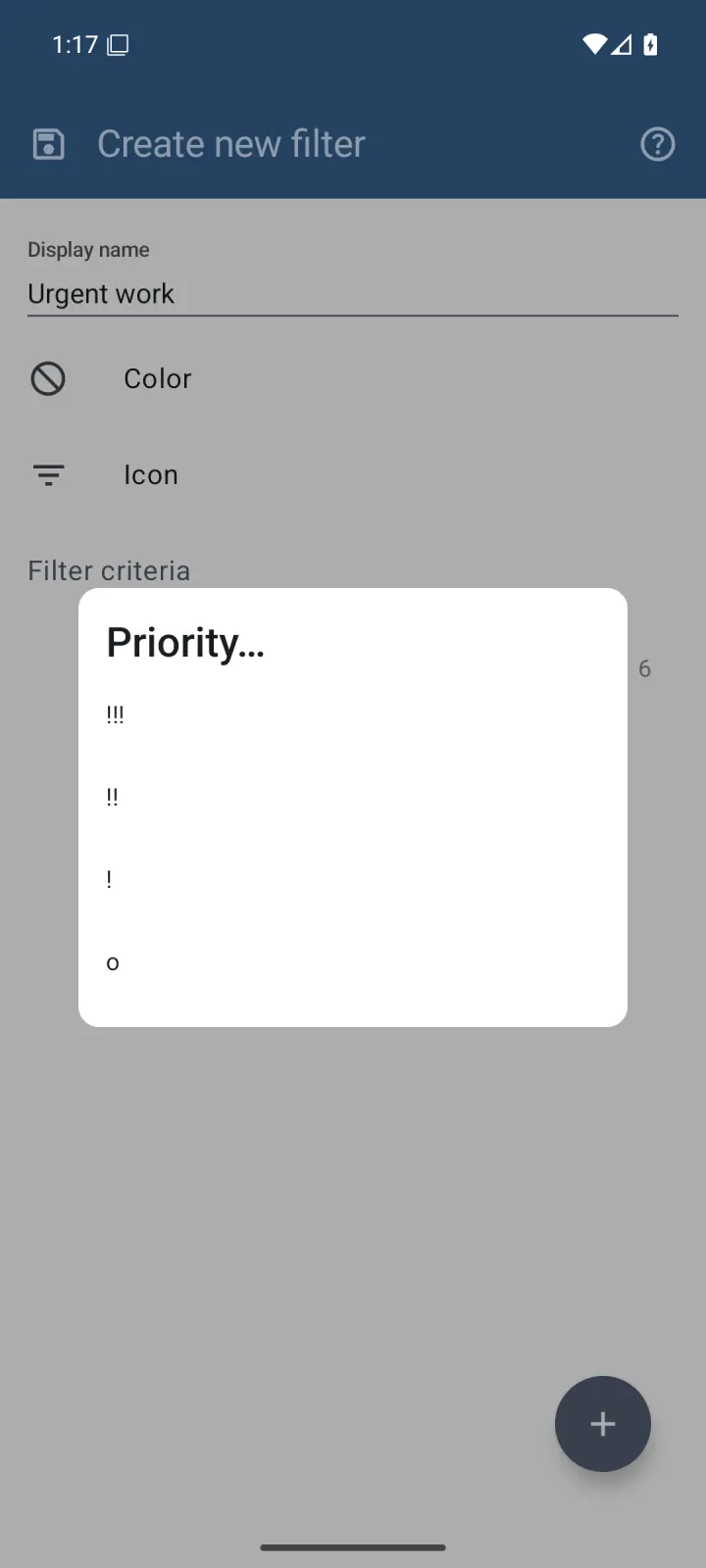
Step 5 Narrow it with a tag
Tag… listed our two tags. With work, a third line read Tag: work with a count of 1. New lines join with AND by default, so each count is the result of everything above it.
Change the operator to OR
Step 6 Add the date line and tap it
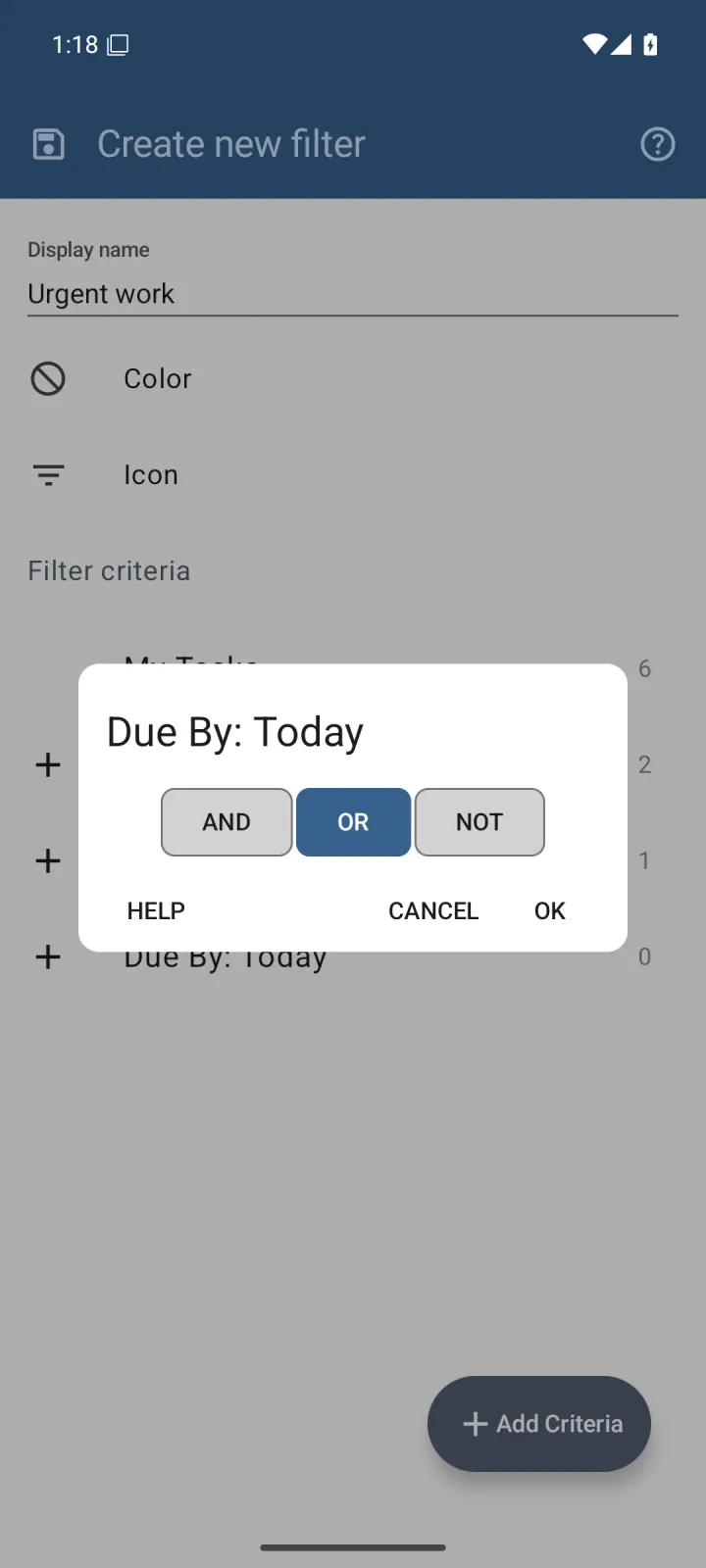
We added Due By… and picked Today from a list that also has Yesterday, Tomorrow, Day after tomorrow, Next week, Next Month, Now and No due date. Tapping the new line opens a dialog with AND, OR and NOT, plus a HELP button. We chose OR.
Step 7 Read the counts again
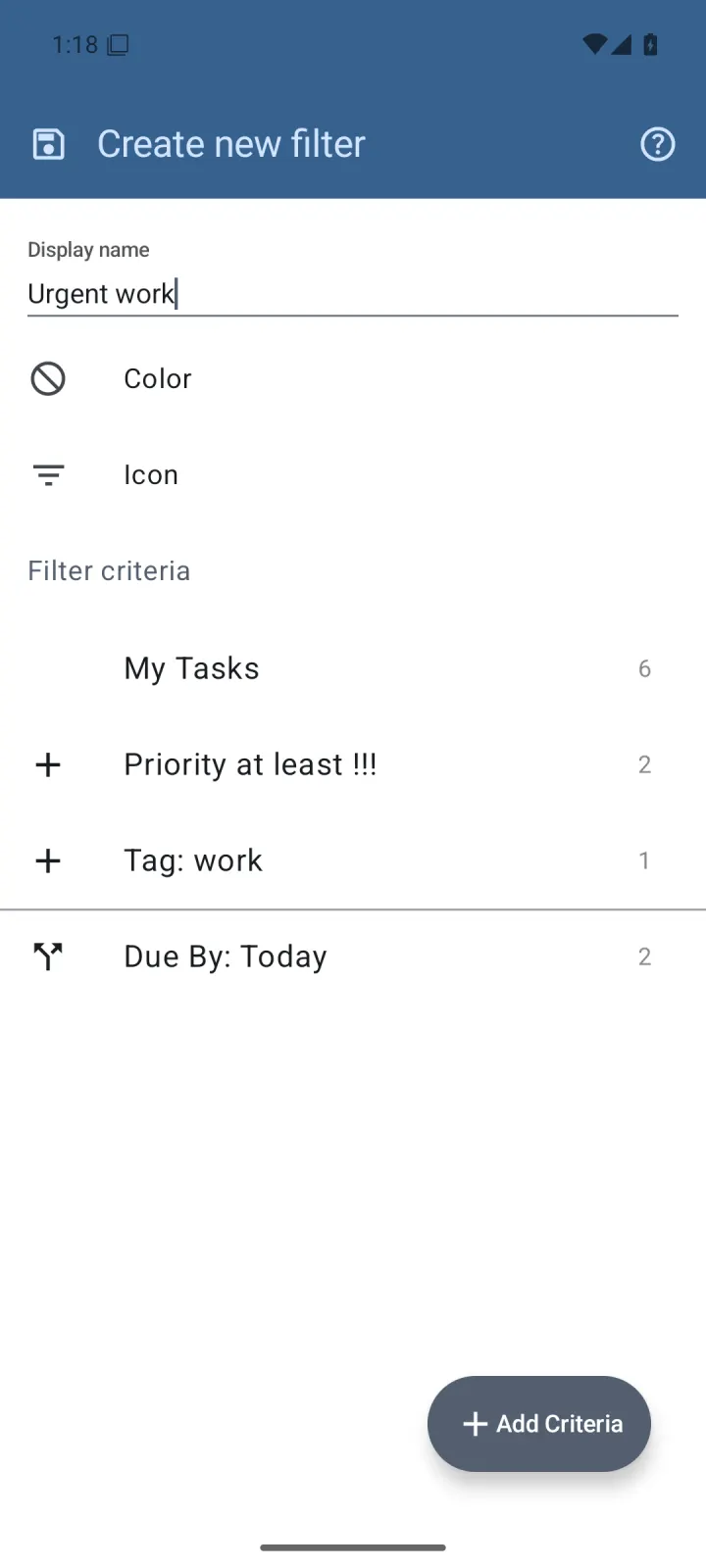
The last line now showed a branch icon and a count of 2. Then tap the save icon at the top left.
Step 8 Open the saved filter
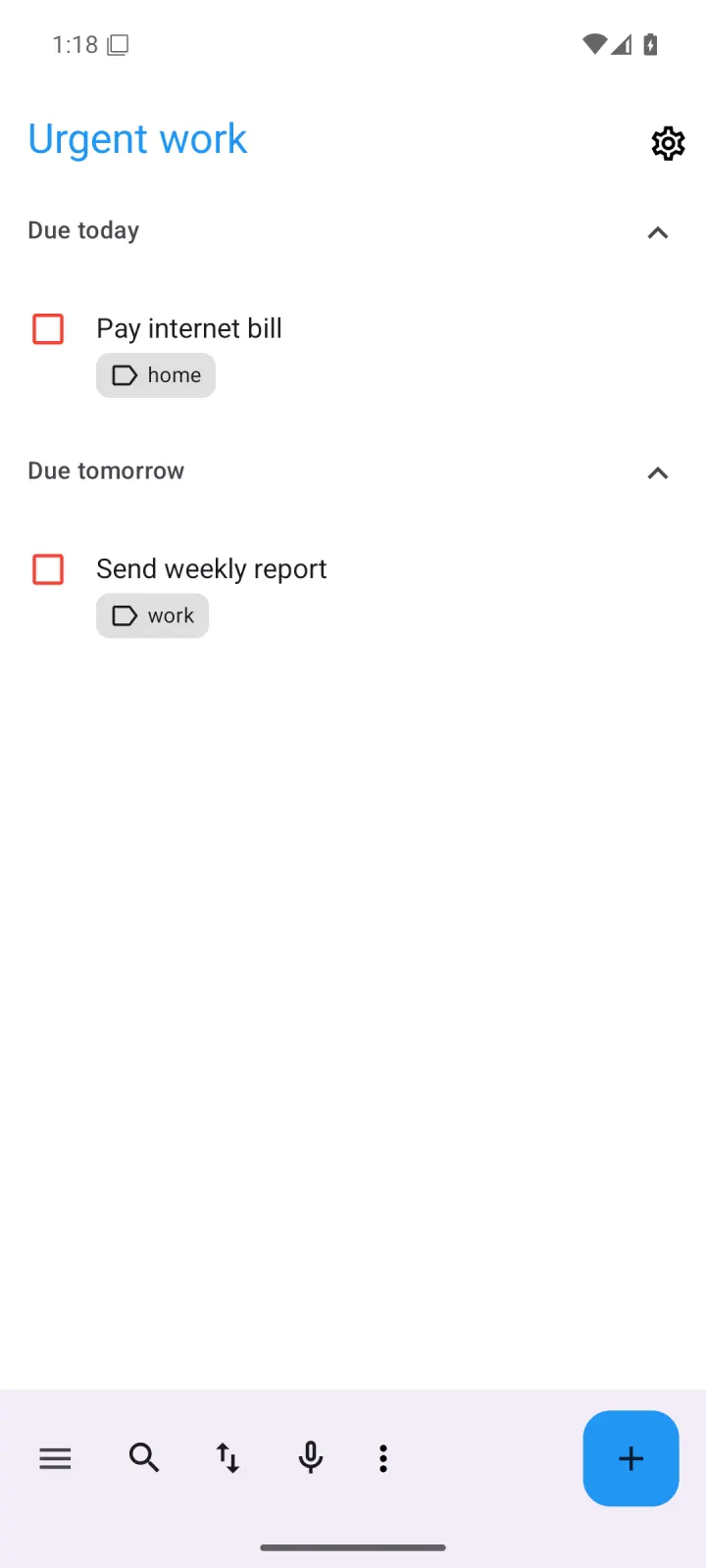
Saving took us back to My Tasks. The filter appeared in the side menu under Filters, with its count. Tapping it showed the list below.
Why a home task is in a work filter
The custom filters documentation (external site) says that OR starts a new set of criteria, independent of the previous ones. Our filter did not mean high priority and (work or due today). It meant (high priority and work) or (due today). Pay internet bill matched the second group alone.
That is what we wanted here. If you want only work tasks, the same rule means the tag has to sit in each group, for example Priority at least !!!, AND Tag: work, OR Due By: Today, AND Tag: work. We did not build that second version in the test.
Three filters worth building
- Today at work: Due By Today, AND Tag: work. Two lines, no OR.
- Everything but home: My Tasks, NOT Tag: home. The documentation says NOT keeps the tasks that do not match the line.
- Forgotten tasks: No due date, AND Priority at least
!, to find important tasks that never got a date.
We did not build these three in the test. They use only the criteria and operators shown above. Our recurrence and priorities guide explains what the priority colors mean and how the dates of repeating tasks move, which changes what a date filter catches.
Common errors and how we fixed them
ProblemThe filter showed a task from the home tag.
FixAn OR line starts an independent group. Repeat the tag in each group, or use AND only.
ProblemAfter saving, the app showed My Tasks, not the new filter.
FixOpen the side menu. The filter is listed under Filters, with its task count.
ProblemThe Priority dialog shows marks, not names.
FixIn our test,
!!!matched exactly our two high priority tasks, the ones with a red circle. The marks go down from there too, which stands for no priority.
Sources
We checked these sources on the test date.