Tutorial · Standard Notes
Organize Standard Notes with tags and export an encrypted or plain backup
We created two tags in Standard Notes 3.203.3, tagged notes from the note menu, searched with the tags visible, then downloaded both backup types with airplane mode on and opened them on a computer.
Test record
- App
- Standard Notes 3.203.3 (official APK, same file as the GitHub release)
- Device
- Pixel 7 emulator, Android 16 (API 36)
- Tested
- APK source
- official release page (external site)
- Conditions
- No account. Passcode set before the backups. Four notes and two tags, Garden and Kitchen. Airplane mode on during both downloads. We copied the backup files to a computer over USB debugging (adb) to inspect them.
Tags are the only filing system you need here
Standard Notes has no notebooks. A note lives in one list, and tags decide where else it shows up. The menu at the top left lists the views (Notes, Files, Starred, Archived, Trash, Untagged), then Tags with a + button. Next to Tags there is a greyed Folders label, which we did not explore.
1. Create the tags
Step 1 Tap + next to Tags
An empty row with a
#appears under the header, with the keyboard open. Type the name and press Enter. We created Garden and Kitchen. Each tag shows a count of its notes on the right, 0 at first.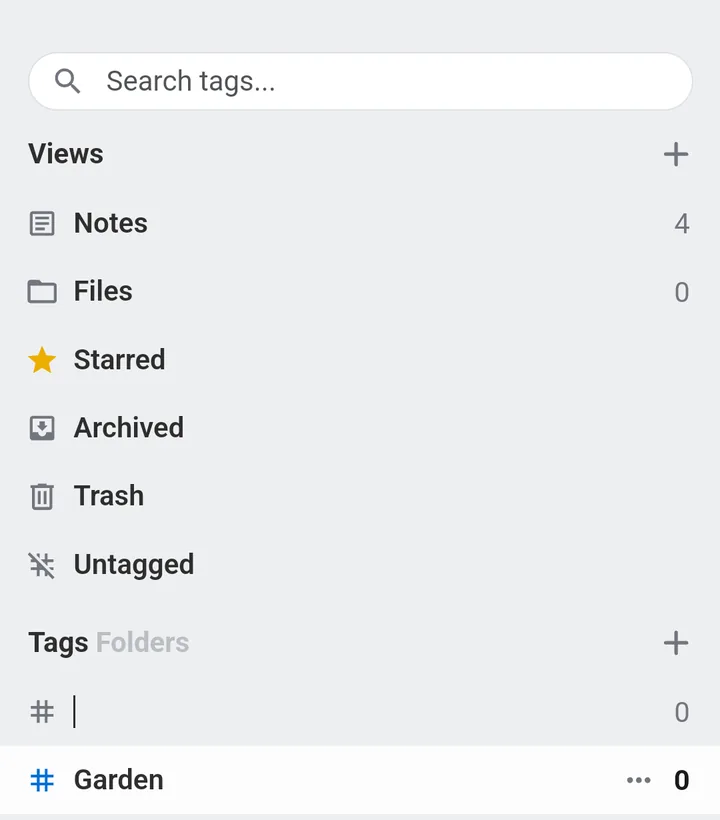
2. Tag a note from its menu
Step 2 Open the note and its menu
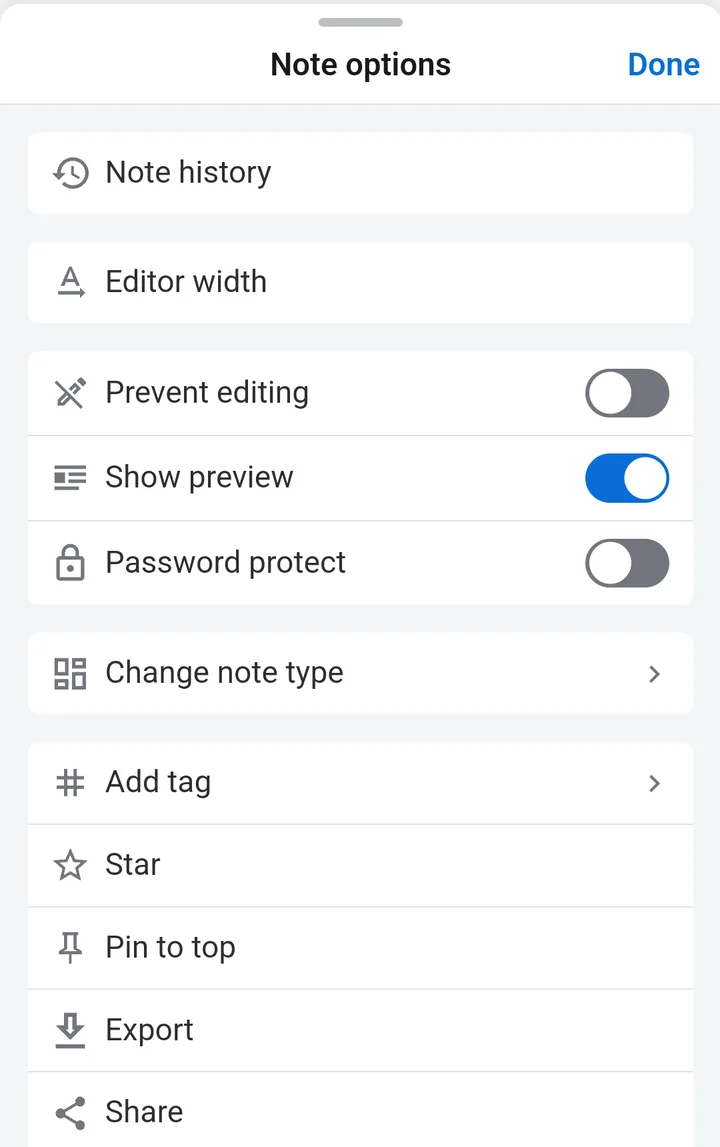
Open the note, then the three-dot button at the top right. The Note options sheet holds Add tag next to Star, Pin to top, Export, Archive and Move to trash. At the bottom it also counts words and characters: 27 words and 120 characters for our planting plan.
Step 3 Pick the tag and tap Done
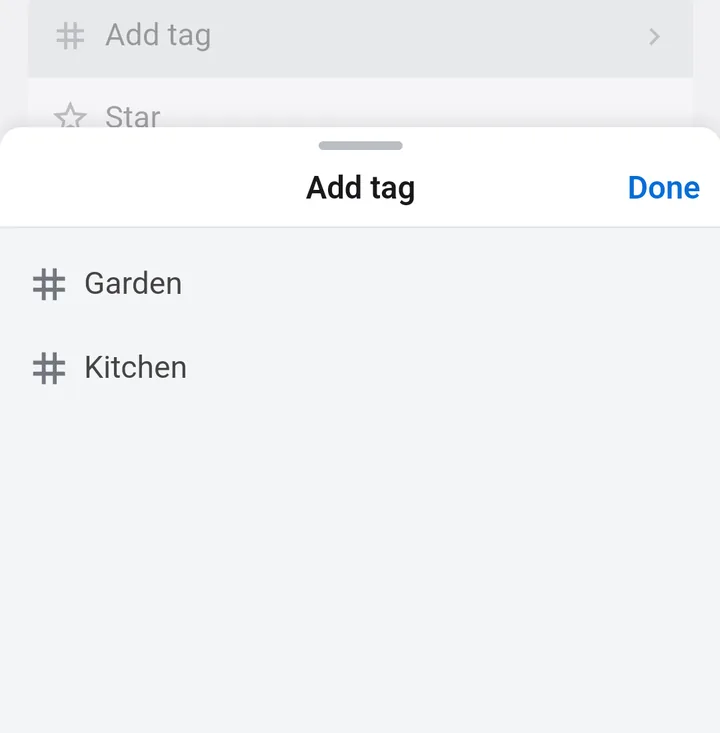
Add tag opens a second sheet with every tag. Tap one, then Done on both sheets. We put Spring planting plan in Garden and Tomato sauce in Kitchen, and the counts in the menu changed to 1.
Tapping a tag in the menu shows only its notes, with Excluding protected under the title. The label of the + button there reads Create a new note in the selected tag; we did not test it inside a tag.
3. Search across tags
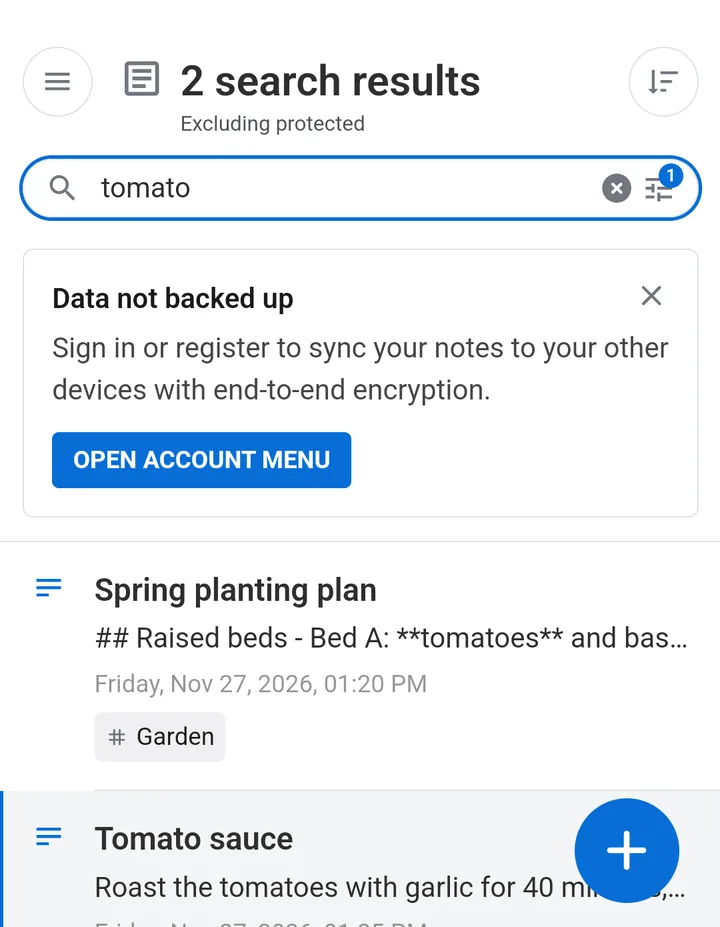
The search field at the top of the list searches every note, and each result shows its tag as a small label. Four queries told us how matching works:
tomato: Spring planting plan and Tomato sauce.omat: the same two notes. Text inside a word matches.water: Spring planting plan (water timer) and Watering schedule.garlic jars: 0 search results, although Tomato sauce contains garlic and later jars.
So type a fragment you remember, not a list of keywords. If you need two conditions, open the tag first and search inside it.
4. Download a backup
Step 4 Open Preferences, then Backups
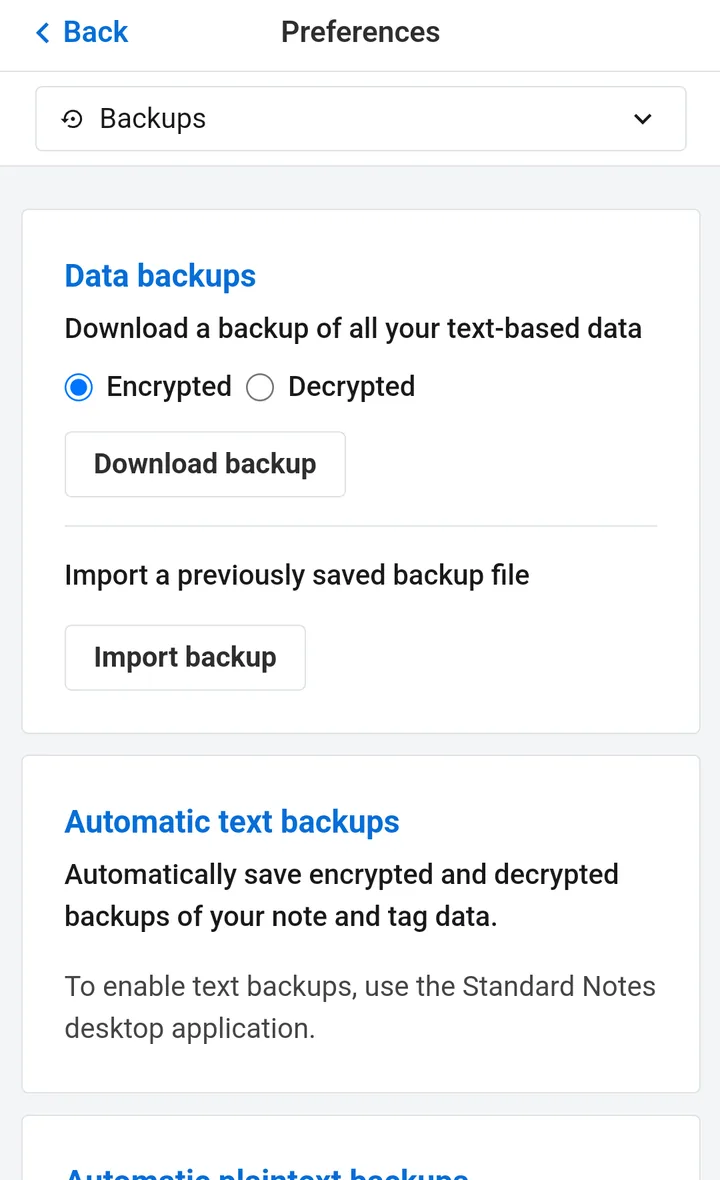
In Preferences, use the drop-down at the top and pick Backups. Data backups offers Encrypted or Decrypted and a Download backup button, plus Import backup. The automatic backup cards below all say they need the desktop app.
Step 5 Confirm with the passcode
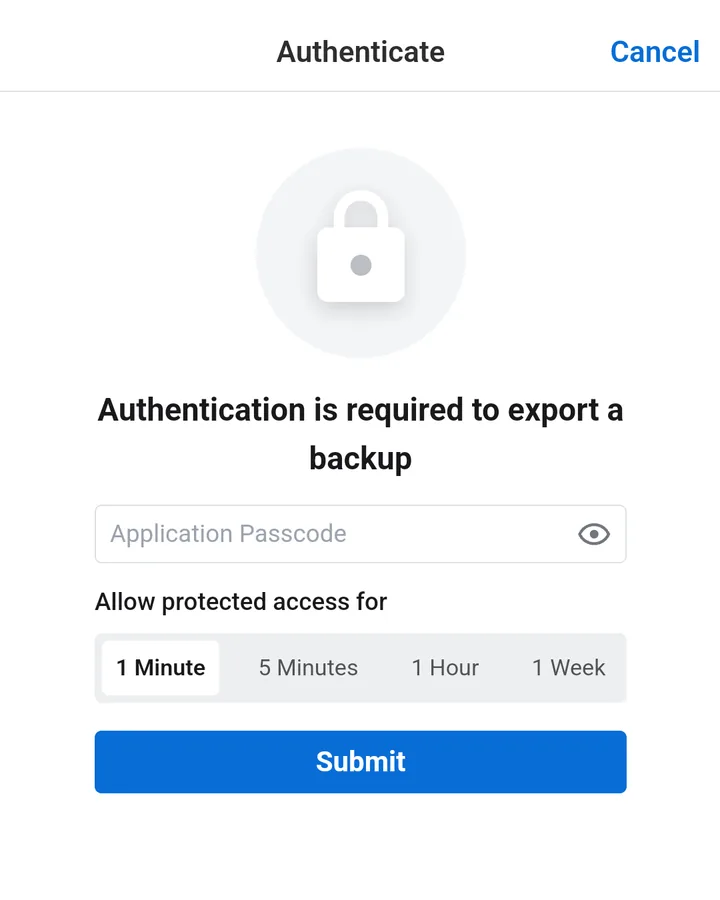
With a passcode set, Download backup asked for it first: Authentication is required to export a backup. You can allow protected access for 1 minute, 5 minutes, 1 hour or 1 week. We kept 1 minute.
Step 6 Find the file in Downloads
There was no file picker and no share sheet. A message said the encrypted backup was downloaded, and the file appeared in the Downloads folder as a 14 KB
.txtfile named with the date and time.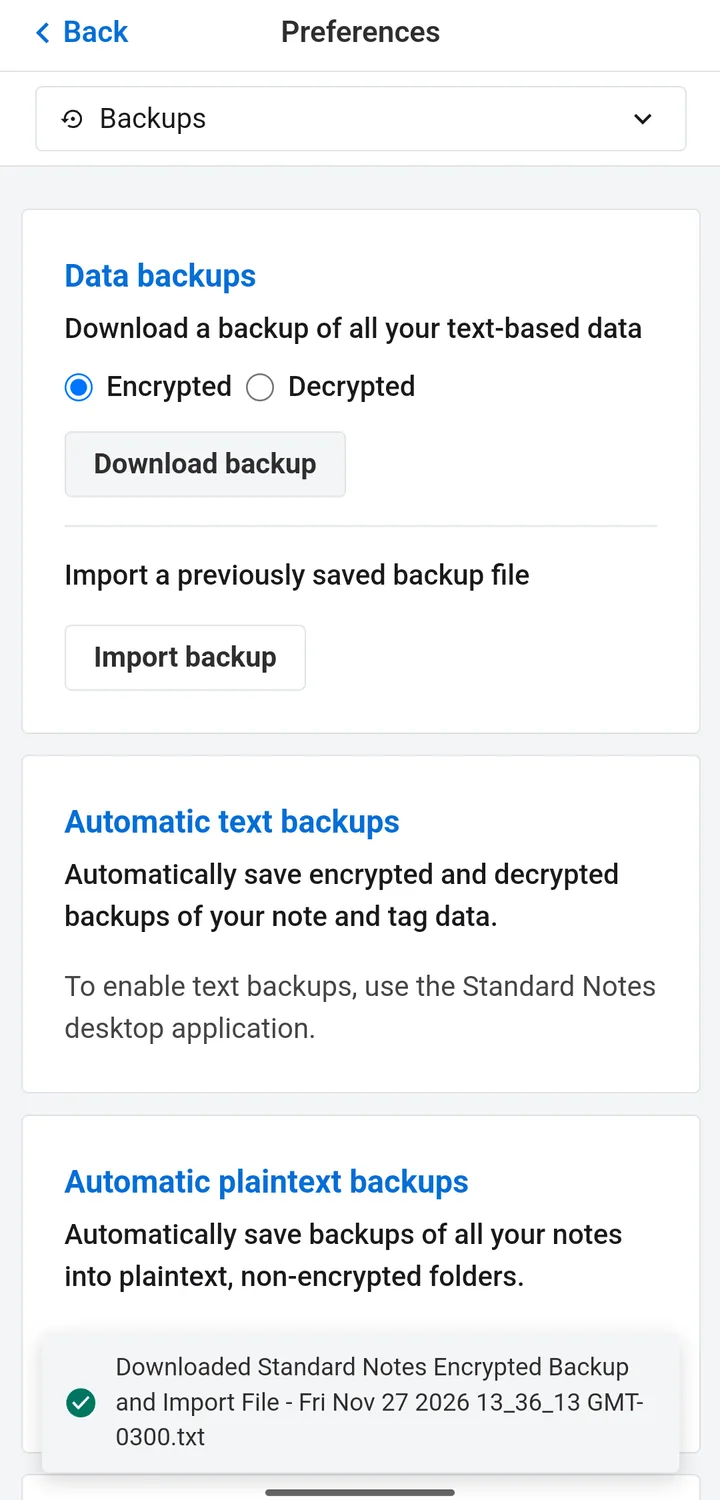
Step 7 Repeat with Decrypted
Within the same minute, Decrypted and Download backup produced a 3.7 KB
.zipin Downloads without a second passcode prompt.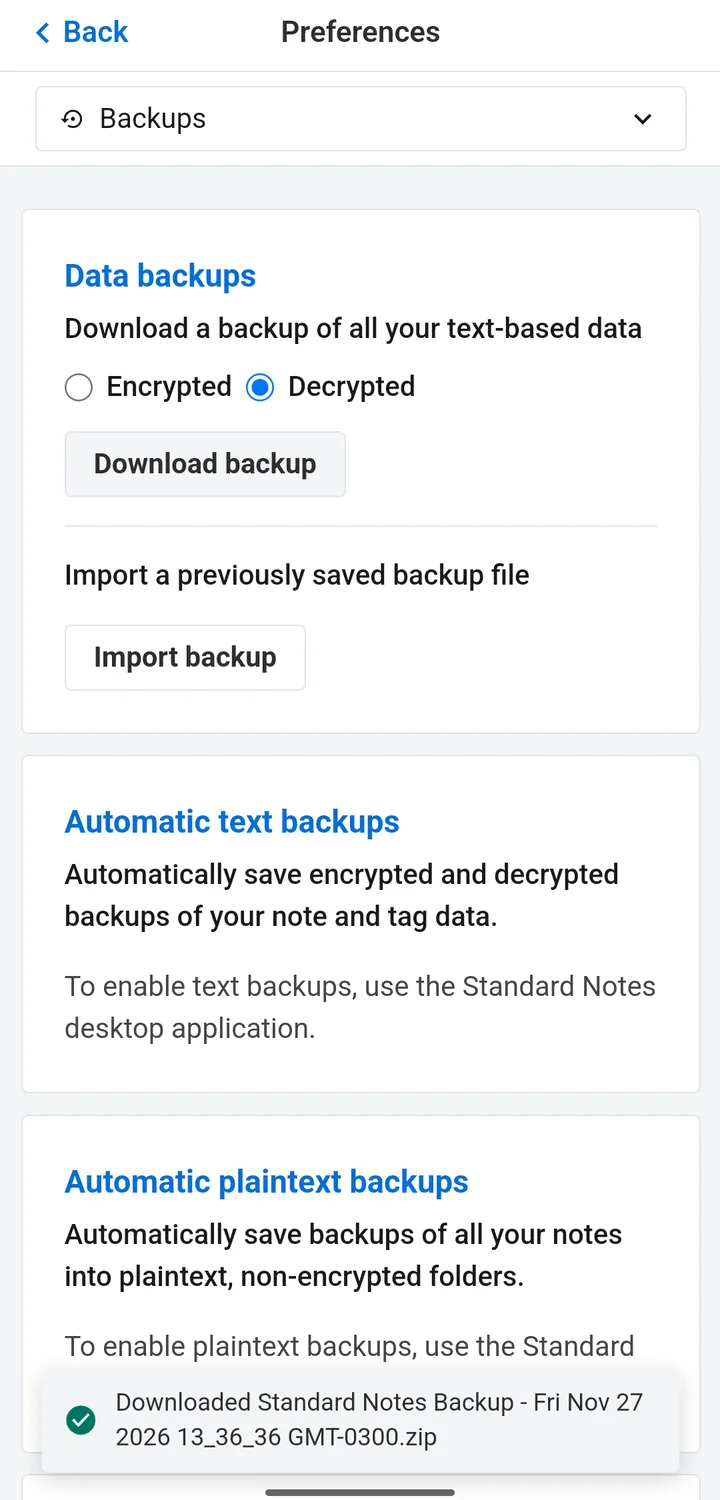
What the two files contain
Encrypted .txt | Decrypted .zip | |
|---|---|---|
| Format | One JSON file, version 004 | A JSON import file plus an Items folder |
| Our notes | 4 items whose content starts with 004: and is unreadable | One .txt per note, named after the title, with the body in plain text |
| Tags | 2 encrypted items | One file per tag with its title and the IDs of its notes |
| Size in our test | 14,239 bytes | 3,771 bytes |
Note the tag files: a note's text file does not mention its tags. The link lives in the tag file, so keep the whole folder together. The backup help page (external site) describes the same layout. It says the encrypted file needs your account password to restore; it does not cover a passcode-only setup like ours, and we did not test a restore. Keep a decrypted copy somewhere safe if you have no account.
Common errors and how we fixed them
ProblemA two-word search returned 0 search results.
FixSearch for one word or a fragment, or open the tag first and search inside it.
ProblemDownload backup asked for a passcode even for the encrypted file.
FixThat is the passcode protection at work. Enter it; choose a longer protected access time only if you will export several times.
ProblemOur second tag was not created.
FixAfter Enter, the app opened the new tag's note list and closed the menu. Open the menu again before you tap the + next to Tags; the + next to Views creates a smart view instead.
ProblemThe decrypted backup downloaded without asking for the passcode.
FixProtected access stays open for the time you chose in the passcode prompt. Keep it at 1 minute if other people may use the phone.
Sources
We checked these sources on the test date.