Tutorial · Standard Notes
Use Standard Notes without an account: offline notes, encryption and a passcode lock
Standard Notes 3.203.3 runs with no account, but its Security page says encryption stays off until you add a passcode. We wrote four notes, set a passcode and reopened the app in airplane mode to see what changes.
Test record
- App
- Standard Notes 3.203.3 (official APK, same file as the GitHub release)
- Device
- Pixel 7 emulator, Android 16 (API 36)
- Tested
- APK source
- official release page (external site)
- Conditions
- Fresh install, no Standard Notes account, notification permission refused. Four notes typed with the on-screen keyboard. A four-digit test passcode. Airplane mode on for the restart and the lock screen.
The short version
The Standard Notes help center explains why. In its device encryption page (external site), the setup with no account and no passcode has a device database marked Not encrypted. With a passcode, the database is encrypted with passcode keys that are never saved to disk.
| Setup | Device database, per the help center | What we saw |
|---|---|---|
| No account, no passcode | Not encrypted | Security said Encryption is not enabled |
| No account, passcode | Encrypted with passcode keys | Lock screen at launch; passcode asked before export |
| Account, with or without passcode | Encrypted with account keys | Not tested |
Start without signing in
Step 1 Close the Account sheet
At first launch the app asks about notifications, then shows an Account sheet that says You're offline. Tap Done. The note list stays empty, with a Data not backed up card on top. The card has a close button if it bothers you.
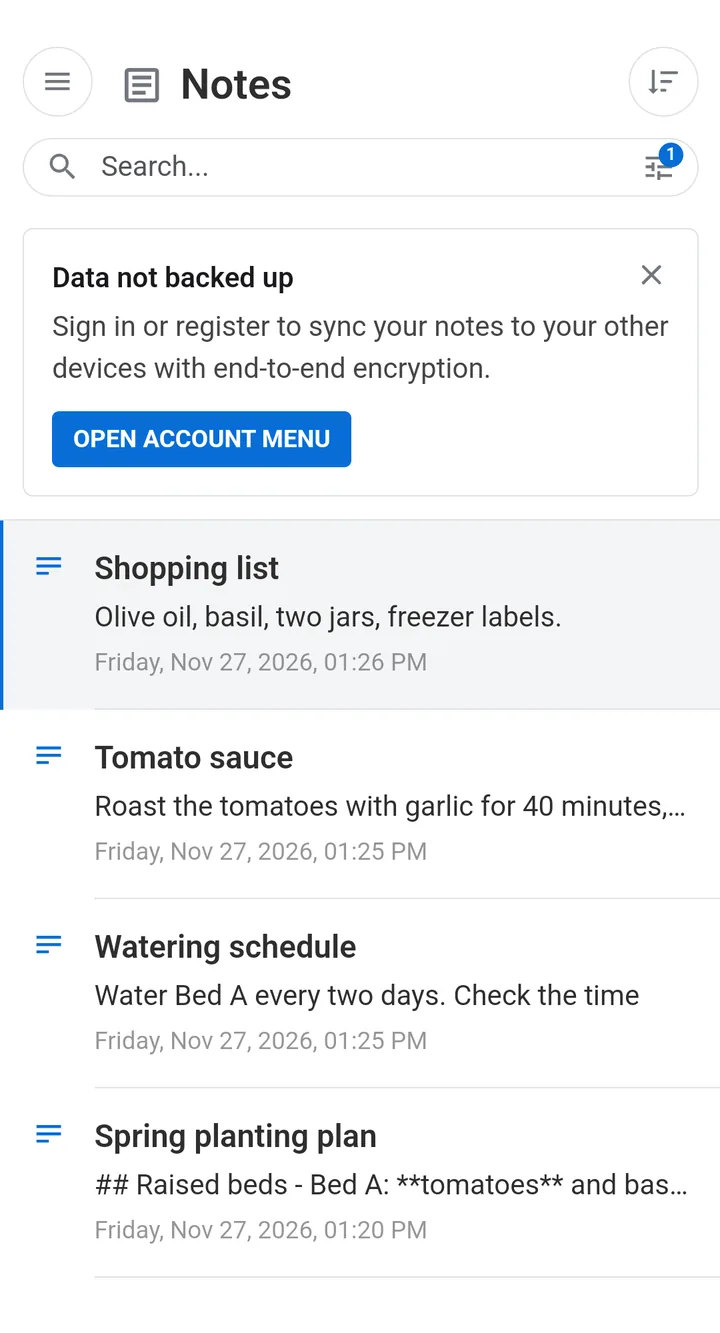
Step 2 Write a note
Tap the round + button. The new note takes the current date and time as its title; tap the title to replace it. The editor is plain text, so
##,**and- [ ]stay as you type them. The green check next to the title means the note is saved.
We added three more notes the same way. Inside a note, use the back arrow at the top left to return to the list. On our emulator the Android back gesture only closed the keyboard while it was open.
Turn on the passcode
Step 3 Open Preferences, then Security
Open the menu at the top left and tap the sliders icon in the bottom bar, Go to preferences. Preferences opens on Account; use the drop-down at the top to pick Security. The first card read Encryption is not enabled. Sign in, register, or add a passcode lock to enable encryption.
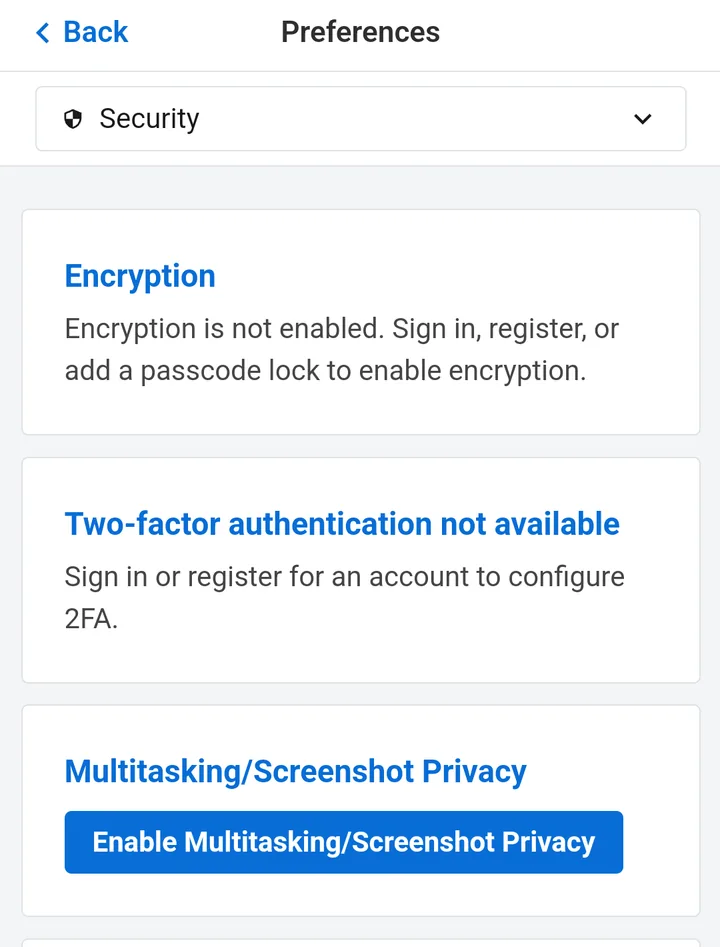
Step 4 Add passcode
Under Passcode lock, tap Add passcode, type it twice and tap Set Passcode. If the two fields differ, a dialog says The two passcodes you entered do not match. We hit that once when the keyboard moved the second field.
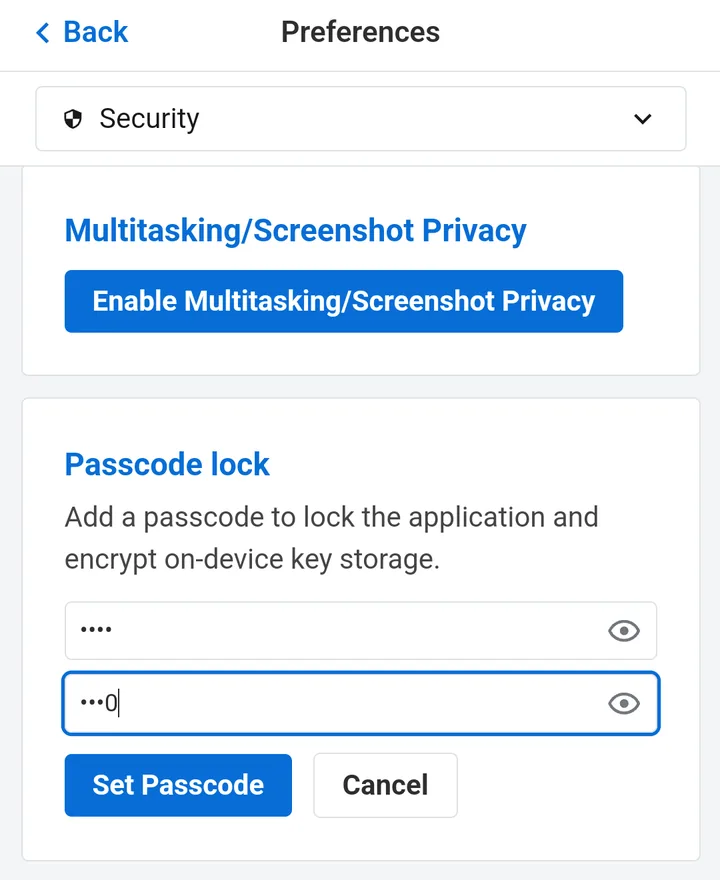
Step 5 Read the new cards
The page now showed Passcode lock is enabled with Change Passcode and Remove Passcode, a Passcode Autolock choice between Immediately and On Quit, and a new Protections card. It says viewing or searching protected notes, exporting decrypted backups and similar actions now need extra authentication.
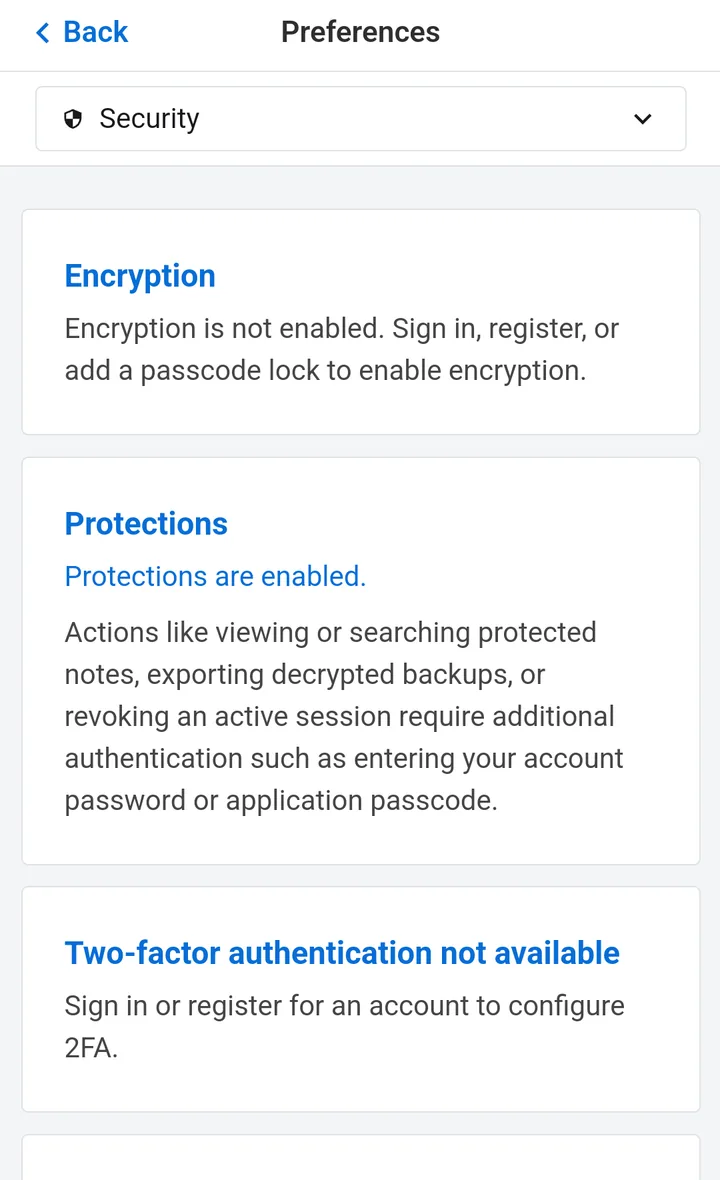
The Encryption card at the top still showed its old text when we took the capture. The backup we made later was encrypted, as the backup and export guide shows, so read the Passcode lock card as the status.
Check the lock offline
Step 6 Restart the app in airplane mode
We turned on airplane mode, closed the app and opened it again. It showed Authentication is required to unlock the application, a passcode field, Submit, Forgot passcode? and Switch workspace. The plane icon in the status bar confirms no network was involved.
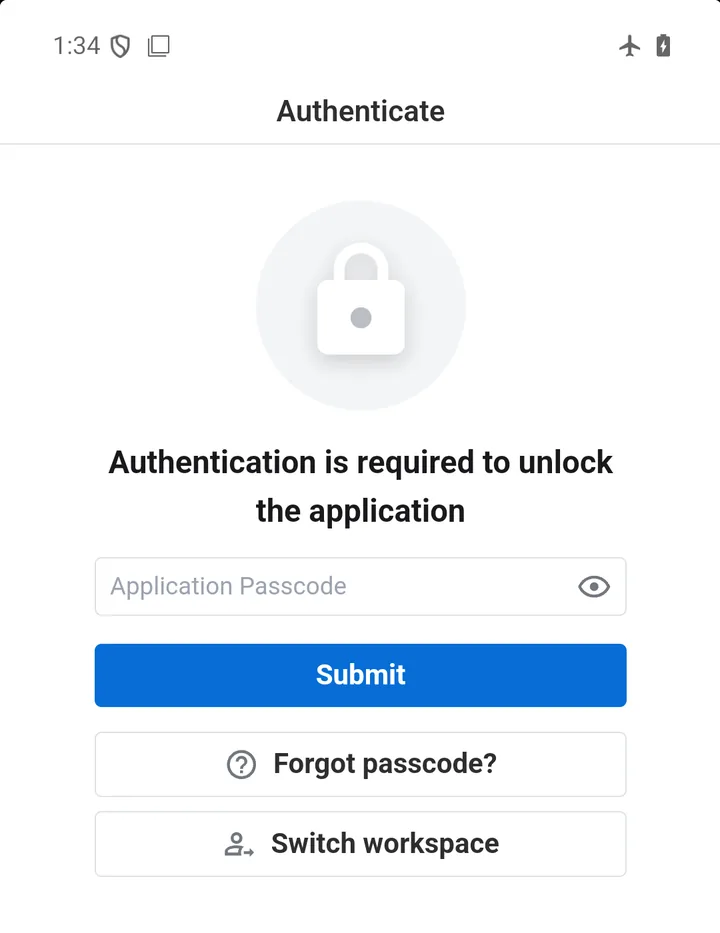
After the passcode, the notes and both tags were there. The offline help page (external site) says that once a passcode is set, the same level of encryption is used as with an account, and that data without an account stays on the device and is not synced.
What an offline-only setup gives up
- No copy anywhere else. The app reminds you with Data not backed up, and the fix is a manual backup.
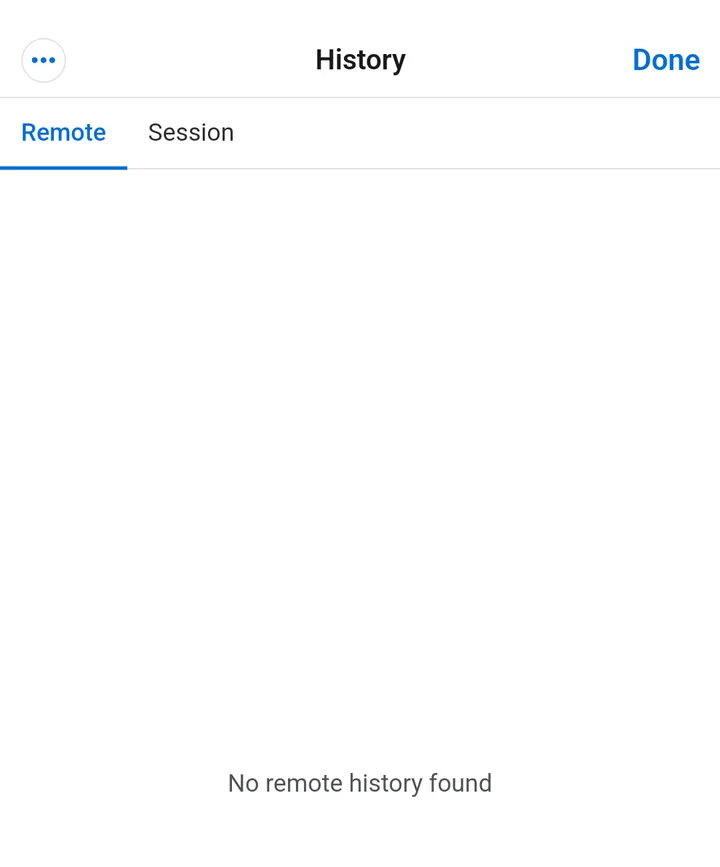
- No remote note history. In a note's menu, Note history showed a Remote tab with No remote history found.
- No file attachments on the free tier.
- No way back without the passcode. We did not try Forgot passcode?, so plan a passcode you will remember and keep a backup.
Common errors and how we fixed them
ProblemThe two passcodes you entered do not match.
FixTap OK, tap each field again and retype. Close the keyboard before you tap Set Passcode, so the button does not move.
ProblemEvery new note got the date and time as its title.
FixTap the title and type your own. The default is set under Display options in the note list: NEW NOTE DEFAULTS showed Title Format: Current date and time.
ProblemThe Encryption card still said encryption was off after setting the passcode.
FixCheck the Passcode lock card instead, or restart the app: the lock screen confirms the passcode is active.
ProblemThe same top-right button opened Display options instead of the note menu.
FixIn the note list it is Display options. Open a note first, then use its top-right menu.
Sources
We checked these sources on the test date.