Tutorial · Loop Habit Tracker
Back up, export and restore Loop Habit Tracker, and get reminders on time on Android 16
We exported a full backup and a CSV file from Loop 2.3.2, deleted a habit, restored it from the backup, and set two reminders. The deleted habit came back with its history, the CSV was refused, and the reminders arrived on the minute, except one the app skipped on purpose.
Test record
- App
- Loop Habit Tracker 2.3.2 (GitHub release APK)
- Device
- Pixel 7 emulator, Android 16 (API 36)
- Tested
- APK source
- official release page (external site)
- Conditions
- Fresh install with no account and no Google account on the emulator, so no cloud app could receive the export. Three Yes or No habits: two with 12 check-ins each and a new one for the reminder test. The backup file was copied to the Downloads folder from a computer with adb. Notifications allowed when Android asked. Reminders set for 1:05 PM and 1:10 PM, five minutes apart.
Two export buttons, two different jobs
Loop keeps everything on the phone, so your history is only as safe as your last export. Both options sit in Settings, in the Database section, next to Import data.
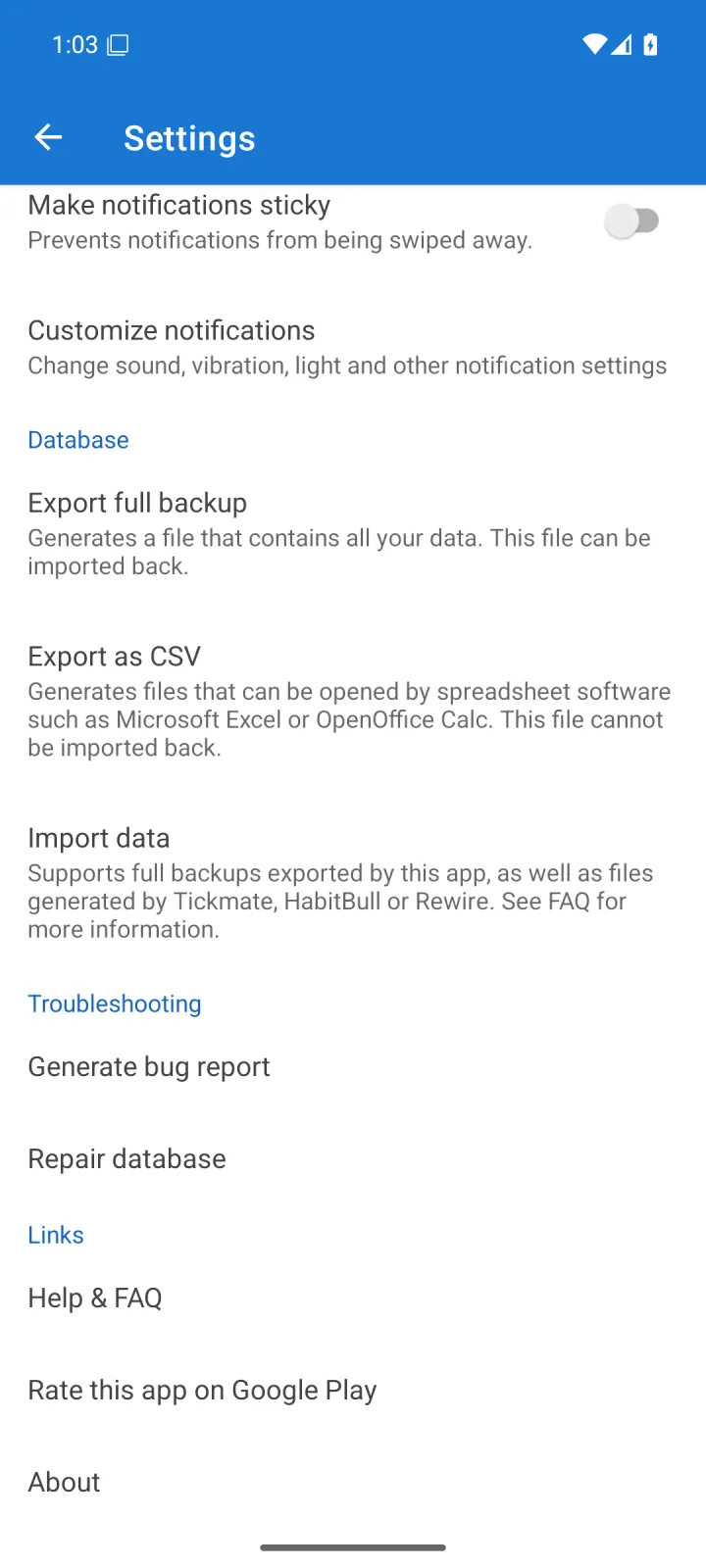
| Export full backup | Export as CSV | |
|---|---|---|
| File | A .db database, 32 KB in our test | A .zip of CSV files, 2.4 KB |
| Import it back | Yes: our deleted habit returned | No: File not recognized |
| Use it for | Restoring or moving your habits | Spreadsheets and your own charts |
Part 1: export a full backup
Step 1 Tap Export full backup and pick a destination
Loop builds the file and opens Android's share sheet. On our emulator, with no account, the sheet offered Quick Share, Bluetooth, Drive and Gmail. Each of them needs an account or a second device.
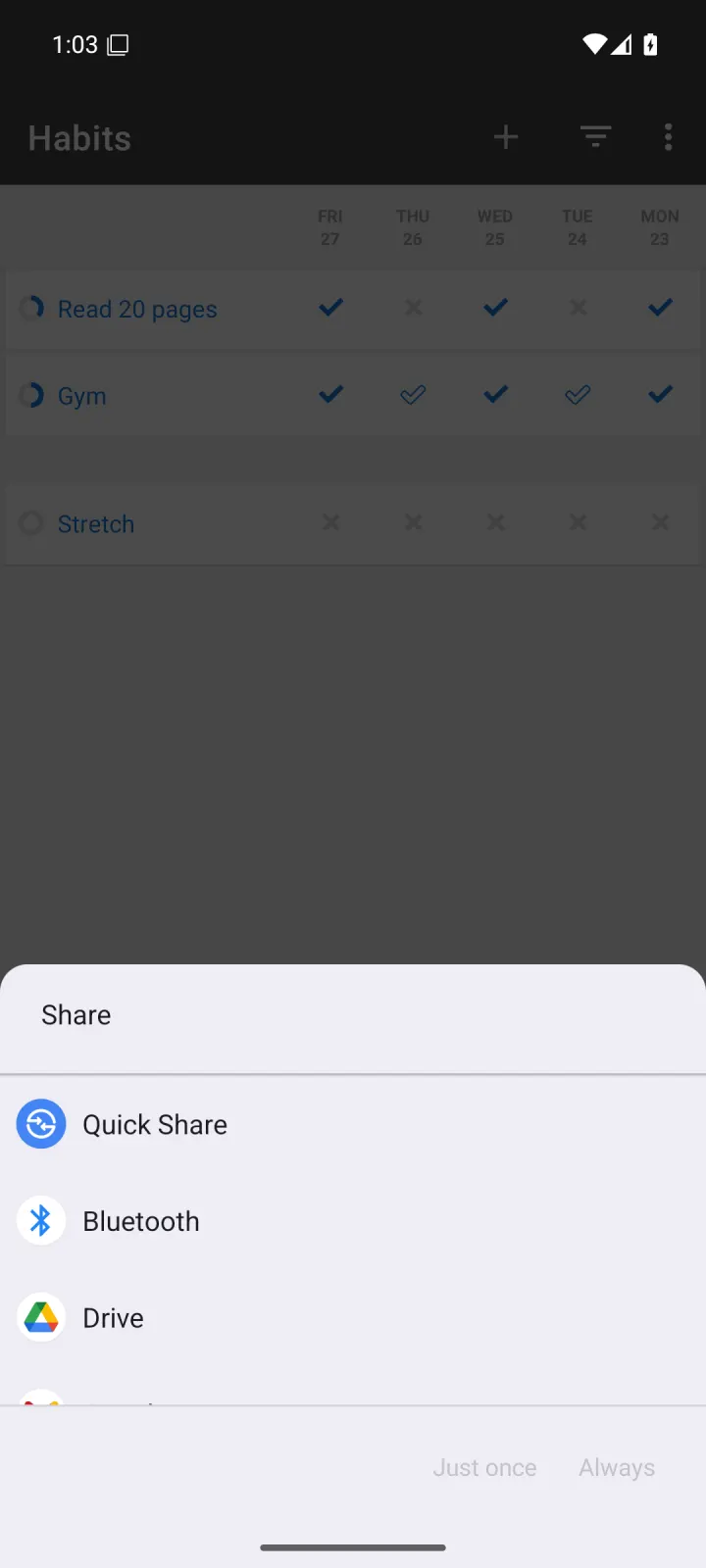
Loop also keeps a copy on the phone. In Android/data/org.isoron.uhabits/files/Backups/ we found Loop Habits Backup YYYY-MM-DD HHMMSS.db, the file we had just exported, and an older copy made at 12:57, the minute we first opened the app. The 2.3.2 source, AutoBackup.kt (external site), makes a copy when the newest one is more than a day old and keeps five.
Our emulator had no cloud account, so we copied the .db file to the Downloads folder from a computer with adb. On a normal phone, saving it to a cloud drive does the same job.
What the CSV contains
Export as CSV produced Loop Habits CSV YYYY-MM-DD.zip, also saved in a CSV folder next to Backups. Inside were Habits.csv with the name, question and frequency of each habit (Gym listed as 3 over 7), Checkmarks.csv and Scores.csv with one column per habit, and one folder per habit with its own two files.
- Checkmarks are words:
YES_MANUALfor days you marked,YES_AUTOfor the automatic checks of non-daily habits,UNKNOWNfor empty days. - Scores have four decimals, for example 0.3498 for a habit the app shows as 35%.
- The Gym file even listed 28 and 29 November, two days ahead, as
YES_AUTO.
Part 2: restore after a mistake
Step 2 Delete a habit to test
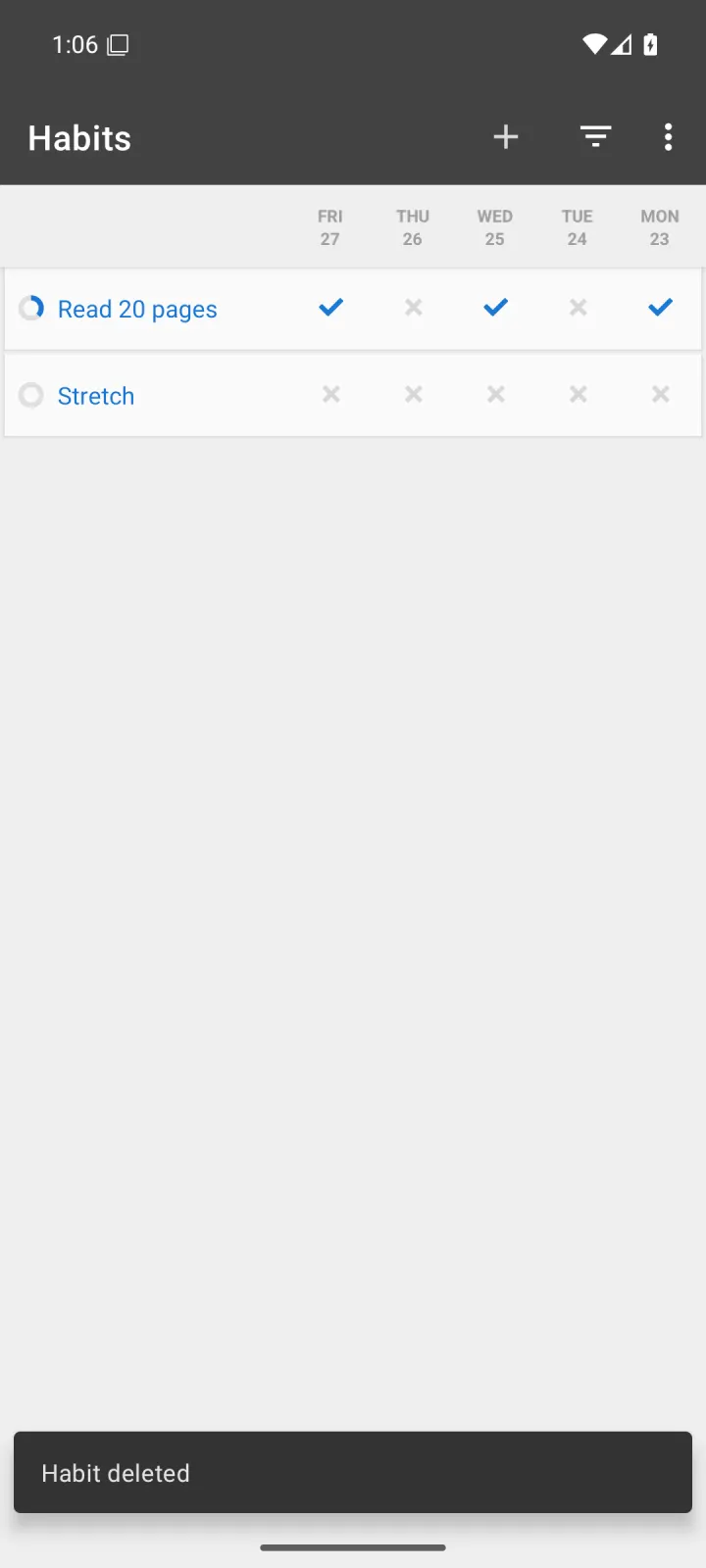
Long-press the habit, open the three-dot menu and tap Delete. The dialog warns that the habit will be permanently deleted and that this cannot be undone. After Yes, a bar said Habit deleted, with no undo button.
Step 3 Import the backup
In Settings, tap Import data. Android's file picker opens on Recent files. Open the picker's side menu, choose Downloads and tap the .db file. Loop returned to the main screen with Habits imported successfully.
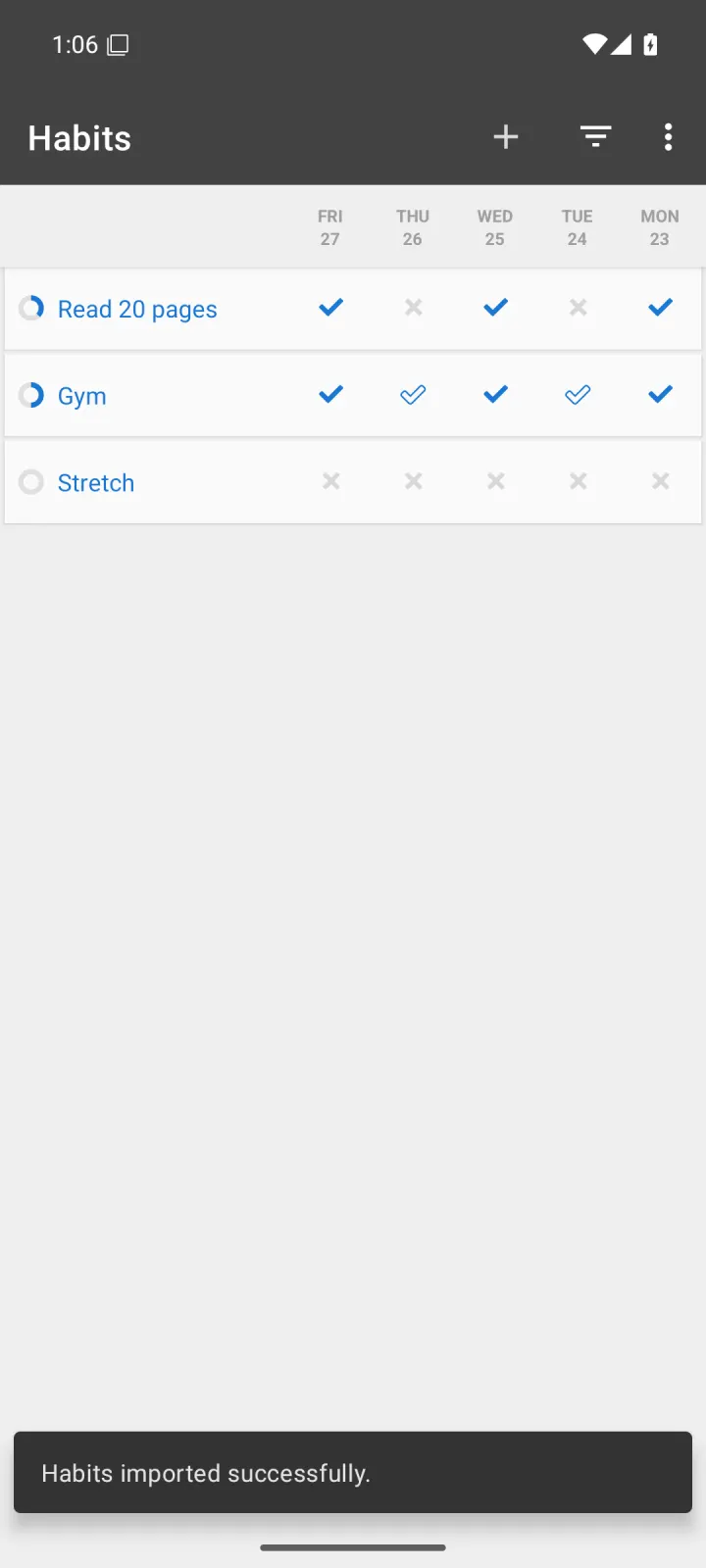
That matches the 2.3.2 importer, LoopDBImporter.kt (external site), which looks each habit up by an internal ID before it creates a new one.
Step 4 Do not try the CSV
We also picked the CSV zip in Import data. Loop answered File not recognized and changed nothing.
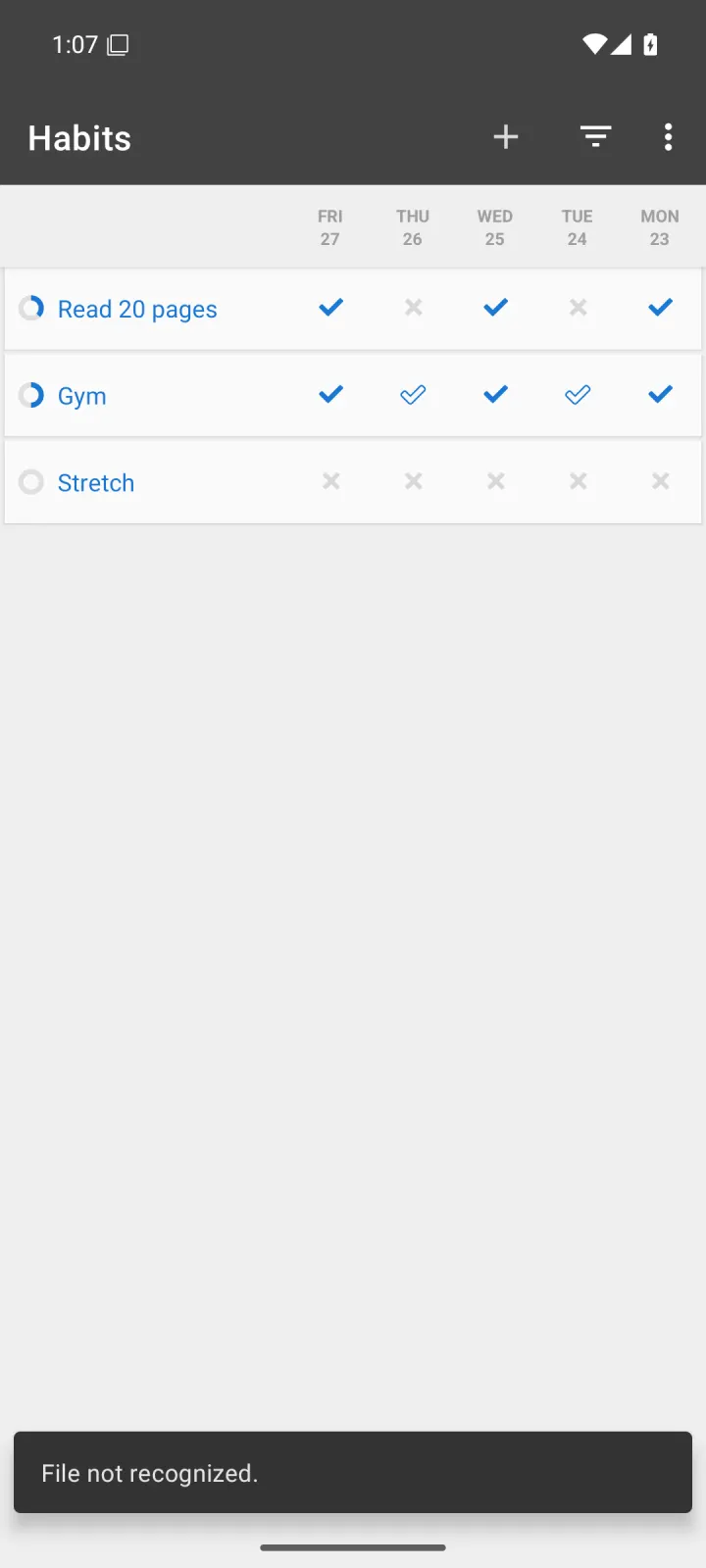
Part 3: reminders that arrive on Android 16
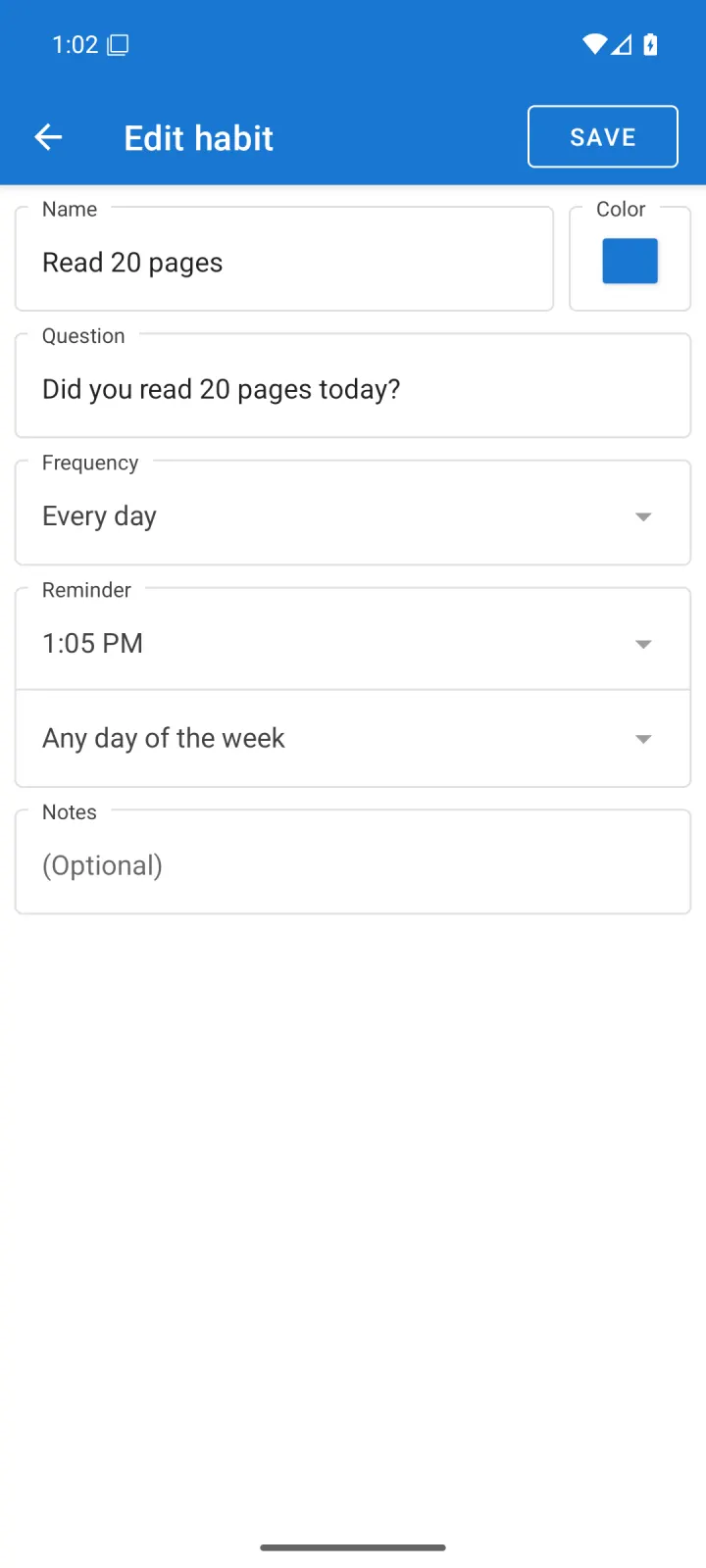
Step 5 Set a time on the habit
Edit the habit and tap Reminder. Pick the time on the clock and tap Done. A new field, Any day of the week, appears below it to limit the days.
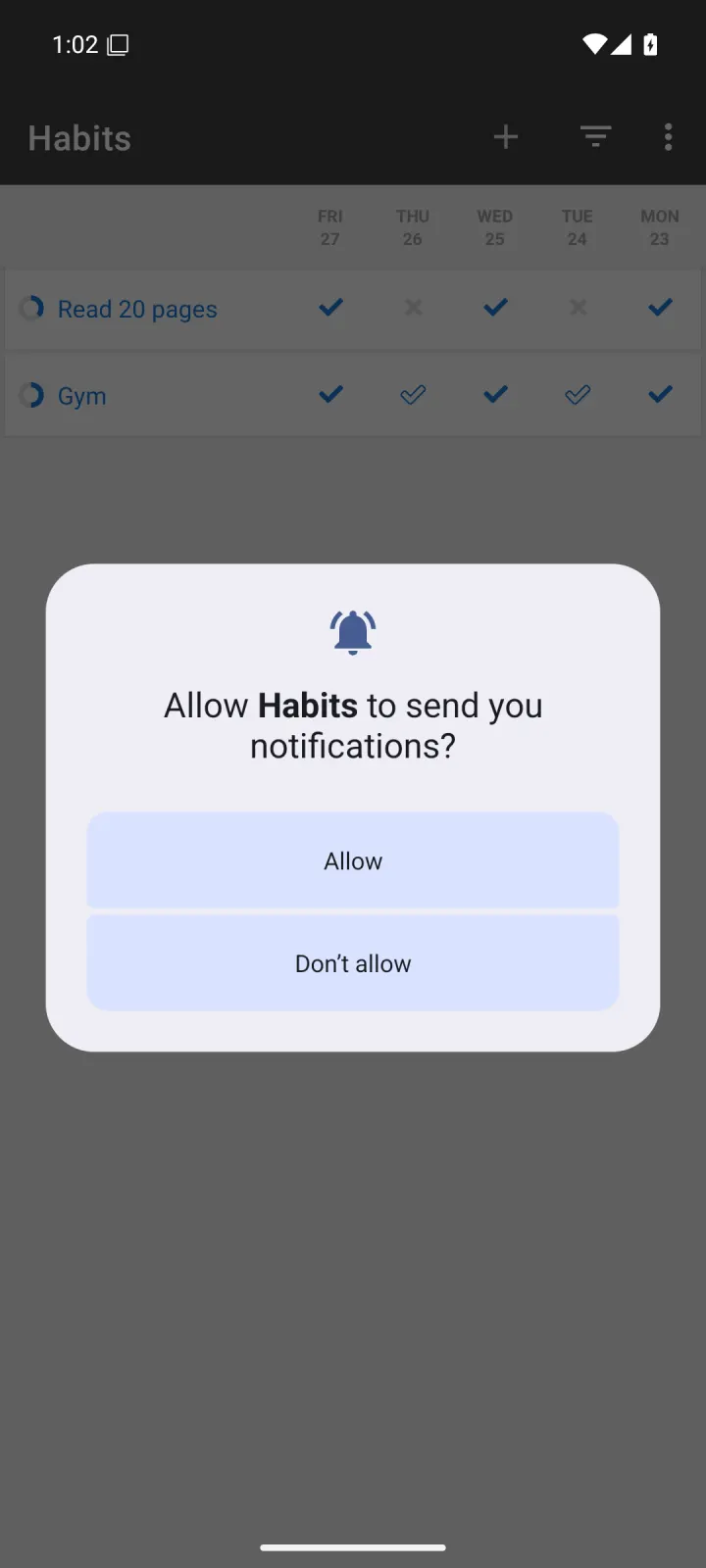
Step 6 Allow notifications when Android asks
When we went back to the main screen, Android asked Allow Habits to send you notifications?. We tapped Allow. Android's notification permission guide (external site) explains that since Android 13 new apps cannot post notifications until you allow them.
Step 7 Answer from the notification
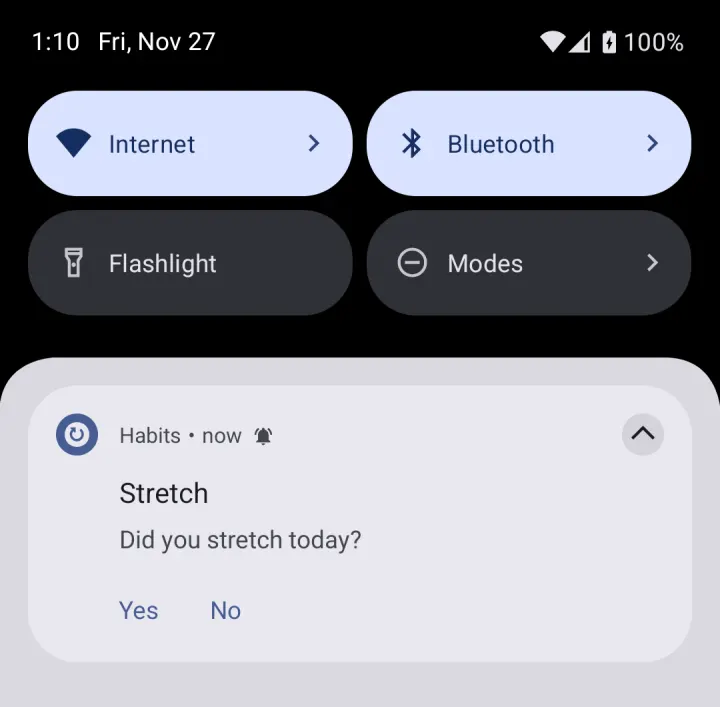
The reminder for Stretch, set for 1:10 PM, arrived at 1:10. It showed the habit's question and two buttons, Yes and No. Tapping Yes marked the day as done without opening the app.
Step 8 Check the alarm permission
On the Alarms & reminders page for Habits in Android settings, the switch was on and greyed out. Loop's manifest asks for
USE_EXACT_ALARM. The Android 14 exact alarm changes (external site) say that permission is granted on install and is meant for calendar and alarm clock style apps, while the more commonSCHEDULE_EXACT_ALARMis no longer pre-granted. Android's alarm list, read with adb, showed both reminders set for the exact minute, then set again for the next day.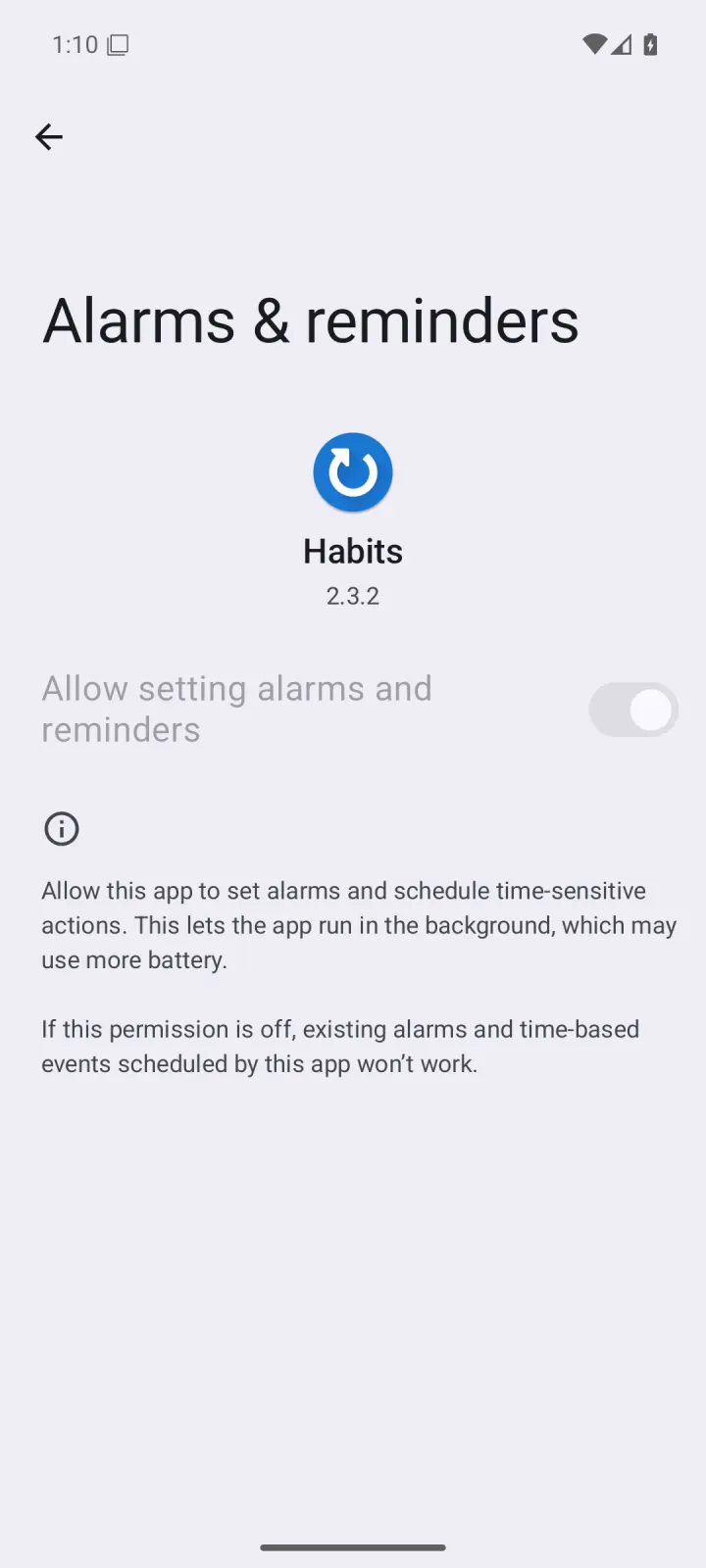
Common errors and how we fixed them
ProblemThe share sheet offered only Quick Share, Bluetooth, Drive and Gmail.
FixCopy the automatic file from
Android/data/org.isoron.uhabits/files/Backupsto a computer over USB, or sign in to a cloud app before you export.ProblemImport data answered File not recognized.
FixThe CSV zip was picked. Only the .db file from Export full backup can be imported.
ProblemThe file picker opened on Recent files without the backup.
FixOpen the picker's side menu and choose the folder where you saved the file, Downloads in our case.
ProblemA reminder never showed up.
FixCheck that the habit is not already done for the day, that the day filter includes today and that notifications for Habits are allowed.
Sources
We checked these sources on the test date.
- Loop Habit Tracker FAQ (GitHub Discussions) (external site)
- AutoBackup.kt, Loop Habit Tracker v2.3.2 source (external site)
- LoopDBImporter.kt, Loop Habit Tracker v2.3.2 source (external site)
- Notification runtime permission (Android Developers) (external site)
- Schedule exact alarms are denied by default (Android 14 behavior changes) (external site)