Tutorial · AnkiDroid
How to back up and restore your AnkiDroid collection without a sync account
We recovered a 12-card deck from a collection export and an automatic backup. In a separate test, we restored a PNG image and a WAV recording from an export into an empty Android profile. Both tests used AnkiDroid 2.25.3 without an AnkiWeb account.
Test record
- App
- AnkiDroid 2.25.3 (GitHub release, x86_64 build)
- Device
- Pixel 7 emulator, Android 16 (API 36)
- Tested
- APK source
- official release page (external site)
- Conditions
- The first collection had 12 Basic notes and one card in learning. We deleted that test deck before each restore. The media test used one card, two fresh Android profiles and a manual export with Include media selected. Both tests used local storage.
Two safety nets, and what each one covers
AnkiDroid can protect a collection without logging in anywhere. It has automatic backups and a full export to a single file. We tested both on a Pixel 7 emulator with Android 16 and AnkiDroid 2.25.3.
| Automatic backup | Exported .colpkg file | |
|---|---|---|
| Who makes it | The app, on a timer or when you tap Create backup | You, with Export |
| Where it went in our test | /sdcard/AnkiDroid/backup/ | The Downloads folder, through the Android file picker |
| Images and audio | Not included, says the app's Backups screen | Included when Include media is ticked |
| Survives a lost phone | No, it stays on the device | Only if you copy the file somewhere else |
| How to restore | Restore from backup | Import, then Collection package (.colpkg) |
The rule we took from the test: automatic backups are for a quick undo, and an exported file is for anything that must survive a lost or reset phone. The Anki manual (external site) gives the same advice for the desktop app: automatic backups live on the same device, so combine them with manual ones.
Before you start: where AnkiDroid keeps your data
Step 1 The storage question on first launch
Our APK came from the project's GitHub releases. On first launch it asked for All files access, which it described as saving the collection in a safe place that will not be deleted if the app is uninstalled. With access granted, the collection and its backup folder sat in
/sdcard/AnkiDroid/.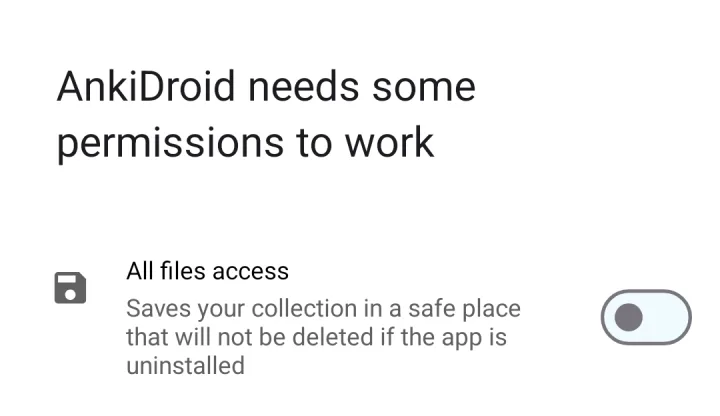
The Google Play build is different, and we did not test it. The 2.25.3 release notes (external site) say the Play build lacks this permission because Google forbids it, and that it invites you to delete your data when you uninstall. On the Play version, treat an exported file as your real backup.
Part 1: check the automatic backups
Step 2 Open Settings, then Backups
Open the side menu, tap Settings and then Backups. Ours made a backup every 30 minutes and kept 12 daily, 10 weekly and 9 monthly copies. The same screen says media files are not backed up.
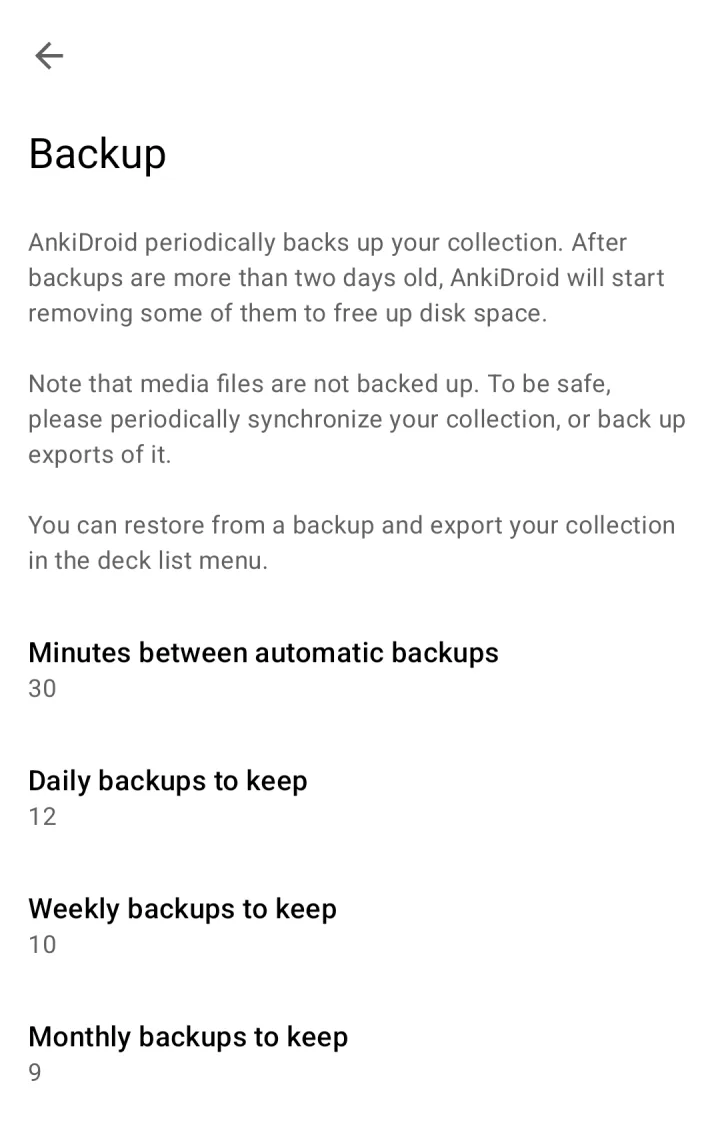
These values differ from the AnkiDroid manual (external site), which still describes a backup every 5 hours and 8 stored copies. Trust the screen in your own version.
Step 3 Make one right now
In the deck list, tap the three-dot menu and choose Create backup. The message Backup created. appeared, and a timestamped
.colpkgfile (backup-YYYY-MM-DD-HH.MM.SS.colpkg) showed up in the backup folder. An earlier one was already there: the app had made it by itself at first launch.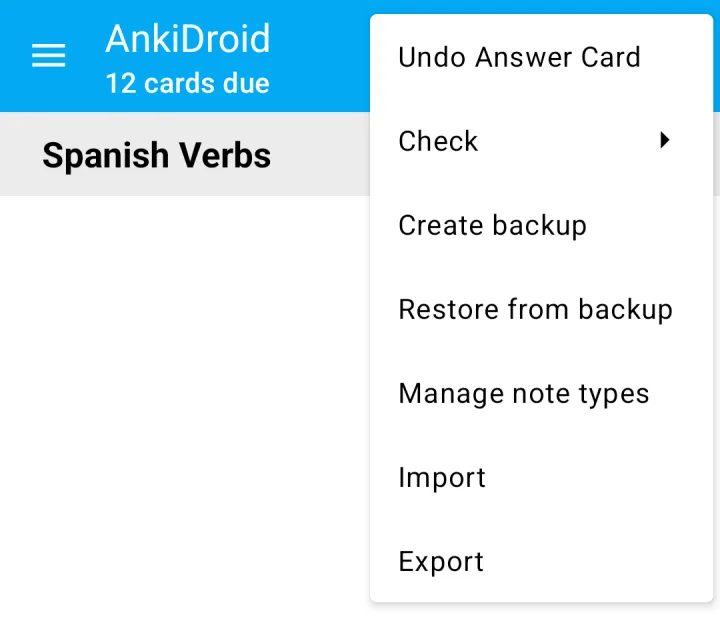
Part 2: export a full collection file
Step 4 Choose Export
From the same menu, tap Export. The dialog offered Anki collection package (.colpkg) with Include media already ticked. We left Support older Anki versions off.
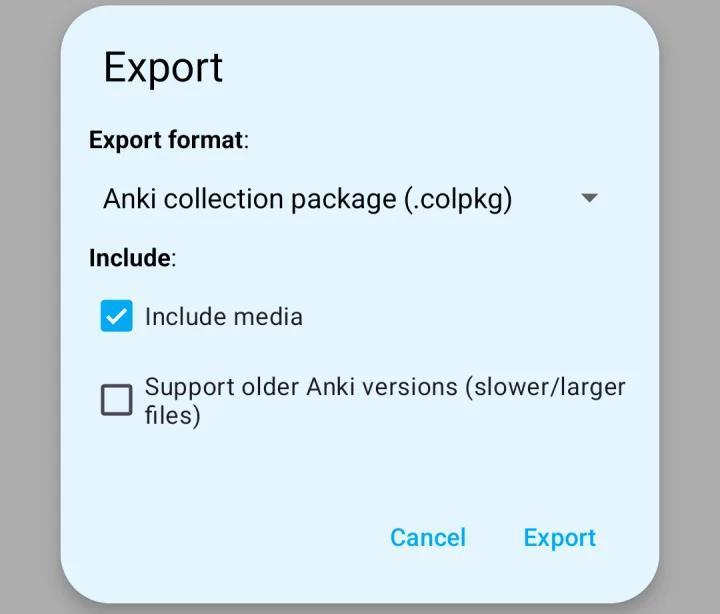
Step 5 Pick Save to, not Share
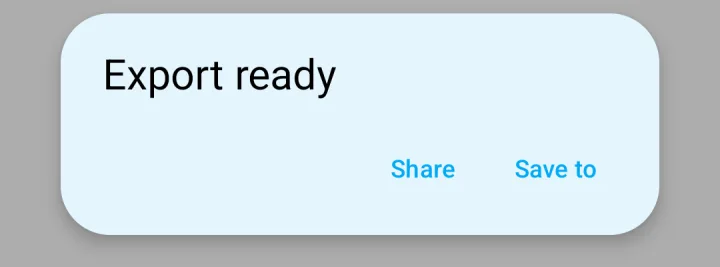
Tap Export. When Export ready appears, choose Save to. It opened the Android file picker, so no sharing app or account was involved.
Step 6 Choose a folder and tap SAVE
The picker opened in Downloads with the name
collection-20261127102825.colpkgalready filled in. After SAVE, AnkiDroid showed Successfully saved Anki package. The file was 58 KB for our 12 cards.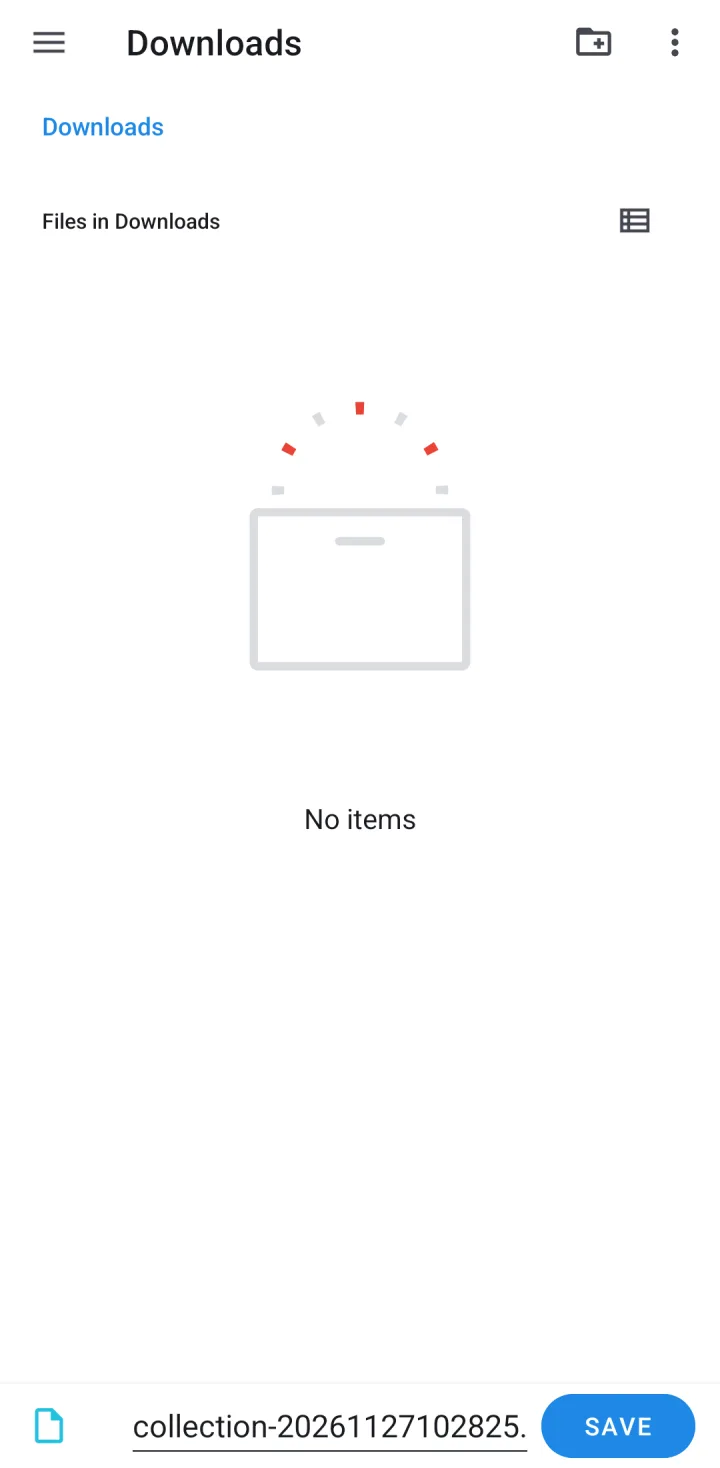
Part 3: restore after a mistake
Step 7 Make the mistake (we deleted the deck)
Long-press the deck and choose Delete deck. No confirmation dialog appeared. The list switched to Collection is empty, and a bar at the bottom offered Undo next to 12 cards deleted from Spanish Verbs.
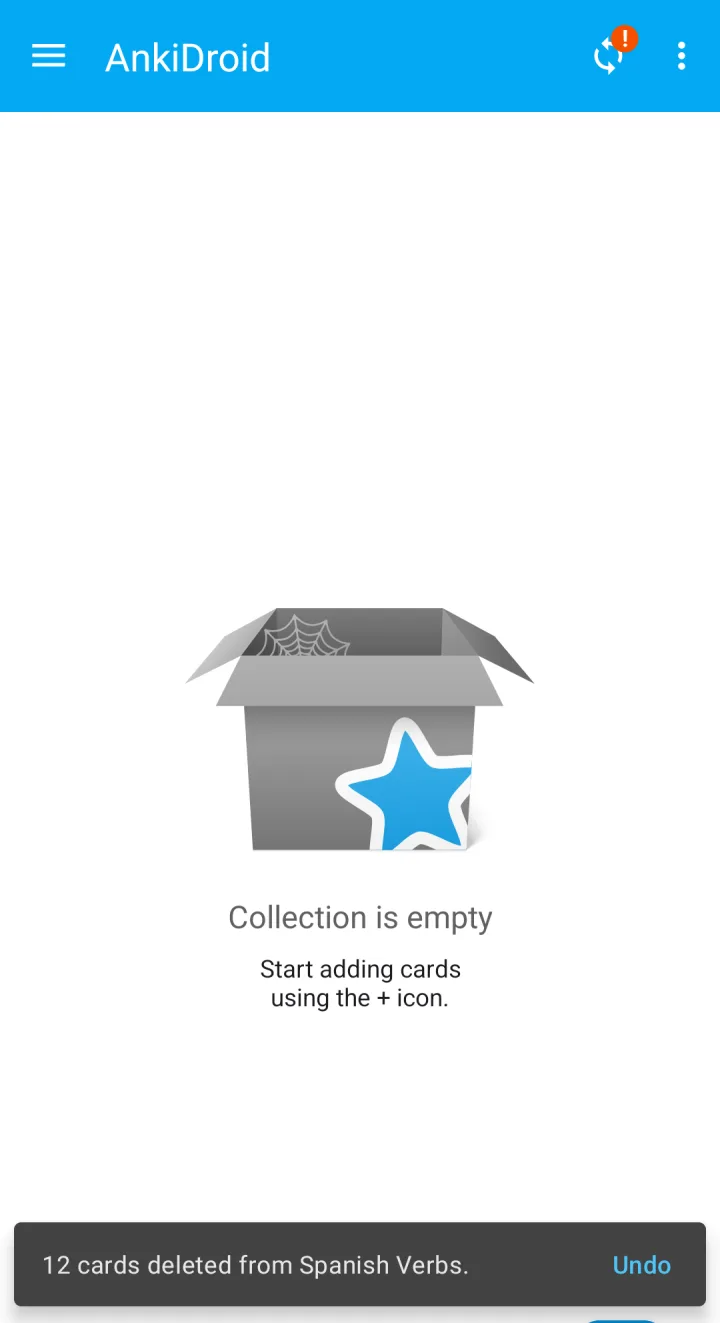
If you notice right away, Undo is the fastest fix. We let the bar disappear to test the two slower routes.
Step 8 Route A: import the exported file
Open the menu, tap Import and then Collection package (.colpkg). Pick the file in Downloads. AnkiDroid warned: This will delete your existing collection and replace it with the data of file collection-20261127102825.colpkg. Tap Replace.
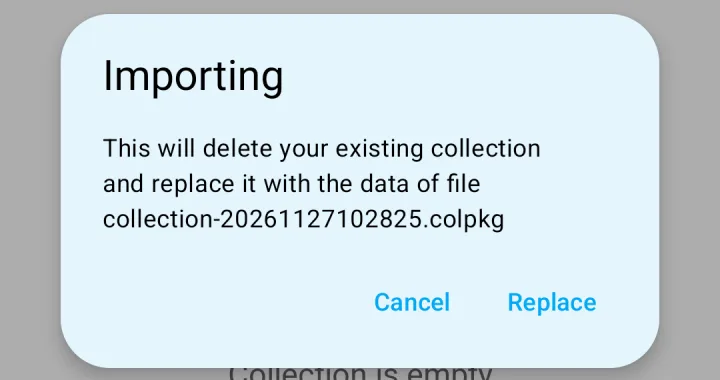
The AnkiDroid manual (external site) explains why the warning is so blunt: a collection package replaces everything, while other .apkg files are merged into what you have.
Step 9 Route B: restore an automatic backup
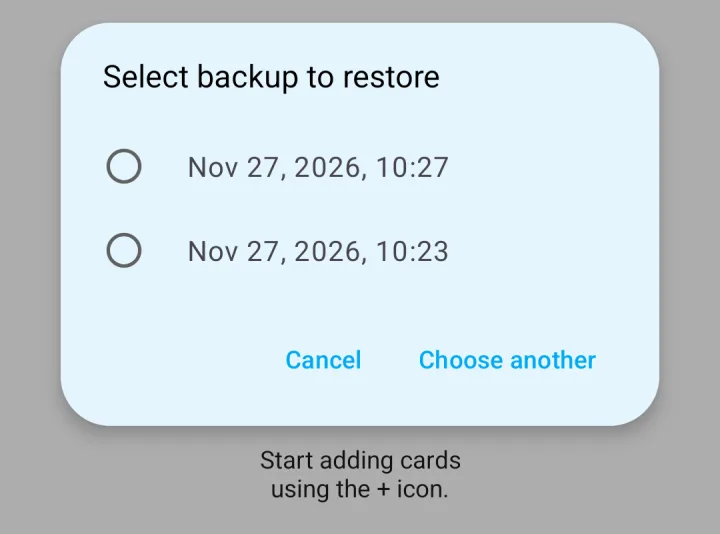
We deleted the deck a second time and chose Restore from backup in the menu. A dialog warned that the collection would be replaced with an older copy. Tap Continue and pick a time from the list. We chose 10:27.
Check that an image and a recording also come back
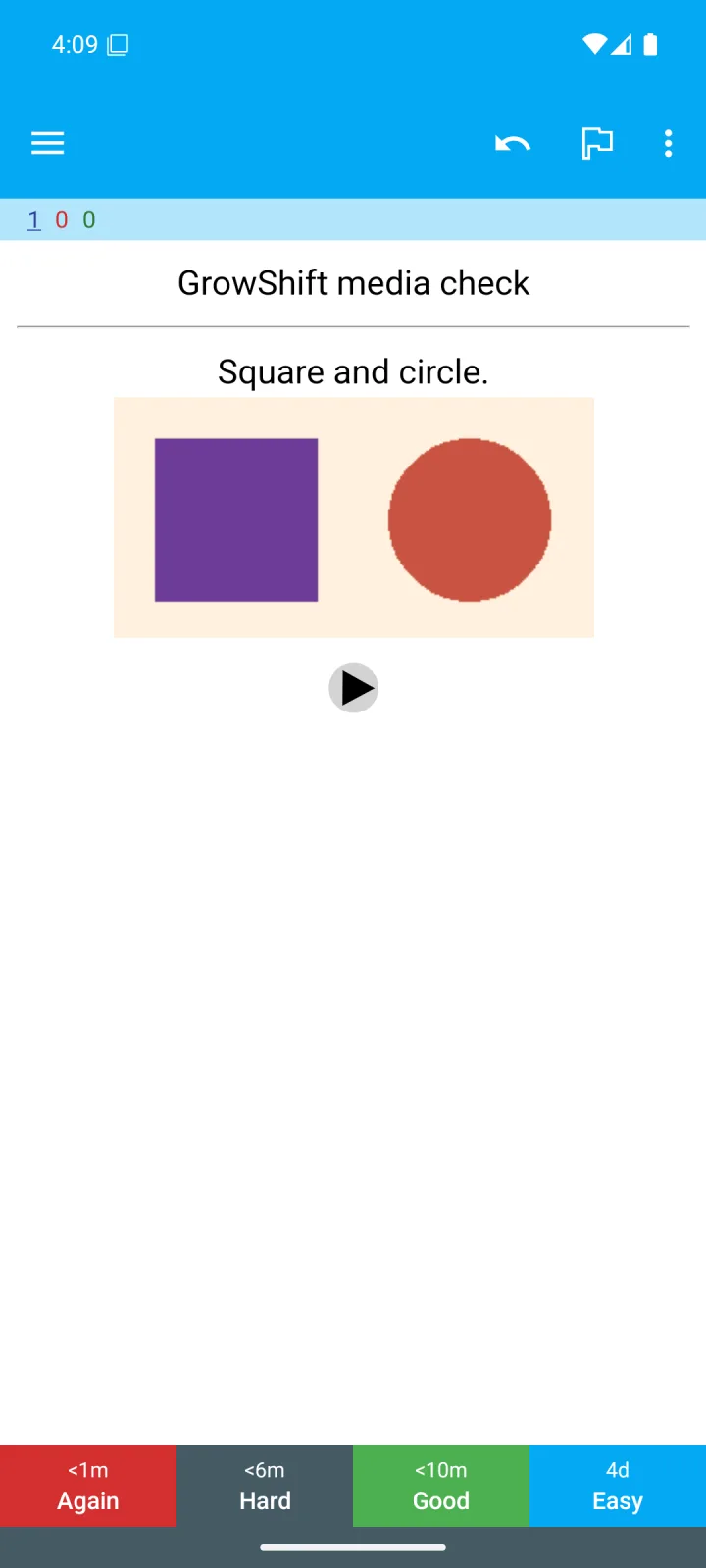
We made one Basic card with a 280 × 140 PNG on the back and a one-second WAV tone. With Include media selected, AnkiDroid exported a 58,801-byte collection package. We copied only that package into Downloads in a second Android profile. AnkiDroid showed Collection is empty before we imported it.
Step 10 Open the restored card and use its replay button
After Replace, the deck showed one new card. We tapped Show answer. The purple square and red circle appeared. Tapping the sound button started a one-second playback. The Android audio log recorded a mono stream at 16,000 Hz, the sample rate of the original WAV.
Which one to reach for
- Deleted something a minute ago? Tap Undo on the bar at the bottom.
- Broke something earlier today? Use Restore from backup and pick a time before the mistake. Anything done after that time is lost.
- New phone, reset phone or reinstalled app? Import the exported
.colpkgfile.
Common errors and how we fixed them
ProblemTapping the file in the picker opened an Open with sheet listing AnkiDroid and Google Wallet.
FixWe had hit the small preview icon at the corner of the file card. Go back and tap the thumbnail or the file name.
ProblemDelete deck did not ask for confirmation.
FixUse Undo on the bottom bar right away, or restore a backup as shown above.
ProblemThe backup schedule in the manual did not match the app.
FixThe Backups screen in 2.25.3 showed 30 minutes and 12, 10 and 9 kept copies. The manual still says 5 hours and 8 copies. The app screen is the one that applies.
ProblemAutomatic backups leave out images and audio.
FixExport a .colpkg with Include media selected, then copy it off the phone. In our clean-profile restore, both the image and the audio returned with their original checksums.
Sources
We checked these sources on the test date.